
Movilitas.Cloud offers the portability of products between environments within the Serialized Manufacturing application. The users can transfer the products from the test environment to the production (live) environment. The function accelerates the tenant setup in the production (live) environment.
The transfer consists of two steps:
1. Export the products of the test environment to a CSV file.
2. Import the CSV file of the products into the production (live) environment.
To make the tool visible, the Serialized Manufacturing application must be activated on the tenant.
List of Procedures
- Exporting the Products on the Test Environment
- Importing the Products on the Production - Live Environment
Exporting the Products on the Test Environment
Procedure
1. Log in to the Movilitas.Cloud test environment.
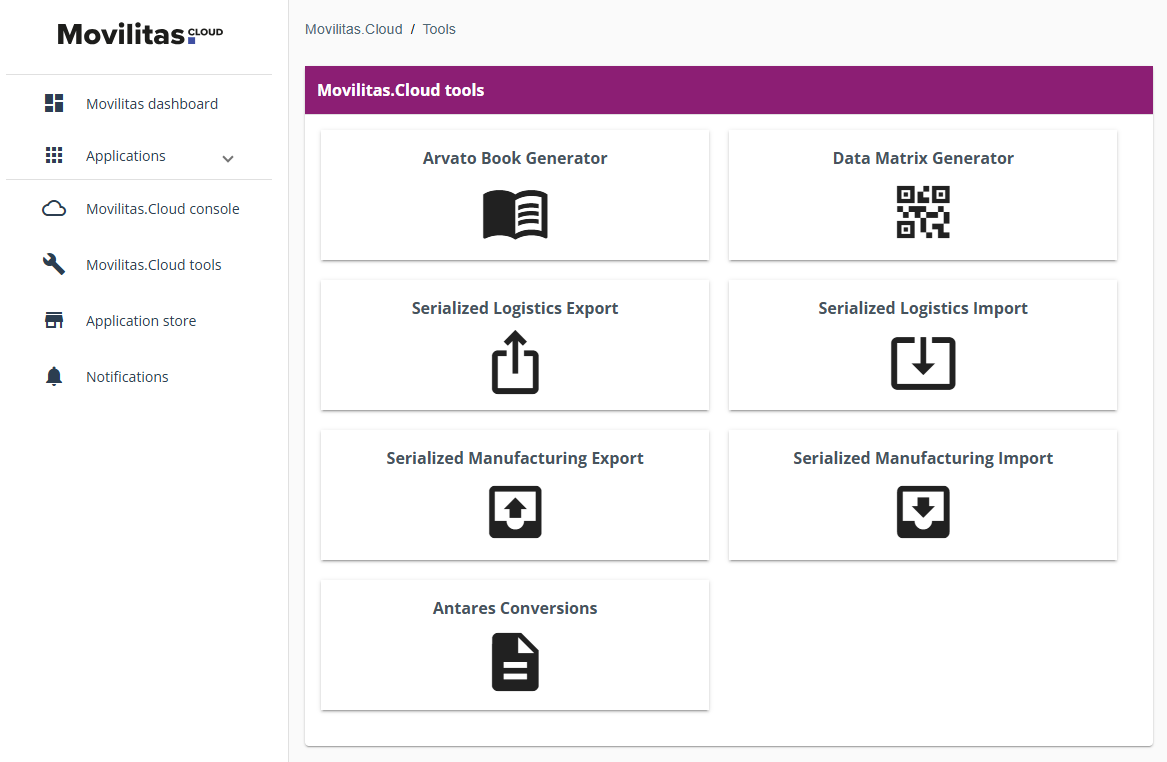
2. Select the Movilitas.Cloud tools option in the left menu. The application displays the Movilitas.Cloud Tools page.
Example:
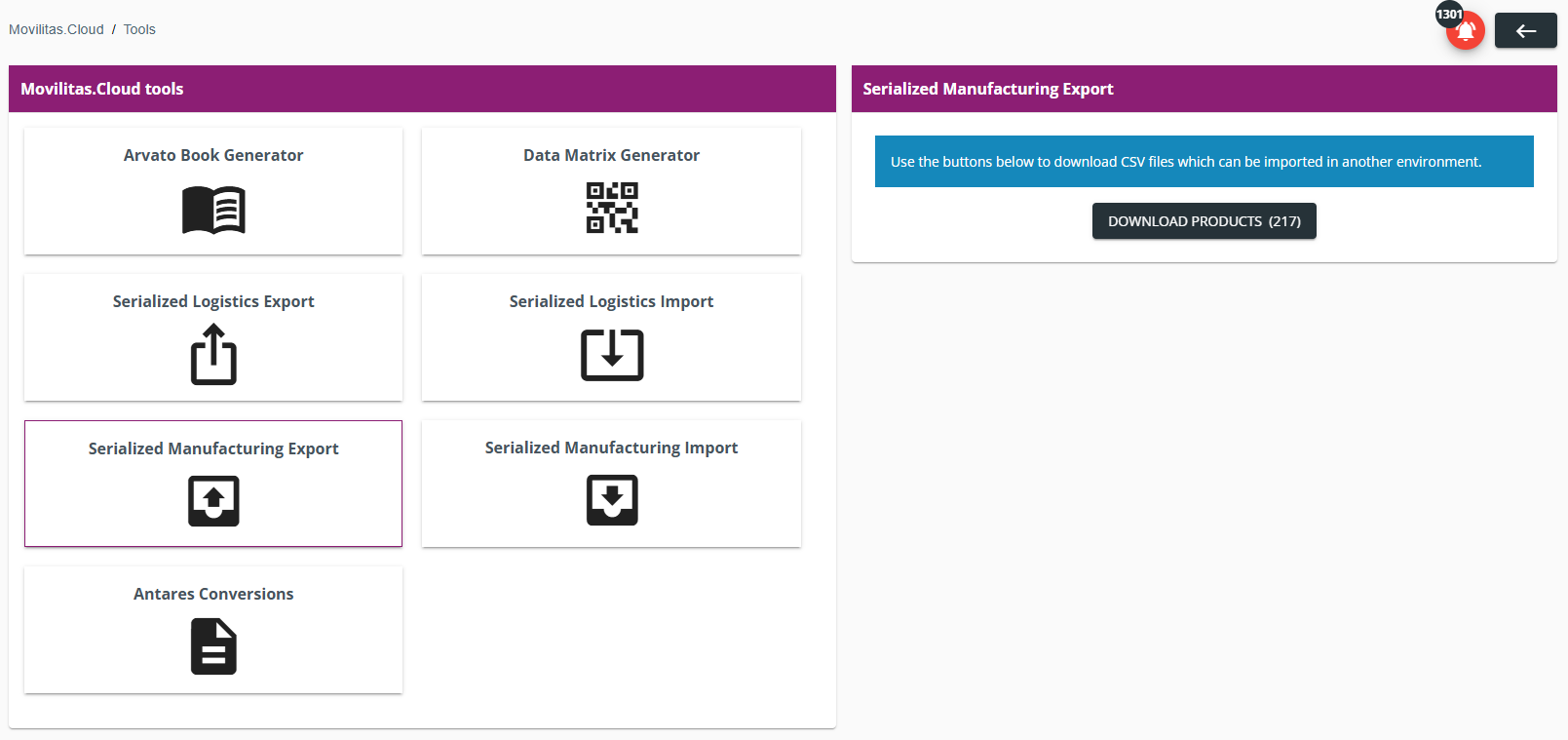
3. Select Serialized Manufacturing Export. The application displays the download button for the products with the number of items in brackets.
Example:
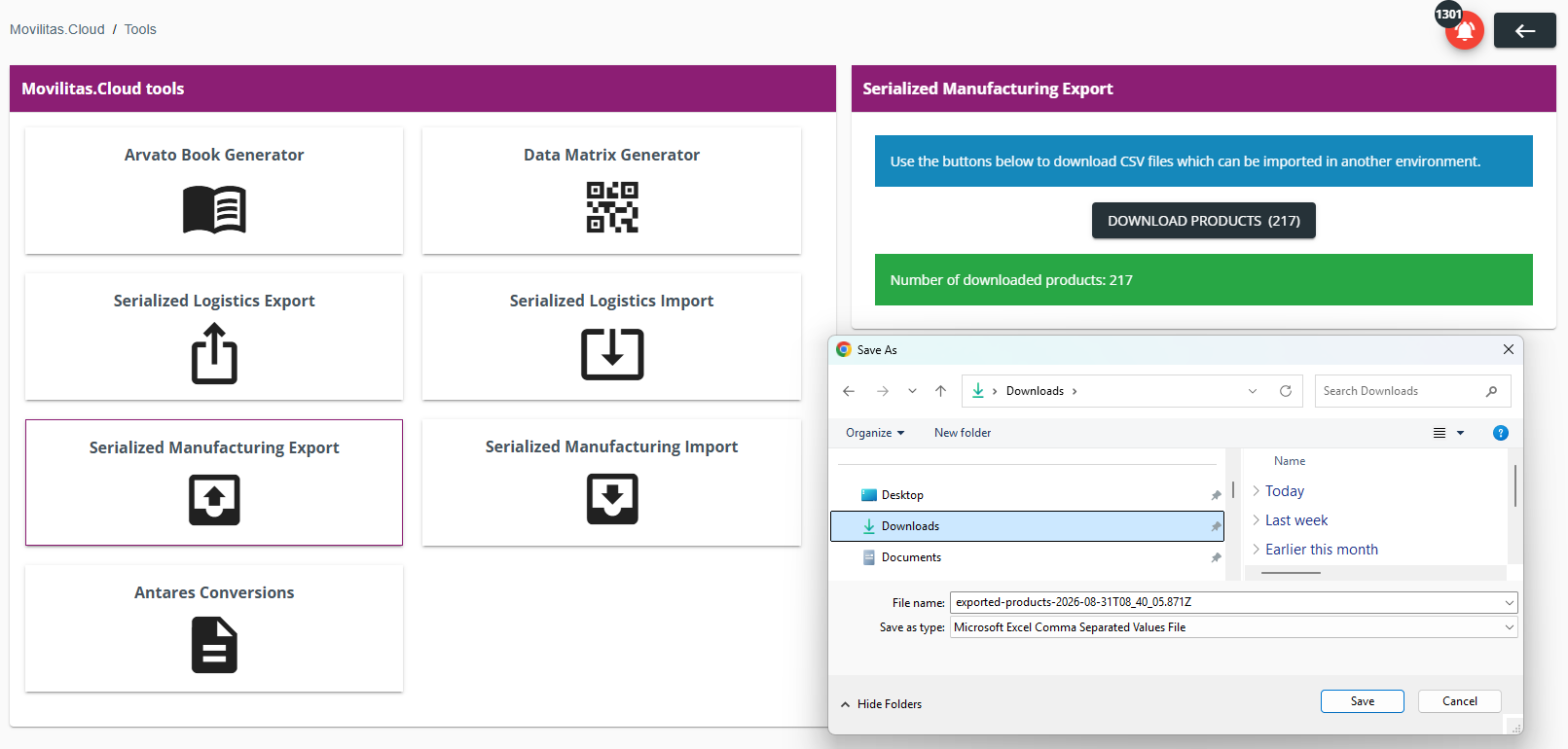
4. Click Download Products and save the CSV file to the local computer.
The CSV file contains the product code schema, product code, and product name.
The application displays the number of exported products in a green status message.
Example (Windows Computer):
Back to the list of procedures
Importing the Products on the Production - Live Environment
You can import products with a custom product code schema.
Before You Begin
Perform the following on the production (live) environment in the Admin UI:
- Activate the Serialized Manufacturing application from the application store.
Procedure
1. Log in to the Movilitas.Cloud production (live) environment.
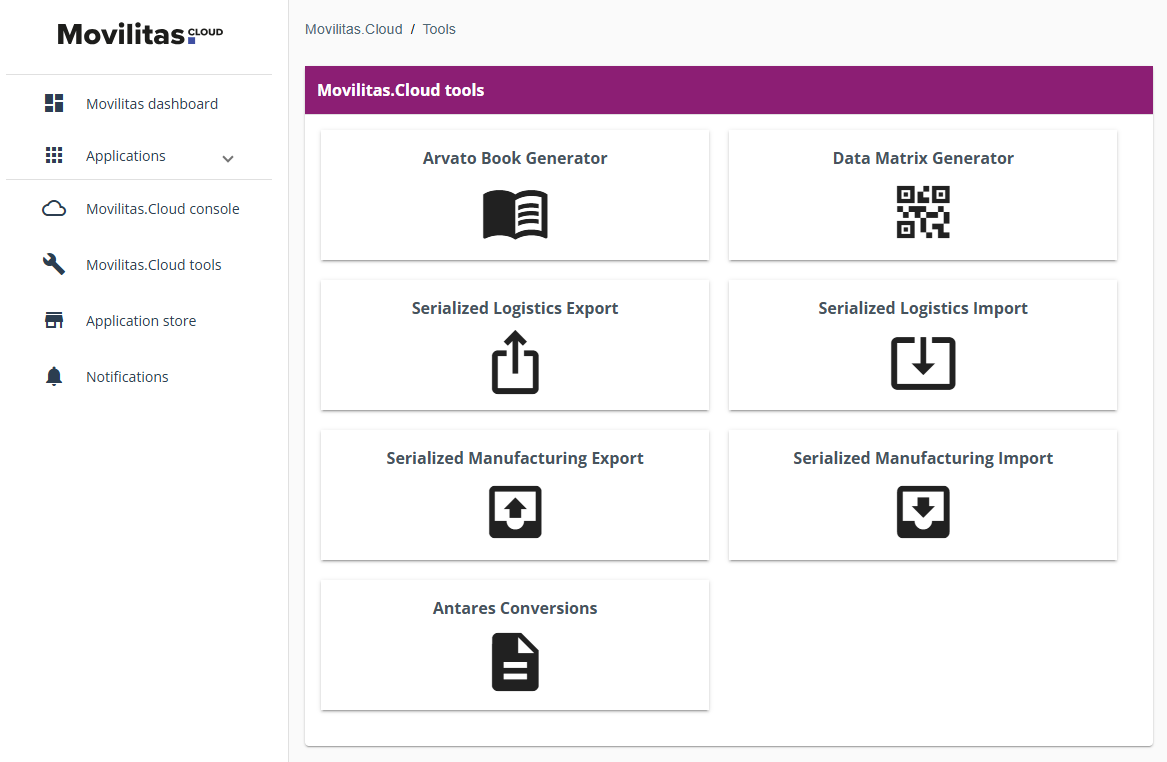
2. Select the Movilitas.Cloud tools option in the left menu. The application displays the Movilitas.Cloud Tools page.
Example:
3. Select Serialized Manufacturing Import. The application displays the import button for the product.
Example:
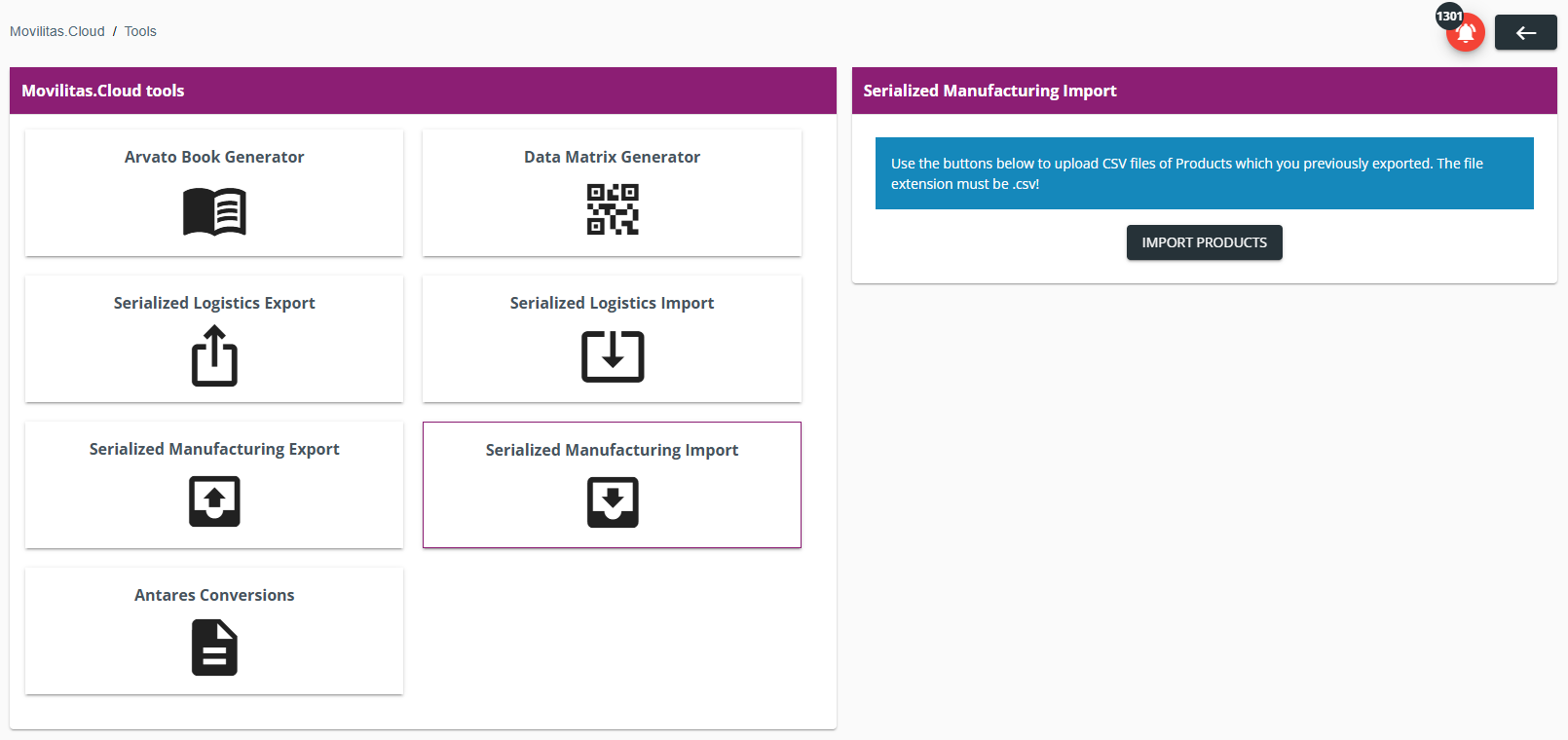
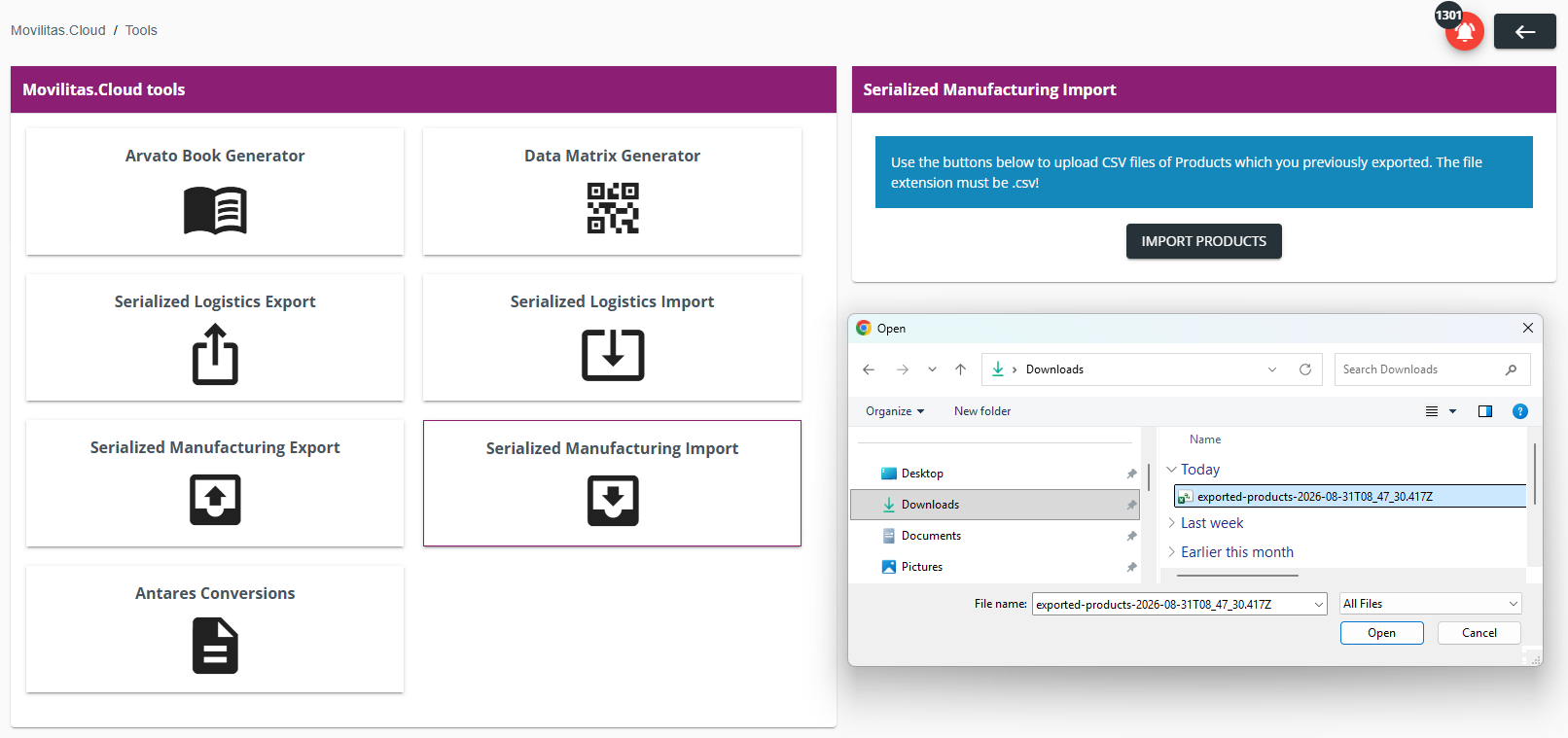
4. Click Import Products and select the CSV file from the local computer to import.
Example (Windows Computer):
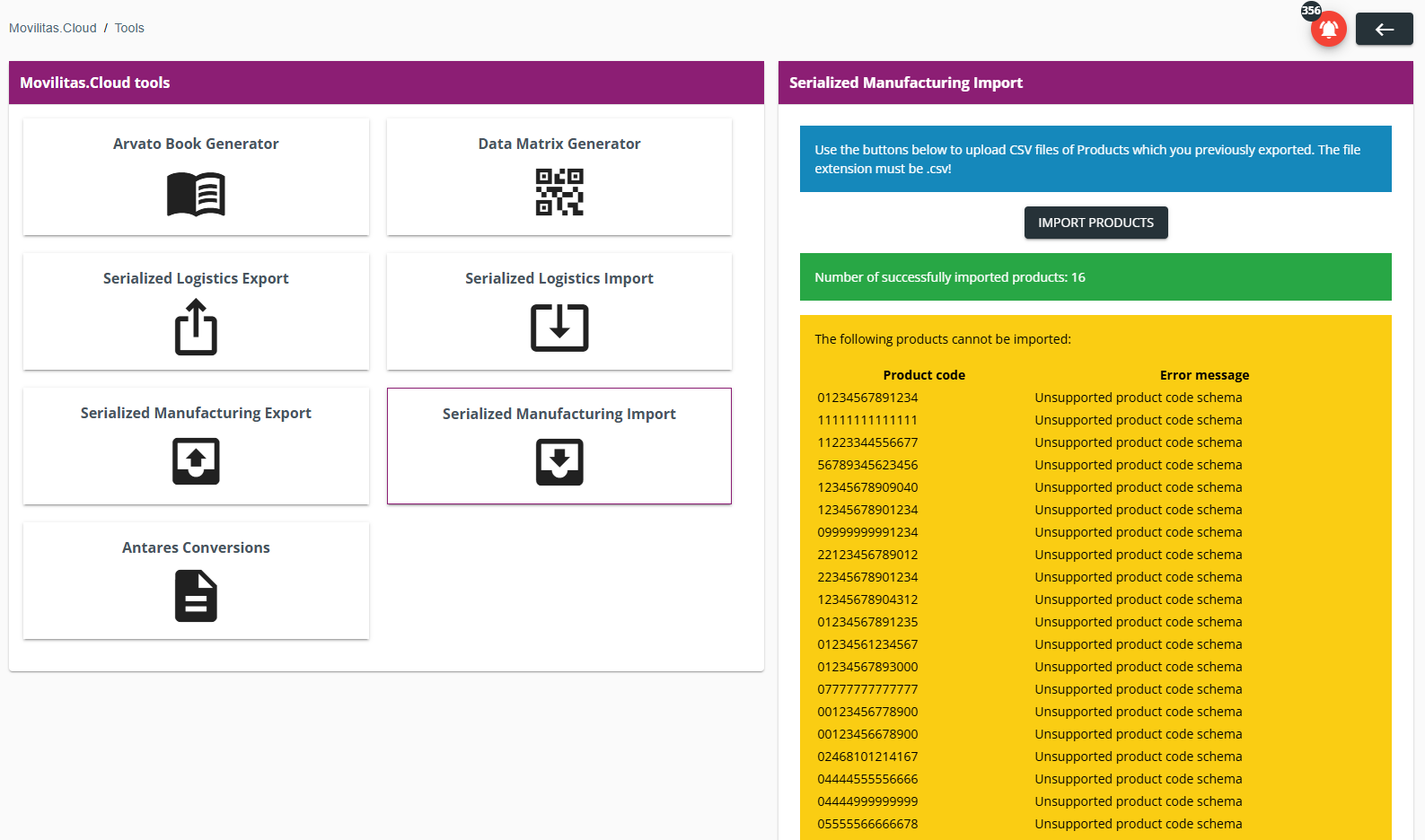
The application imports the products with a custom product code schema and displays the result:
- Green message - The number of successfully imported custom products.
- Yellow messages (if any) - Not imported products. The listed products cannot be imported due to the displayed reason, for example, not supported product code schema.
If the product code is known on the tenant, but not in the Serialized Manufacturing application, the product is also linked to the Serialized Manufacturing application.
If the product code is known in the Serialized Manufacturing application, the product is not changed.
The following example illustrates a successful import of 16 products, while several products were not imported due to an unsupported product code schema:
Back to the list of procedures
