
You can use the Manufacturer V2 API to integrate the shopfloor and the enterprise resource planning (ERP) systems with the Serialized Manufacturing application.
The Manufacturer V2 API uses the Representational State Transfer (REST) standard to interact with other systems.
The Manufacturer V2 API is an extension of the Serialized Manufacturing application of Movilitas.Cloud that enables you to send requests from external systems to the application.
The following figure provides an overview of all the requests that you can send by using the Manufacturer V2 API:
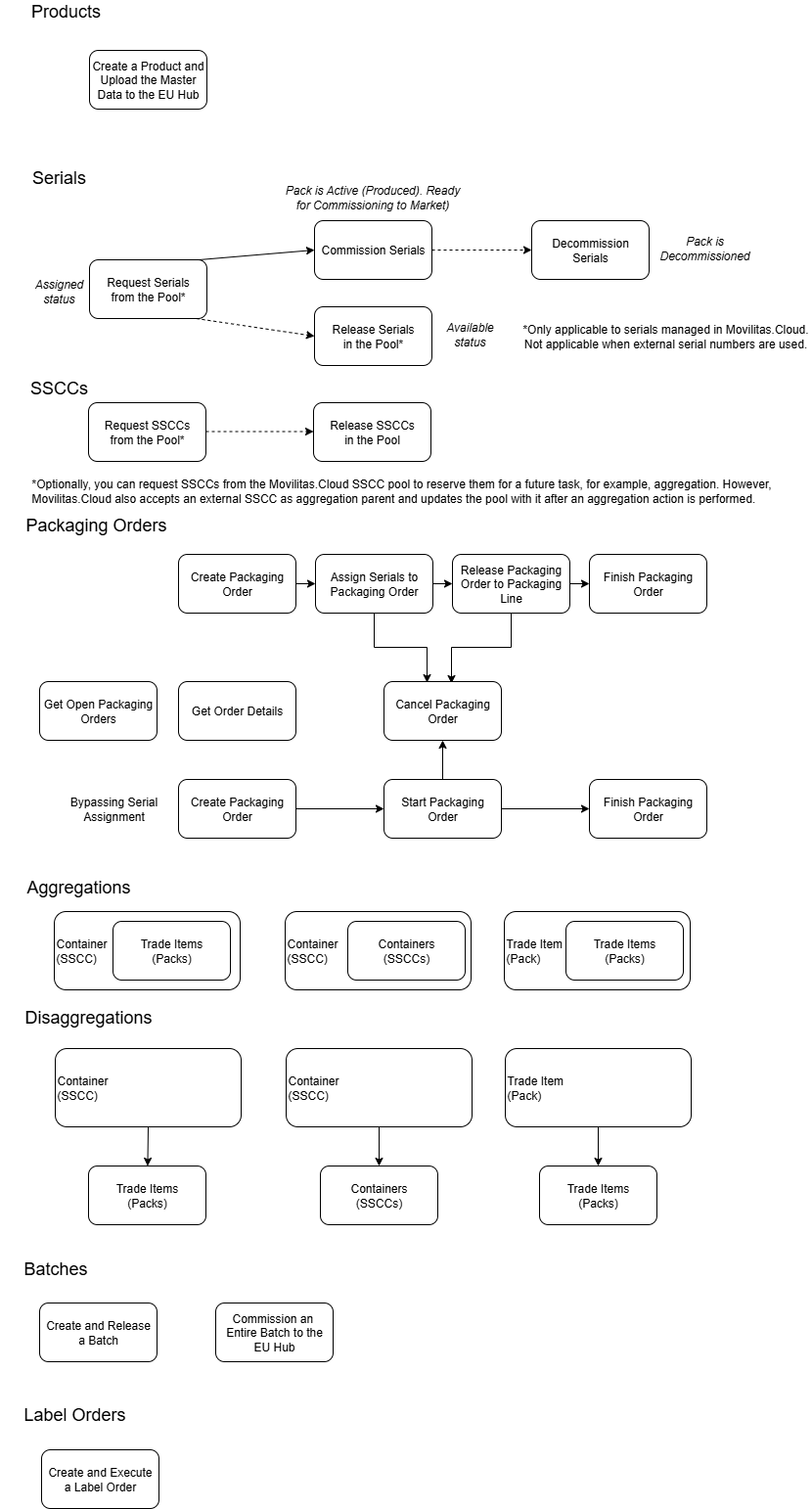
This article describes how to create a product in the Serialized Manufacturing application and how to upload the master data to the EU Hub using the Manufacturer V2 API.
API Tool to Use
In this document, we provide examples by using the cURL command-line tool. To send the API request, you can find a lot of user-friendly REST API tools on the Internet, for example, Postman.
Before You Begin
1. You must enable the Serialized Manufacturing application.
2. You must create an API key and secret.
3. You must create a shopfloor channel with the Manufacturer V2 API source. You will need the channel key for your requests.
4. You must configure the Serialized Manufacturing application and the channels required to connect to external systems.
5. You must have the authentication token to send requests over API. Select one of the following ways:
- Apply a dynamic token. Send an authentication request over the Authentication API. For more information about the Authentication API, open the Tenant Dashboard in Movilitas.Cloud, select API keys, and choose Authentication API Documentation. Also, see Authentication Request.
- Apply a static token. Generate a static token for your previously created API key.
For more information, see Configuring the Movilitas.Cloud APIs.
Procedure
1. Use the POST method and the following URL:
https://api-acc.movilitas.cloud/v1/manufacturer/v2/api/products/
2. For the header, define the content type (JSON), the authentication token, and the channel key.
The token can be given in one of the following ways:
- As x-access-token header.
- As Authorization header by using the Bearer schema.
Header Option 1
| Key | Action |
|---|---|
| Content-Type | Apply JSON format for the content. Use the value application/json. |
| x-access-token | Provide the authentication token. |
| x-channel-key | Provide the channel key of your Manufacturer V2 API channel. |
Header Option 2
| Key | Action |
|---|---|
| Content-Type | Apply JSON format for the content. Use the value application/json. |
| Authorization | Provide the authentication token as Bearer <token>. |
| x-channel-key | Provide the channel key of your Manufacturer V2 API channel. |
3. In the body of the request, define the parameters and their values based on the table below.
| Field | Required or Optional? | Type | Description |
|---|---|---|---|
| release_to_eu_hub | Optional | Boolean | A flag to indicate uploading the master data to the EU Hub after the product is created:
If not specified, the default is "false". |
| product_code | Required | Number | Product code. It is the global identifier of the product. |
| product_code_alias | Optional | String | An internal identifier of the product typically used in your ERP system. For example, material number. |
| product_name_alias | Optional | String | An internal naming of the product typically used in your ERP system. |
| product_code_schema | Required | String | Product code schema. The application supports one value, "GTIN". |
| description | Optional | String | Official product name. |
| gs1_company_prefix | Optional | Number | GS1 company prefix of the product, derived from the product code. |
| version_number | Optional | Number | Product version number. If not specified, the default is "1". |
| market_id | Required | String | The market of the product. The application supports one value, "EU". |
| eu_market | Required | Object | The object collects master data specific to the EU market. |
| eu_market_settings | Required | Object | The object collects master data specific to the EU countries settings in the application. Applicable when connecting to the EU Hub. |
| eu_country | Optional | String | EU country code (two-letter code) where the product is released:
|
| mah | Optional | String | MAH of the product. Use the MAH tag specified for the MAH in the EU Hub channel settings |
| assigned_3pl_tags | Optional | String Array | Contracted wholesalers (3PLs) of the product in the country. Multiple 3PLs can be specified. Use the 3PL tag specified for the 3PL under the Site management --> 3PLs tab in the Serialized Manufacturing application. |
| article_57_code | Optional | String | Article 57 code or the Packaged Medicinal Product Identifier (PCID). The following information is reused from EMVS Master Data Guide v5.0 published by the EMVO and helps your understanding of what data you need to provide here:
For more information, see EMVS Master Data Guide published by the EMVO. |
| national_code | Optional | String | National code of the product. If NMVO requires the national code, the field is mandatory. |
| repacked | Optional | Boolean | A flag to indicate whether the product in the request is a repacked product:
If not specified, the default is "false". |
| origin_product_code | Optional | String | Product code of the origin (source) product to be repacked. Only applicable if the repacked flag is set to "true". |
| strength | Optional | String | Strength value of the medicine. The strength is the content of the active substances expressed quantitatively per dosage unit, per unit of volume or weight according to the dosage form. For example, 250 milligrams (mg) per tablet. Applicable when connecting to the EU Hub. |
| pack_size | Optional | Number | The number of (repackable) doses in the pack (dose count). For example, if there are 30 pills or tablets in a pack, then enter 30. For non-repackable items, like powder or syrup, the value is 1. Applicable when connecting to the EU Hub. |
| common_name | Optional | String | The International Non-proprietary Name or the usual common name of the active substance(s), for example, “Amoxicillin”. Applicable when connecting to the EU Hub. |
| pharmaceutical_form | Optional | String | The pharmaceutical form of the medicine. The pharmaceutical form is the physical way how the medicine (the active substance) is presented. For example, “Film-coated tablet”. Include a value as per the guidelines from EMVO. For more information, see Allowed Values for Pharmaceutical Form (EU Products Only). Applicable when connecting to the EU Hub. |
| pack_type | Optional | String | The type of packaging, for example, “Box”, “Bottle”, or “Bag”. Include a value as per the guidelines from EMVO. For more information, see Allowed Values for Pack Type (EU Products Only). Applicable when connecting to the EU Hub. |
4. Send the request. The product is created and, depending on the release to the EU Hub flag status in the request, master data is uploaded to the EU Hub.
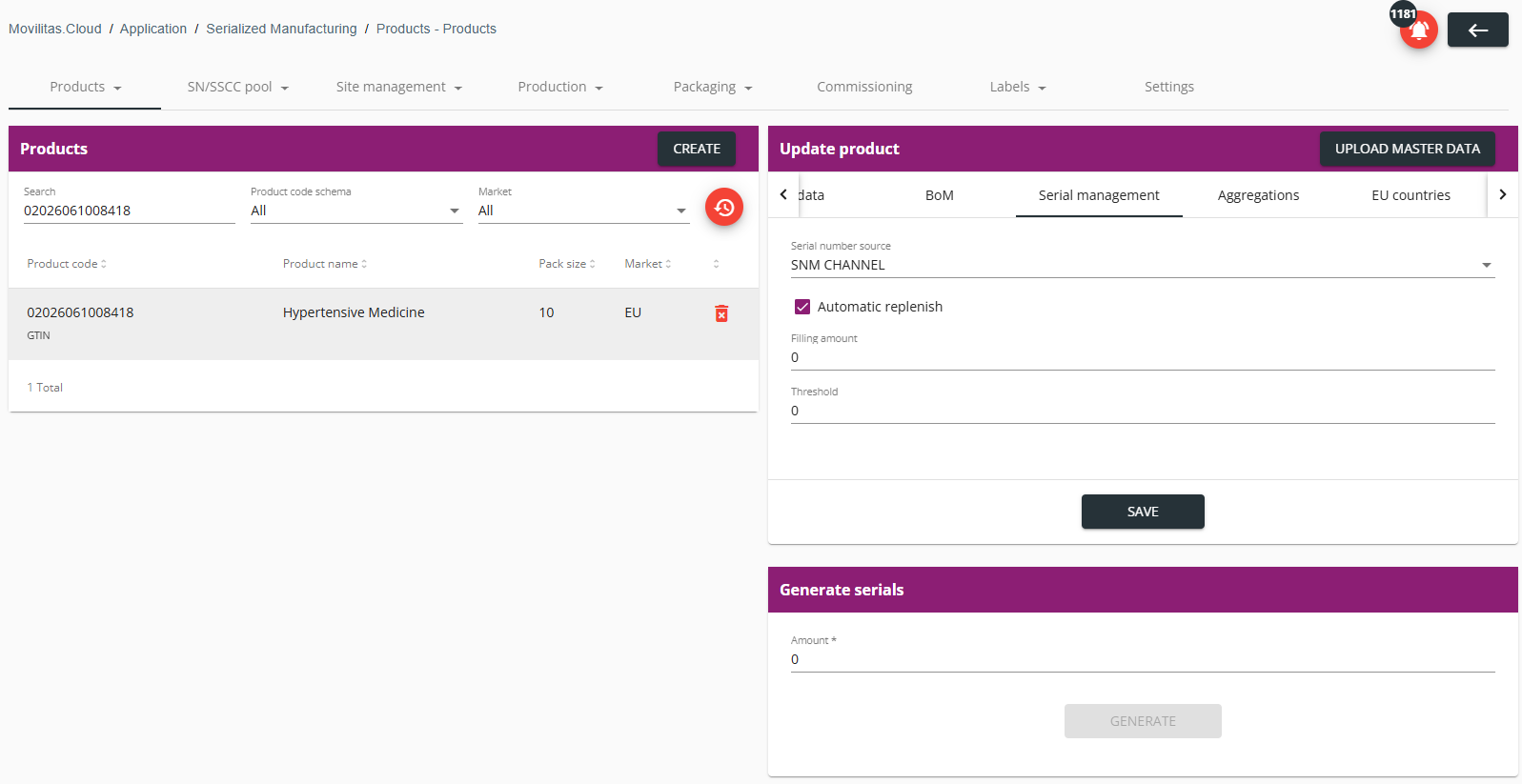
If a default serial number source is configured under the Serialized Manufacturing application --> Settings tab, the default serial number source setting is automatically picked up.
You can check the product under the Serialized Manufacturing application --> Products --> Products tab. You can check the master data upload in the log of EU Hub requests on the EU Hub channel page.
Sample cURL Request
curl -X POST \
  https://api-acc.movilitas.cloud/v1/manufacturer/v2/api/products/ \
  -H 'Content-Type: application/json' \
  -H 'x-access-token: eyJhbGciOiJIUzI1NiIsInR5cCI6IkpXVCJ9.eyJrZXkiOiKzX2FqazQyS3RLQWhHdiE4TUZtY1Q2Uzh' \
  -H 'x-channel-key: Ky1SpfEXmjj05fW3USBFD3pgoEi9AQ29Atsnj4Zy' \
  -d '{
  "release_to_eu_hub": false,
  "product_code": "02026061008418",
  "product_code_alias": "INT260610001",
  "product_name_alias": "Hypertensive Controller",
  "product_code_schema": "GTIN",
  "description": "Hypertensive Medicine",
  "gs1_company_prefix": "20260610",
  "version_number": 1,
  "market_id": "EU",
  "eu_market": {
    "eu_market_settings": {
      "eu_country": "DK",
      "mah": "cloud-mah",
      "assigned_3pl_tags": ["cloud-log-001", "mov-log-01"],
      "article_57_code": "PRD266101",
      "national_code": "2606101"
    },
    "repacked": "true",
    "origin_product_code": "02025061008411",
    "strength": "500mg",
    "pack_size": 10,
    "common_name": "Blood Pressure Controller",
    "pharmaceutical_form": "Tablet",
    "pack_type": "Box"
  }
}'
Sample Response (Success 200)
{
    "success": true,
    "message": "Product is created"
}
Admin UI Example
Product master data is automatically populated:
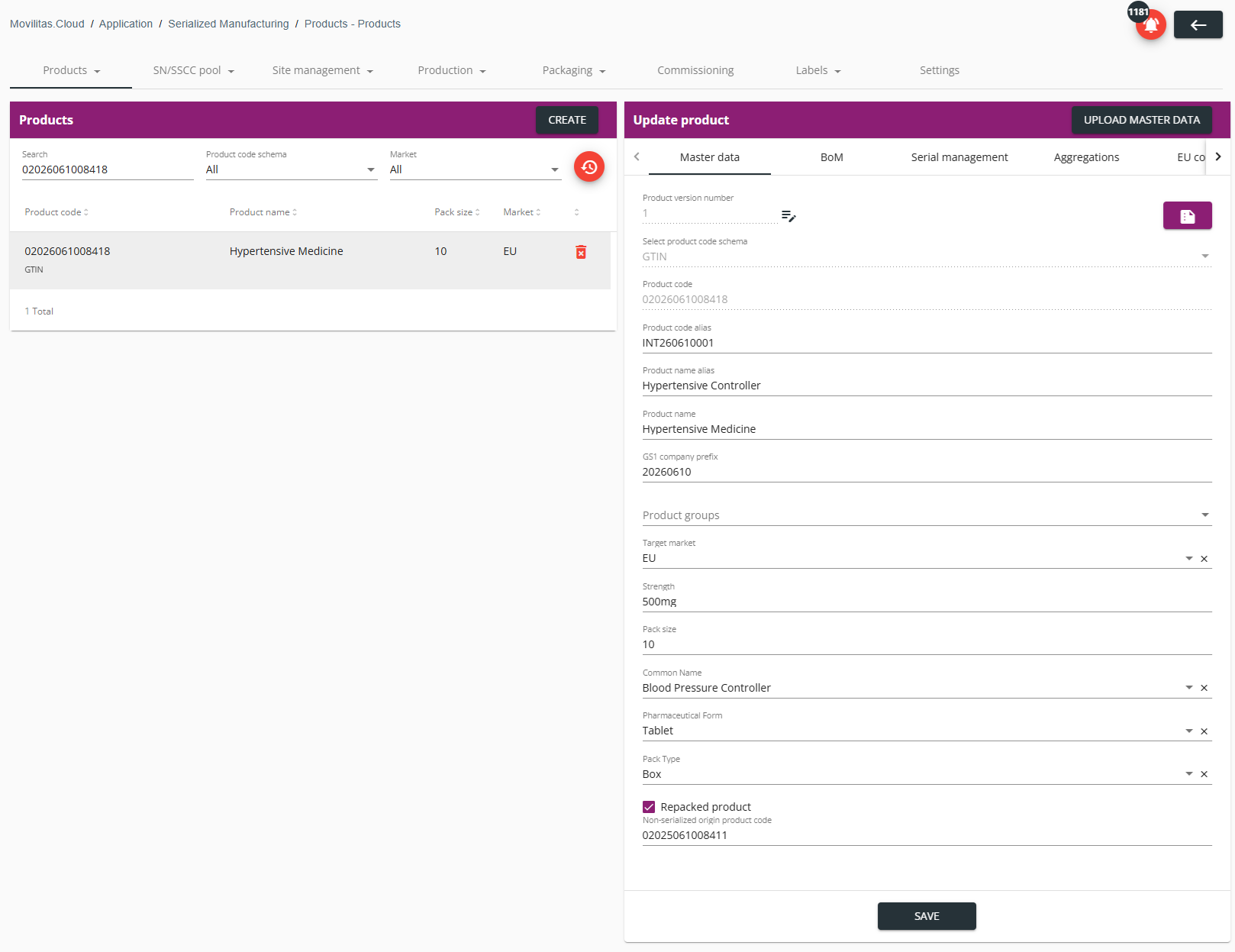
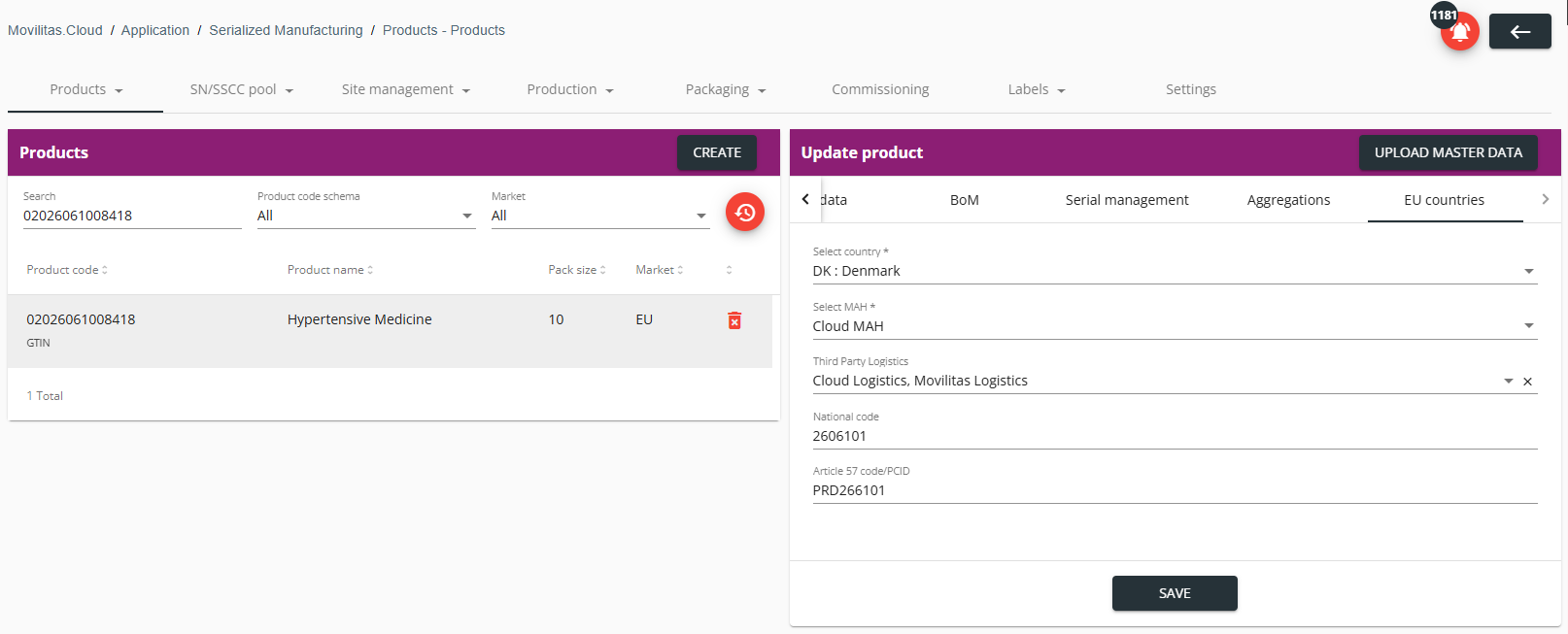
The default serial number source setting is automatically picked up:
Error Types and Resolution
This section lists some of the most general error types when sending the request.
| Error Message or Error Type | Error Code | Description |
|---|---|---|
| No token provided | ERR0001 | No authentication token is provided. Ensure that you add the authentication token to the header of the request. |
| Failed to authenticate token | ERR0000 | Failed to authenticate the provided token. Double-check if your token has expired or has been revoked. Obtain a valid token by generating a static one or by getting a dynamic one through Authentication API. |
| Channel ID is missing or it needs to be in correct format | - | The channel key of your Manufacturer V2 API channel is not specified in the request. To get the channel key, go to Tenant Dashboard --> Channels in the Admin UI, open your Manufacturer V2 API channel, and find the channel key on the top of the Edit shopfloor channel panel. |
| Request body could not be parsed | - | The syntax of the request body is not correct, for example, a comma is missing at the end of a field. Make sure that the request body is defined in the correct way and that you use JSON format. |
| MAH not found | - | A MAH with the given tag does not exist in the EU Hub channel settings. Make sure that the correct MAH tag is given in the request. |
| Assigned 3PL cannot be found for a tag | - | A 3PL with the assigned 3PL tag does not exist in the Serialized Manufacturing application under the Site management --> 3PLs tab. Make sure that the correct 3PL tag is given in the request. |
| Duplicate assigned 3PL tags are sent | - | The same tag is given multiple times as assigned 3PL tag in the request. Make sure that each 3PL tag is different in the request. |
| Pharmaceutical form is invalid. The allowed values are listed below. Choose a value and retry. | - | The given pharmaceutical form is not supported. Choose a value from the response and retry the request. If you cannot find the pharmaceutical form you want to use, contact Movilitas.Cloud Support. |
| Pack type is invalid. The allowed values are listed below. Choose a value and retry. | - | The given pack type is not supported. Choose a value from the response and retry the request. If you cannot find the pack type you want to use, contact Movilitas.Cloud Support. |
| Repacked flag must be set to true to save origin product code | - | The "repacked" flag is either "false" or not included, while an origin product code is given in the request. If you want to repack, include the "repacked" flag as "true" and include the origin product code. |
| Product is created but master data upload to EU Hub failed | - | The product was successfully created, however, the master data upload to the EU Hub failed. Possible reasons:
Make sure that all product master data fields are provided in the request. Check EU Hub availability. Double-check the EU Hub channel settings and verify that the connection is up and running before sending the request. If the upload is triggered but it fails due to a connection issue with the EU Hub and an email address is given in the EU Hub channel settings, Movilitas.Cloud sends a notification by email with more details about the reason of the failure. |
| Product already exists | - | The product specified in the request already exists in the Serialized Manufacturing application. Make sure that the product code and other details are correct in the request. |
