
You can use the Manufacturer V2 API to integrate the shopfloor and the enterprise resource planning (ERP) systems with the Serialized Manufacturing application.
The Manufacturer V2 API uses the Representational State Transfer (REST) standard to interact with other systems.
The Manufacturer V2 API is an extension of the Serialized Manufacturing application of Movilitas.Cloud that enables you to send requests from external systems to the application.
The following figure provides an overview of all the requests that you can send by using the Manufacturer V2 API:
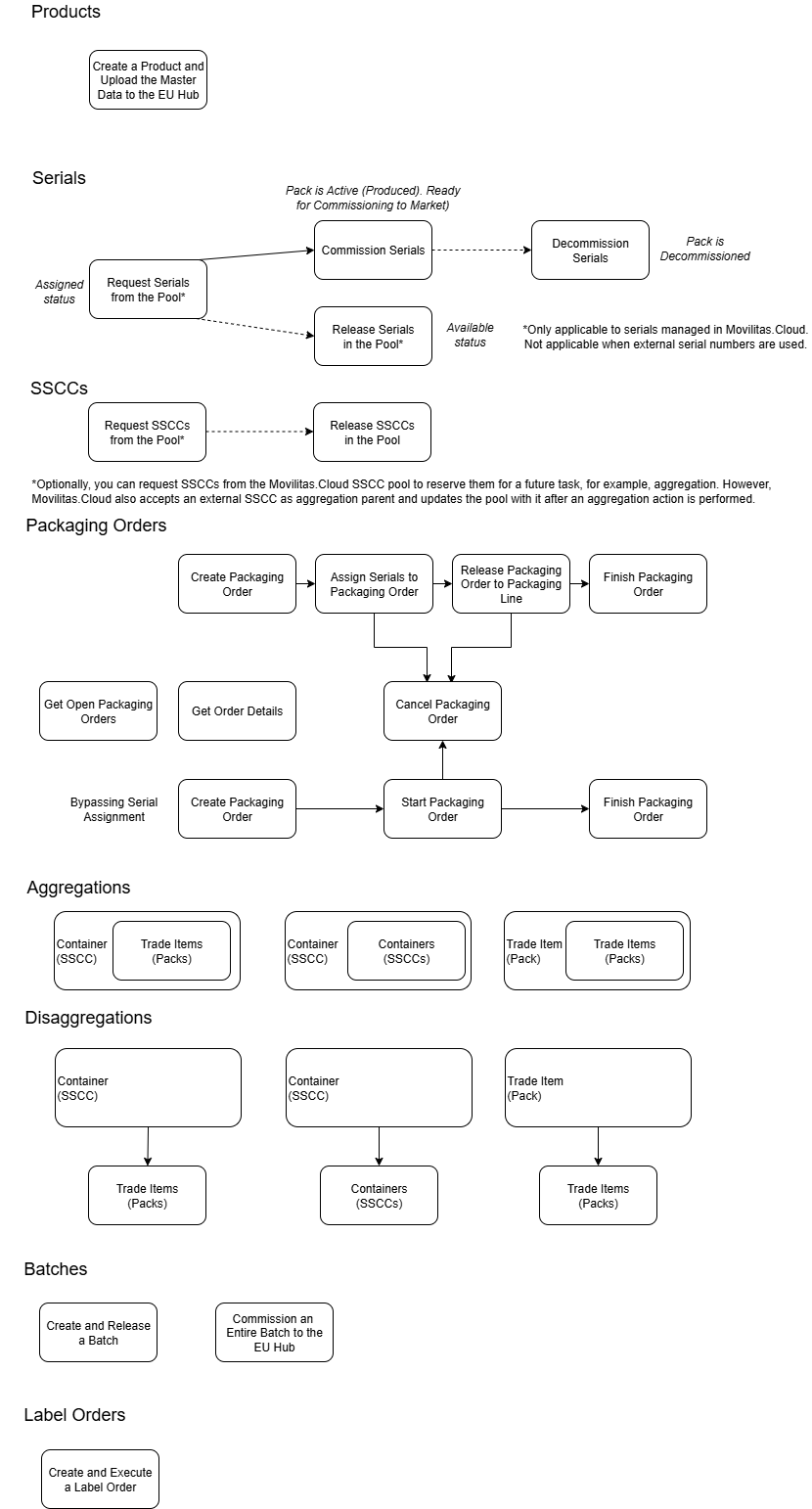
This article describes how to create and execute a label (printing) order in the Serialized Manufacturing application using the Manufacturer V2 API.
API Tool to Use
In this document, we provide examples by using the cURL command-line tool. To send the API request, you can find a lot of user-friendly REST API tools on the Internet, for example, Postman.
Before You Begin
1. You must enable the Serialized Manufacturing application.
2. You must create an API key and secret.
3. You must create a shopfloor channel with the Manufacturer V2 API source. You will need the channel key for your requests.
4. You must configure the Serialized Manufacturing application and the channels required to connect to external systems.
5. You must have the authentication token to send requests over API. Select one of the following ways:
- Apply a dynamic token. Send an authentication request over the Authentication API. For more information about the Authentication API, open the Tenant Dashboard in Movilitas.Cloud, select API keys, and choose Authentication API Documentation. Also, see Authentication Request.
- Apply a static token. Generate a static token for your previously created API key.
For more information, see Configuring the Movilitas.Cloud APIs.
Procedure
1. Use the POST method and the following URL:
https://api-acc.movilitas.cloud/v1/manufacturer/v2/api/label_orders/
2. For the header, define the content type (JSON), the authentication token, and the channel key.
The token can be given in one of the following ways:
- As x-access-token header.
- As Authorization header by using the Bearer schema.
Header Option 1
| Key | Action |
|---|---|
| Content-Type | Apply JSON format for the content. Use the value application/json. |
| x-access-token | Provide the authentication token. |
| x-channel-key | Provide the channel key of your Manufacturer V2 API channel. |
Header Option 2
| Key | Action |
|---|---|
| Content-Type | Apply JSON format for the content. Use the value application/json. |
| Authorization | Provide the authentication token as Bearer <token>. |
| x-channel-key | Provide the channel key of your Manufacturer V2 API channel. |
3. In the body of the request, define the parameters and their values based on the table below.
| Field | Required or Optional? | Type | Description |
|---|---|---|---|
| order_id | Required | String | Label (printing) order ID. |
| product_code | Required | String | Product code. |
| product_code_schema | Required | String | Product code schema. The application supports one value, "GTIN". |
| batch | Required | String | Batch ID. |
| quantity | Required | Number | The number of labels to be printed. |
| extra_label_amount | Optional | Number | The quantified extra labels to be printed. Valid only together with the extra_label_typefield.
|
| extra_label_type | Conditional* | String | The quantity type of the extra labels:
If extra labels are not specified in the request, but a default value for the extra labels is provided in the Manufacturer V2 API channel settings, the system applies the default value given on the channel. |
| origin_product_code | Conditional** | String | The product code of the sourced (origin) product in a repackaging process. The product code must be registered in the Serialized Logistics application. Only applicable if you are a repacker and repackaging is activated in the Serialized Manufacturing application settings. |
| origin_product_code_schema | Conditional** | String | The product code schema of the sourced (origin) product in a repackaging process. One of the following:
|
| origin_batch | Conditional** | String | The batch of the sourced (origin) product in a repackaging process. The batch must be registered in the Serialized Logistics application. Only applicable if you are a repacker and repackaging is activated in the Serialized Manufacturing application settings. Note: If the given origin product code is a custom code, the origin batch can belong to a product with a GTIN in the system where the GTIN is linked to the custom code. The application detects this situation, allows the request, and creates the label order with the given origin custom product code and origin batch. |
| destination_tag | Required | String | Identifies the printing destination to which the label order is going to be sent. The following destinations are supported:
Note: Make sure that you have registered the appropriate printing destination in the Serialized Manufacturing application, under the Labels --> Destinations tab, and you apply the value that was given in the Destination tag field. |
| template_tag | Conditional*** | String | Identifies the ZPL label template to be used during printing. Only applicable when the printing destination is Zebra Cloud Connect. Note: Make sure that you have registered a ZPL label template in the Serialized Manufacturing application, under the Labels --> Templates tab and you apply the value that was given in the Template tag field. |
| execute | Optional | Boolean | The flag that indicates whether the label order is executed immediately after creation in the Serialized Manufacturing application:
If the field is not specified, the default is "false". |
*If the extra_label_amount field is provided in the request, the extra_label_type field is required.
**If any of the origin fields is provided in the request, all origin fields are required (origin_product_code, origin_product_code_schema, and origin_batch).
***If the destination_tag field points to a Zebra Cloud Connect destination, the template_tag field is required.
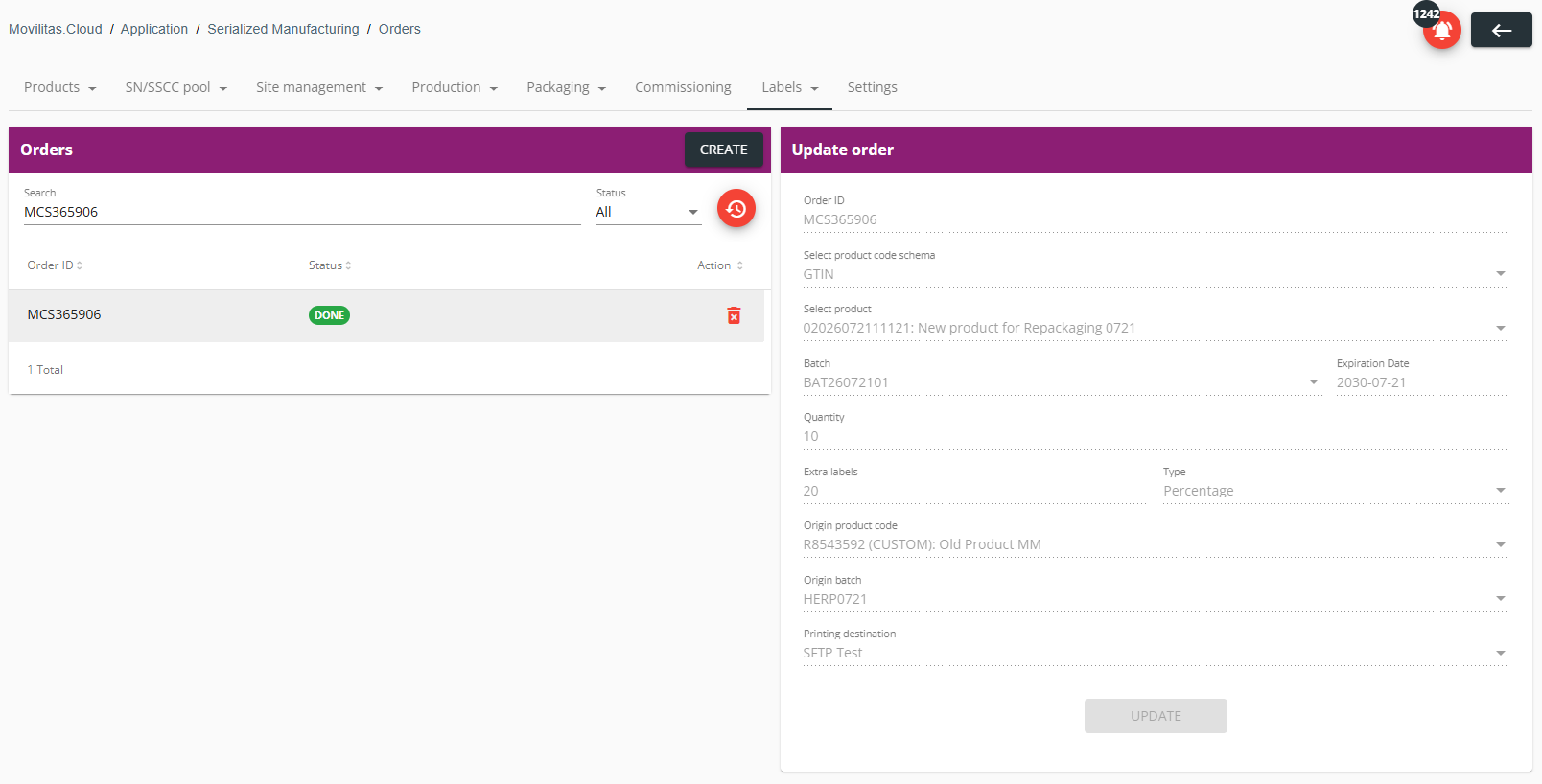
4. Send the request. The label order is created and, depending on the execute flag status in the request, released, that you can check under the Serialized Manufacturing application --> Labels --> Orders tab.
Sample cURL Request
curl -X POST \
  https://api-acc.movilitas.cloud/v1/manufacturer/v2/api/label_orders/ \
  -H 'Content-Type: application/json' \
  -H 'x-access-token: eyJhbGciOiJIUzI1NiIsInR5cCI6IkpXVCJ9.eyJrZXkiOiKzX2FqazQyS3RLQWhHdiE4TUZtY1Q2Uzh' \
  -H 'x-channel-key: Ky1SpfEXmjj05fW3USBFD3pgoEi9AQ29Atsnj4Zy' \
  -d '{
    "order_id": "MCS365906",
    "product_code": "02026072111121",
    "product_code_schema":"GTIN",
    "batch": "BAT26072101",
    "quantity": 10,
    "extra_label_amount": 20,
    "extra_label_type": "percentage",
    "origin_product_code": "R8543592",
    "origin_product_code_schema": "CUSTOM",
    "origin_batch": "HERP0721",
    "destination_tag": "sftp-test",
    "execute": true
}'
Sample Response (Success 200)
{
    "success": true,
    "message": "Label order created successfully"
}
Admin UI Example (Created and Executed Label Order)
Error Types and Resolution
This section lists some of the most general error types when sending the request.
| Error Message or Error Type | Error Code | Description |
|---|---|---|
| No token provided | ERR0001 | No authentication token is provided. Ensure that you add the authentication token to the header of the request. |
| Failed to authenticate token | ERR0000 | Failed to authenticate the provided token. Double-check if your token has expired or has been revoked. Obtain a valid token by generating a static one or by getting a dynamic one through Authentication API. |
| Channel ID is missing or it needs to be in correct format | - | The channel key of your Manufacturer V2 API channel is not specified in the request. To get the channel key, go to Tenant Dashboard --> Channels in the Admin UI, open your Manufacturer V2 API channel, and find the channel key on the top of the Edit shopfloor channel panel. |
| Request body could not be parsed | - | The syntax of the request body is not correct, for example, a comma is missing at the end of a field. Make sure that the request body is defined in the correct way and that you use JSON format. |
| Batch not found | - | A batch with the given batch ID is not registered for the product in the Serialized Manufacturing application. Make sure that the given batch ID for the product exists in the application. |
| Label order already exists! | - | A label order with the given order ID is registered in the Serialized Manufacturing application. Make sure that you give a unique order ID in the request. |
| Printing template doesn't exist! | - | A label template with the given template tag is not registered in the Serialized Manufacturing application. Make sure that the label template you want to use is registered and give the correct template tag in the request. |
| Printing template ID needs to be in correct format | - | The destination tag in the request points to a Zebra Cloud Connect printing destination. However, the template tag is not specified in the request. If the printing destination is Zebra Cloud Connect, make sure that you specify the template tag. A label template with the given template tag must be registered in the Serialized Manufacturing application. |
| Destination not found | - | A printing destination with the given destination tag is not registered in the Serialized Manufacturing application. Make sure that the printing destination you want to use is registered and give the correct destination tag in the request. |
| Not enough serials assigned at the moment | - | Not enough serial numbers in the pool to fulfill the request. To resolve the issue: 1. Go to the Serialized Manufacturing application. 2. Select the Products --> Products tab, select the product, and then select the Serial management tab. 3. Generate or request serial numbers for the product manually and/or turn on automatic replenishment in the serial management configuration of the product. 4. Resume the suspended label order under the Labels --> Orders tab. Note: Resuming the order over API is not supported. |
| Not enough serials available at the moment. More serials have been requested. Please try after some time. | - | Not enough serial numbers in the pool to fulfill the request, but the pool is refilled in the background due to automatic replenishment. To resolve the issue: 1. Go to the Serialized Manufacturing application. 2. Resume the suspended label order under the Labels --> Orders tab. Note: Resuming the order over API is not supported. |
| Repackaging is not enabled for this customer. | - | The Repackaging checkbox is not selected in the Serialized Manufacturing application, under the Settings tab. Make sure that the checkbox is selected, and then send the request again. |
| Origin product code not found in Serialized Logistics. | - | The origin product code with the given schema is not known in the Serialized Logistics application. The origin product enters the Serialized Logistics application during an inbound (receiving) activity in the Serialized Logistics application. The sourced (old) packs that will be repacked are received in the Serialized Logistics application. |
| Origin batch not found for the origin product code in Serialized Logistics. | - | The origin batch of the origin product is not known in the Serialized Logistics application. The origin batch enters the Serialized Logistics application during an inbound (receiving) activity in the Serialized Logistics application. The sourced (old) packs that will be repacked are received in the Serialized Logistics application. |
| \"value\" contains [xxx] without its required peers [yyy] | - | One or more origin fields are not included in the request. Make sure that you include all three origin fields in the request:
|
| \"origin_product_code\" with value \"xxx\" fails to match the required pattern: /^\\d{14}$/ | - | The specified origin product code is a custom code while the specified origin product code schema is "GTIN". Make sure that the given origin product code follows the origin product code schema. |
