
In the Genealogy application, you - as the manufacturer - can register the process steps. For each process step, you can register the products:
- For a process step with step type "Manufacturing", the consumed products (input) and the produced products (output) that are used by the CMO(s)/tenant.
- For a process step with step type "Packaging", the consumed products (input) and the produced products (output) that are used by the CMO(s)/tenant.
- For a process step with step type "Inbound External Logistics", the products that are received from the supplier(s).
- For a process step with step type "Outbound External Logistics", the products that are shipped to the client(s).
- For a process step with step type "Inbound Internal Logistics", the products that are received in the destination warehouse(s) from source warehouse(s).
- For a process step with step type "Outbound Internal Logistics", the products that are shipped from source warehouse(s) to destination warehouse(s).
To create the process steps, Serialized Manufacturing and Serialized Logistics applications must be activated and configured.
You can use the process steps to build up a process sequence in a later phase of your configuration.
List of Procedures
- Creating a Process Step
- Searching for and Viewing a Process Step
- Updating the Master Data of a Process Step
- Managing the Consumed Products of a Process Step with Manufacturing Type
- Managing the Produced Products of a Process Step with Manufacturing Type
- Managing the Consumed Products of a Process Step with Packaging Type
- Managing the Produced Products of a Process Step with Packaging Type
- Managing the Products of a Process Step with Inbound External Logistics Type
- Managing the Products of a Process Step with Outbound External Logistics Type
- Managing the Products of a Process Step with Inbound Internal Logistics Type
- Managing the Products of a Process Step with Outbound Internal Logistics Type
- Deleting a Process Step
Creating a Process Step
As a manufacturer, you need to register all the manufacturing process steps.
Procedure
1. In the Genealogy application, select the Site management --> Process Steps tab. The application displays the list of process steps and the Create Process Steps panel. The Master data tab is automatically selected on the panel.
Note: When viewing the details of a process step, you can open the Create Process Steps panel by clicking Create.
Example:
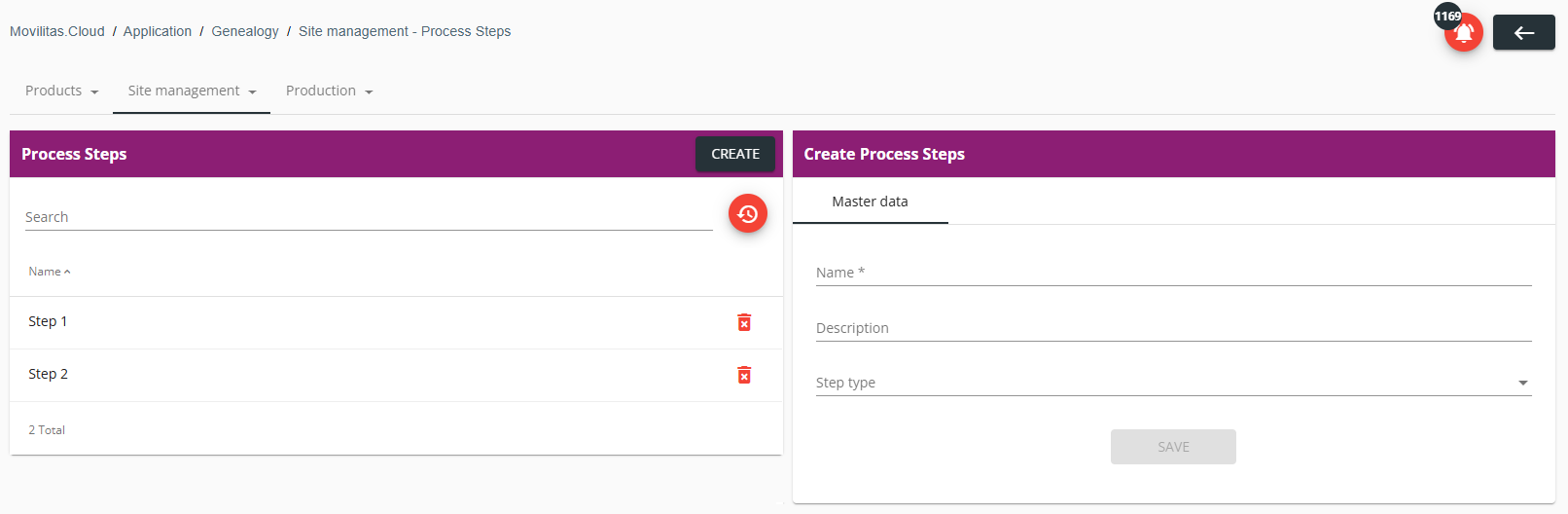
2. Fill in the form as described below. The required fields are marked with an asterisk (*) in the form.
| Field | Description |
|---|---|
| Name | Enter the name of the process step. |
| Description | Enter a description for the process step. |
| Step type | Select the step type in the drop-down:
Depending on the step type, you can associate parties with the process step. |
| CMOs | If the step type is "Manufacturing" or "Packaging", search for and select the CMO(s) that can execute the process step. Multiple CMOs can be selected. The application offers the CMOs from the Serialized Manufacturing application. If you specify a manufacturing step or packaging step where your tenant is the only manufacturer or packer, leave the field empty. |
| Suppliers | If the step type is "Inbound External Logistics", search for and select the supplier(s) that provide products to your company (tenant). The application offers the suppliers from the Serialized Logistics application. |
| Clients | If the step type is "Outbound External Logistics", search for and select the client(s) that receive products from your company (tenant). The application offers the clients from the Serialized Logistics application. |
| Source warehouses | If the step type is "Inbound Internal Logistics" or "Outbound Internal Logistics", search for and select the source warehouse(s) that ship the products to destination warehouse(s). The application offers the warehouses from the Serialized Logistics application. |
| Destination warehouses | If the step type is "Inbound Internal Logistics" or "Outbound Internal Logistics", search for and select the destination warehouse(s) that receive the the products from source warehouse(s). The application offers the warehouses from the Serialized Logistics application. |
3. Click Save. The process step is created and added to the list.
Next Steps
Add products to the process step:
- If the process step type is "Manufacturing", register the consumed and produced products. For more information, see Managing the Consumed Products of a Process Step with Manufacturing Type and Managing the Produced Products of a Process Step with Manufacturing Type.
- If the process step type is "Packaging", register the consumed and produced products. For more information, see Managing the Consumed Products of a Process Step with Packaging Type and Managing the Produced Products of a Process Step with Packaging Type.
- If the process step type is "Inbound External Logistics", register the products to be received from the supplier(s). For more information, see Managing the Products of a Process Step with Inbound External Logistics Type.
- If the process step type is "Outbound External Logistics", register the products to be shipped to the client(s). For more information, see Managing the Products of a Process Step with Outbound External Logistics Type.
- If the process step type is "Inbound Internal Logistics", register the products to be received from the supplier(s). For more information, see Managing the Products of a Process Step with Inbound Internal Logistics Type.
- If the process step type is "Outbound Internal Logistics", register the products to be shipped to the client(s). For more information, see Managing the Products of a Process Step with Outbound Internal Logistics Type.
Back to the list of procedures
Searching for and Viewing a Process Step
Procedure
1. In the Genealogy application, select the Site management --> Process Steps tab. The application displays the list of process steps.
2. Enter the name of the process step in the search field.
- The list of the process steps is filtered based on the search criteria.
- You can reset the filter by clicking Reset filters.
3. Select the process step to view its details on the Update Process Steps panel.
- Master data
- Consumed products - For more information, see Managing the Consumed Products of a Process Step with Manufacturing Type or Managing the Consumed Products of a Process Step with Packaging Type.
- Produced products - For more information, see Managing the Produced Products of a Process Step with Manufacturing Type or Managing the Produced Products of a Process Step with Packaging Type.
- Products - For more information, see Managing the Products of a Process Step with Inbound External Logistics Type, Managing the Products of a Process Step with Outbound External Logistics Type, Managing the Products of a Process Step with Inbound Internal Logistics Type, or Managing the Products of a Process Step with Outbound Internal Logistics Type.
Example:
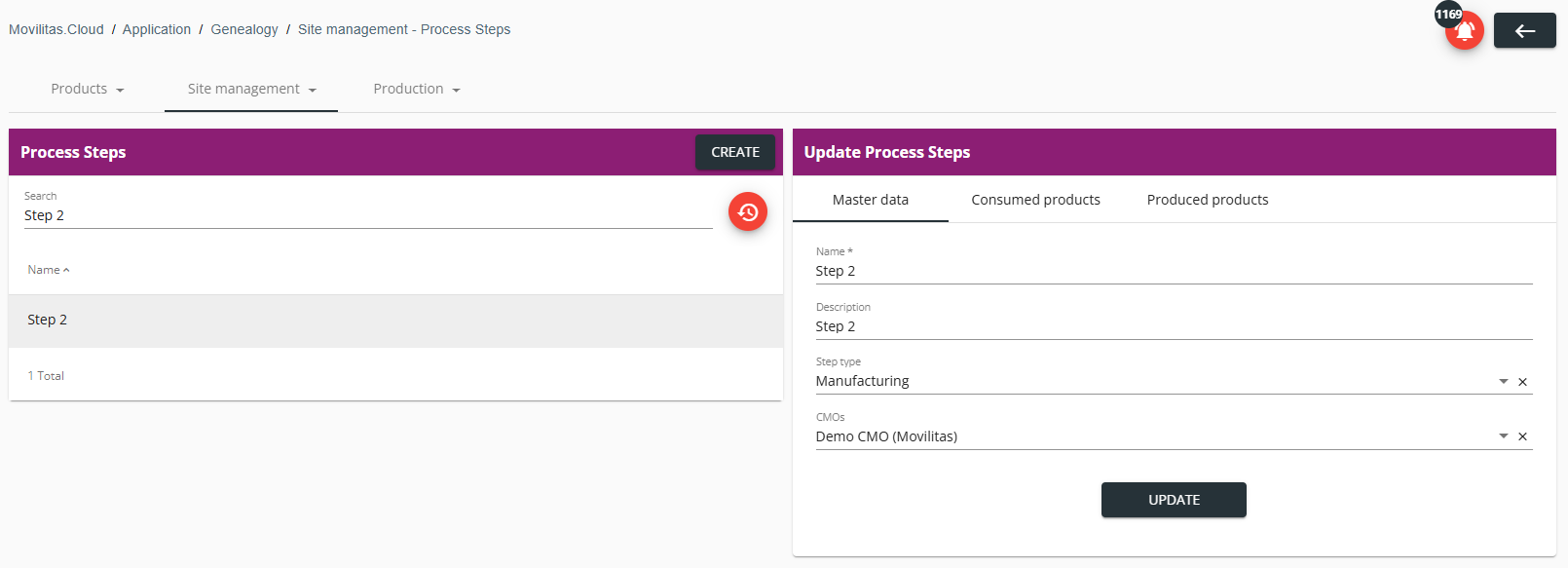
Back to the list of procedures
Updating the Master Data of a Process Step
Procedure
1. In the Genealogy application, select the Site management --> Process Steps tab. The application displays the list of process steps.
2. Find and select the process step in the list you want to update. The application displays the master data of the process step on the Update Process Steps panel.
3. Stay on the Master data tab and modify the fields as needed.
| Field | Description |
|---|---|
| Name | Enter the name of the process step. |
| Description | Enter a description for the process step. |
| Step type | Select the step type in the drop-down:
Depending on the step type, you can associate parties with the process step. |
| CMOs | If the step type is "Manufacturing" or "Packaging", search for and select the CMO(s) that can execute the process step. Multiple CMOs can be selected. The application offers the CMOs from the Serialized Manufacturing application. If you specify a manufacturing step or packaging step where your tenant is the only manufacturer or packer, leave the field empty. |
| Suppliers | If the step type is "Inbound logistics", search for and select the supplier(s) that provide products to your company (tenant). The application offers the suppliers from the Serialized Logistics application. |
| Clients | If the step type is "Outbound logistics", search for and select the client(s) that receive products from your company (tenant). The application offers the clients from the Serialized Logistics application. |
| Source warehouses | If the step type is "Inbound Internal Logistics" or "Outbound Internal Logistics", search for and select the source warehouse(s) that ship the products to destination warehouse(s). The application offers the warehouses from the Serialized Logistics application. |
| Destination warehouses | If the step type is "Inbound Internal Logistics" or "Outbound Internal Logistics", search for and select the destination warehouse(s) that receive the the products from source warehouse(s). The application offers the warehouses from the Serialized Logistics application. |
4. Click Update.
Back to the list of procedures
Managing the Consumed Products of a Process Step with Manufacturing Type
You can manage the consumed products of a process step with step type "Manufacturing":
- You can add a consumed product to the process step.
- You can search for a consumed product.
- You can delete a consumed product.
Procedure
1. In the Genealogy application, select the Site management --> Process Steps tab. The application displays the list of process steps.
2. Find and select the process step in the list. The application displays the master data of the process step on the Update Process Steps panel.
Example:
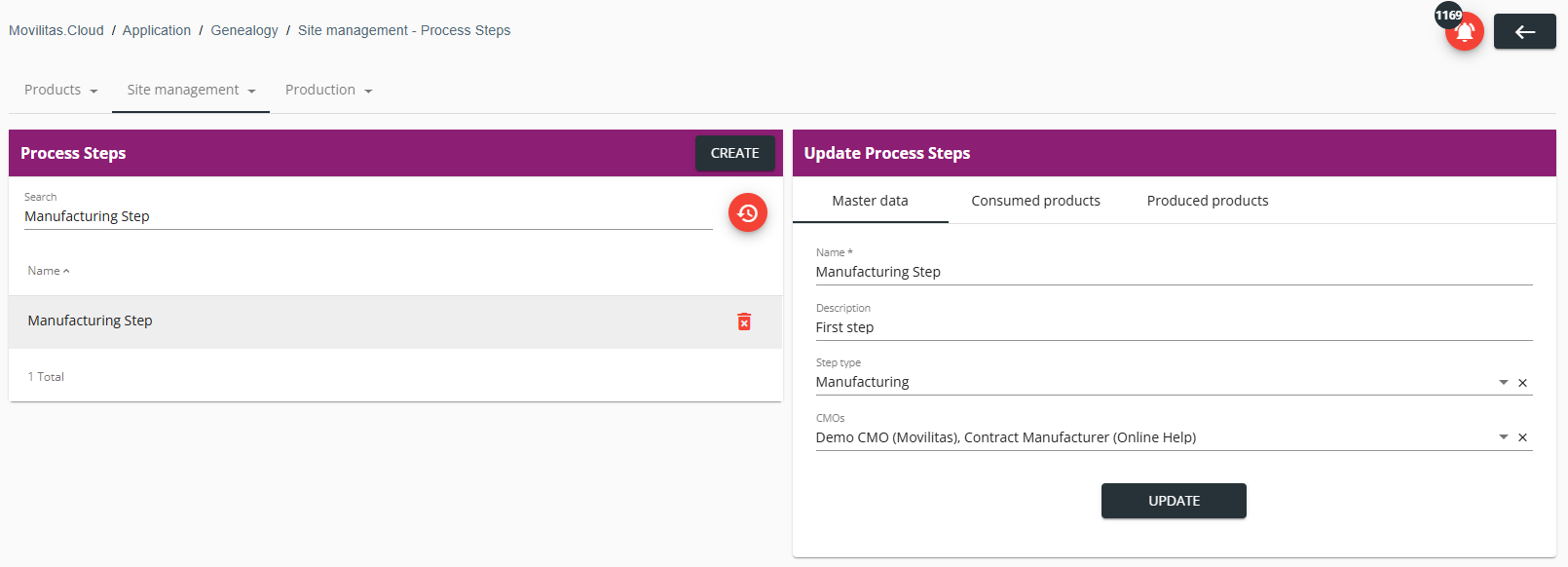
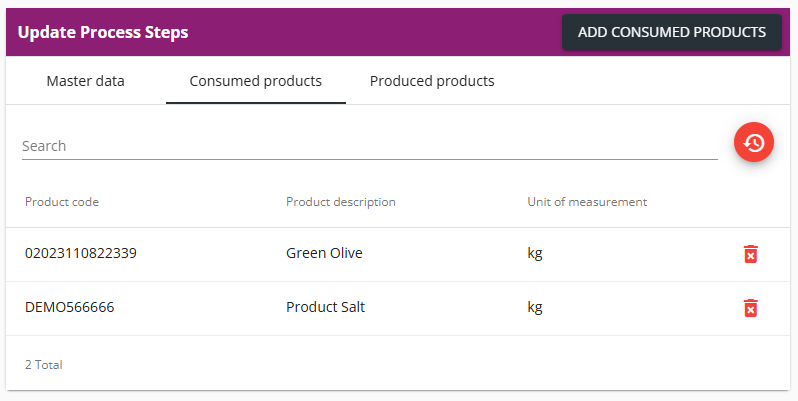
3. Select the Consumed products tab on the Update Process Steps panel. The application displays the list of consumed products.
Example:
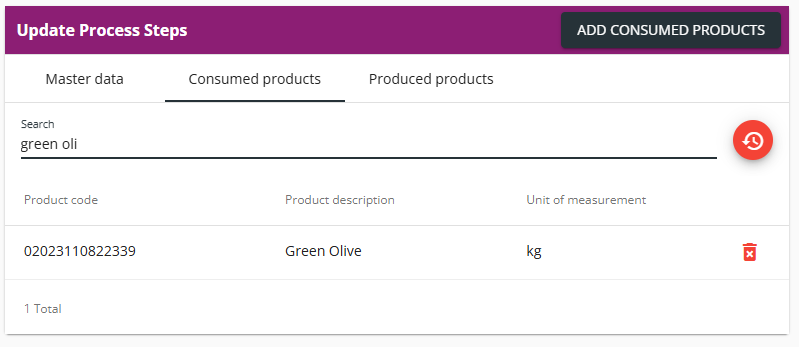
4. (Optional) Find a product by entering the product code or the product description in the search field.
- The list of products is filtered based on the search criteria.
- You can reset the filter by clicking Reset filters.
Example:
5. (Optional) Add a new consumed product as follows:
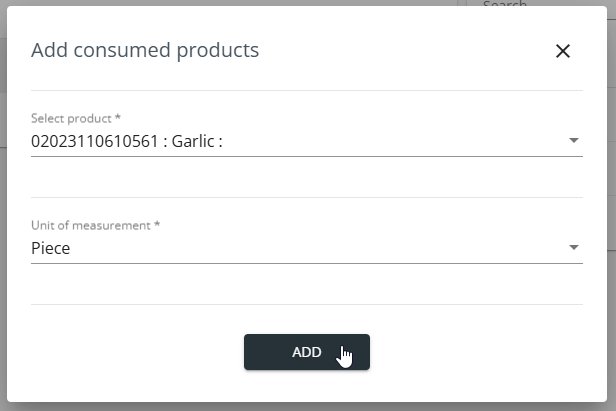
- Click Add Consumed Products in the top-right corner of the Update Process Steps panel. The application displays the Add consumed products pop-up.
- Select the product in the Select product field.
- Enter the product code or the product name in the search field to find the product.
- The application offers products from the Serialized Manufacturing and Serialized Logistics applications.
- Select the unit of measurement (UoM) in the Unit of measurement field. The application offers a predefined set of UoMs.
- Click Add.
Example:

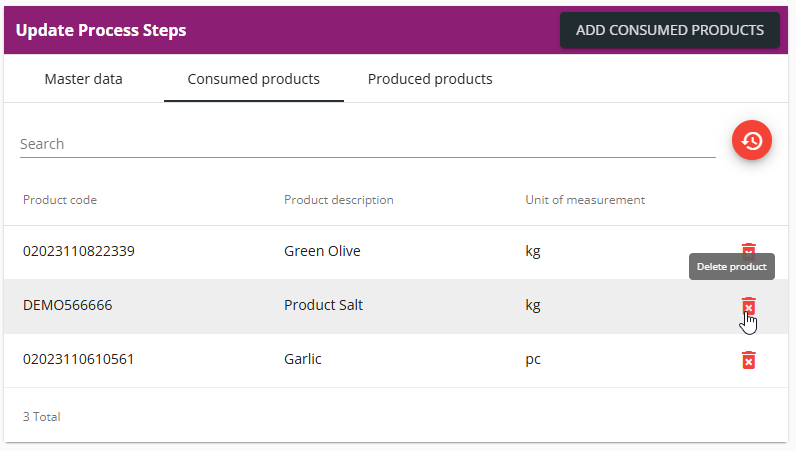
6. (Optional) Delete a product by clicking the delete icon. Confirm the deletion by clicking Yes in the pop-up.
Example:
Back to the list of procedures
Managing the Produced Products of a Process Step with Manufacturing Type
You can manage the produced products of a process step with step type "Manufacturing":
- You can add a produced product to the process step.
- You can search for a produced product.
- You can delete a produced product.
Procedure
1. In the Genealogy application, select the Site management --> Process Steps tab. The application displays the list of process steps.
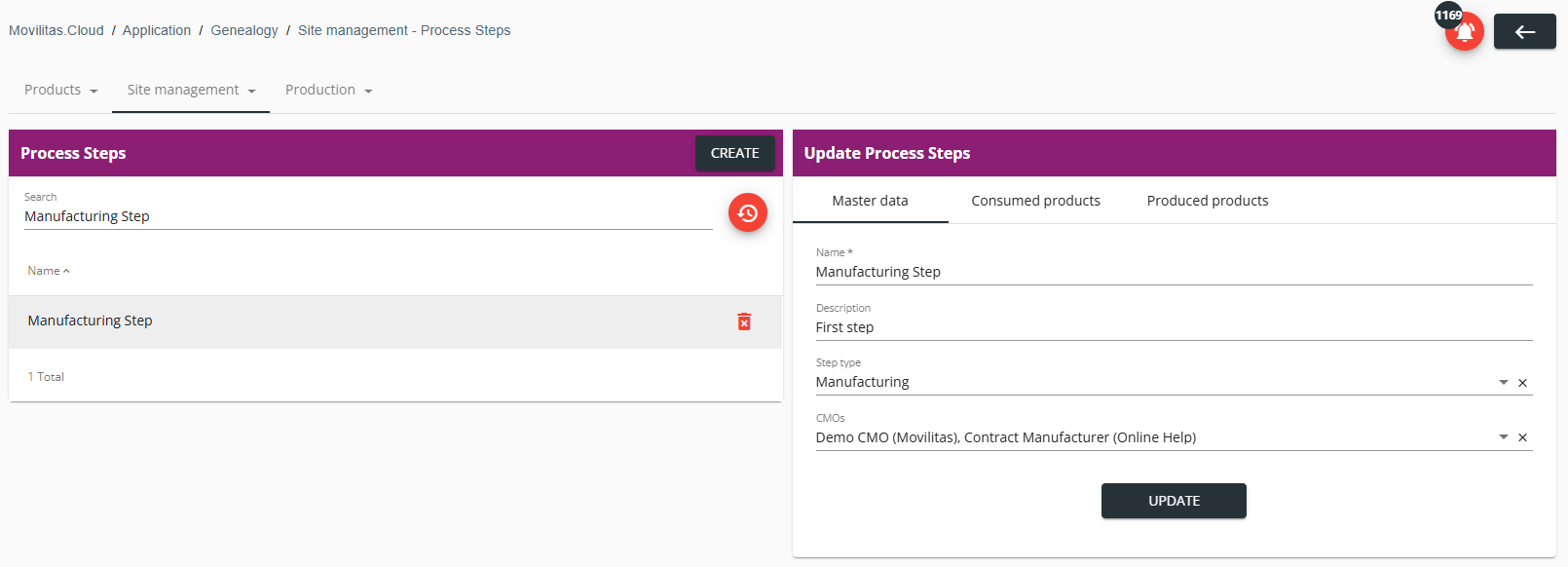
2. Find and select the process step in the list. The application displays the master data of the process step on the Update Process Steps panel.
Example:
3. Select the Produced products tab on the Update Process Steps panel. The application displays the list of produced products.
Example:
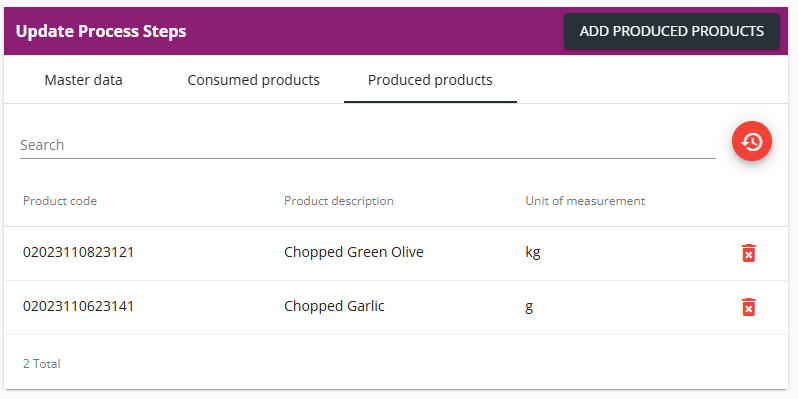
4. (Optional) Find a product by entering the product code or the product description in the search field.
- The list of products is filtered based on the search criteria.
- You can reset the filter by clicking Reset filters.
Example:
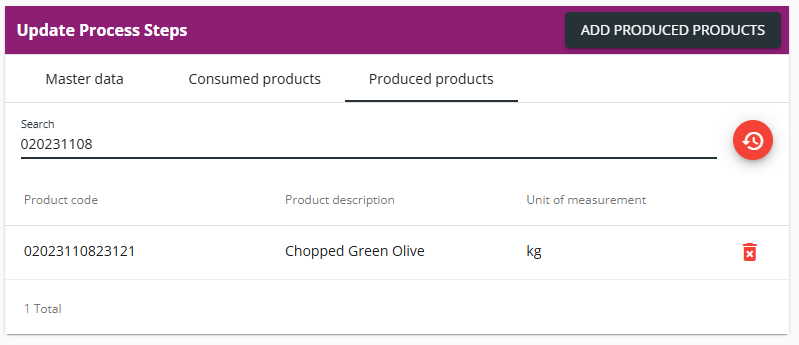
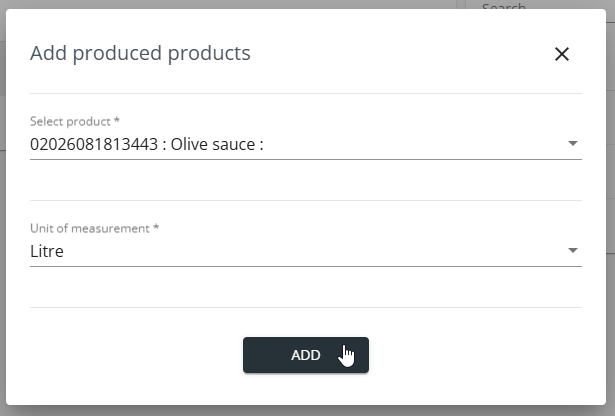
5. (Optional) Add a new produced product as follows:
- Click Add Produced Products in the top-right corner of the Update Process Steps panel. The application displays the Add produced products pop-up.
- Select the product in the Select product field.
- Enter the product code or the product name in the search field to find the product.
- The application offers products from the Serialized Manufacturing application.
- Select the unit of measurement (UoM) in the Unit of measurement field. The application offers a predefined set of UoMs.
- Click Add.
Example:

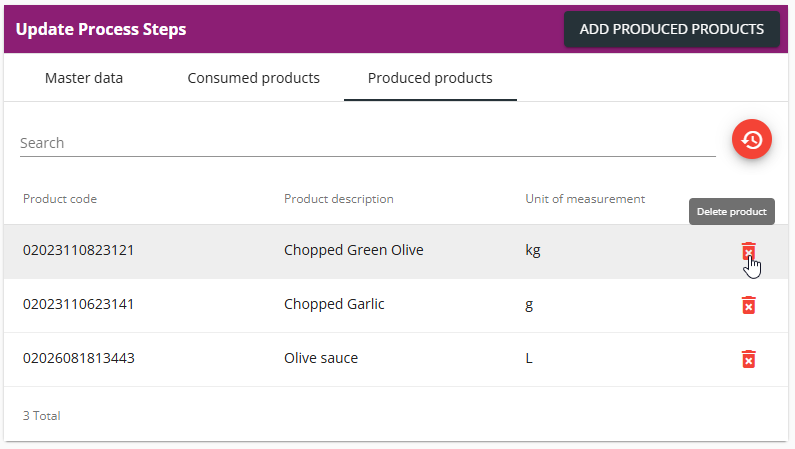
6. (Optional) Delete a product by clicking the delete icon. Confirm the deletion by clicking Yes in the pop-up.
Example:
Back to the list of procedures
Managing the Consumed Products of a Process Step with Packaging Type
You can manage the consumed products of a process step with step type "Packaging":
- You can add a consumed product to the process step.
- You can search for a consumed product.
- You can delete a consumed product.
Procedure
1. In the Genealogy application, select the Site management --> Process Steps tab. The application displays the list of process steps.
2. Find and select the process step in the list. The application displays the master data of the process step on the Update Process Steps panel.
Example:
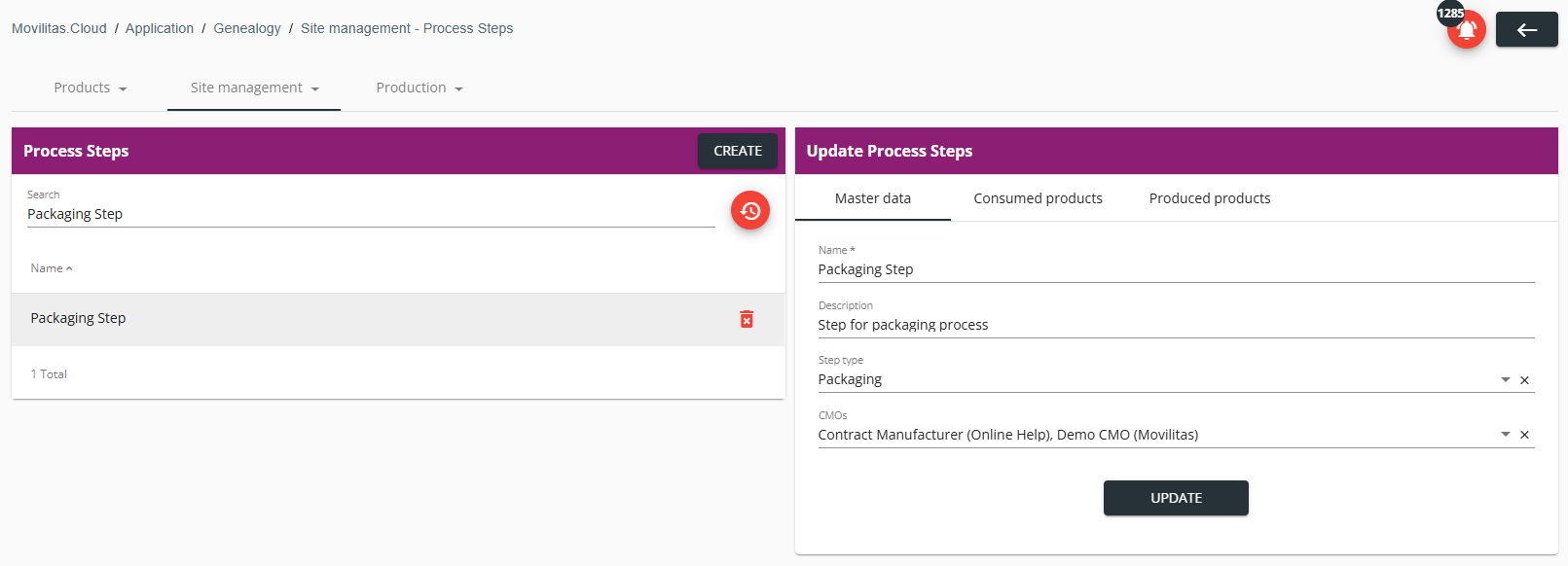
3. Select the Consumed products tab on the Update Process Steps panel. The application displays the list of consumed products.
Example:
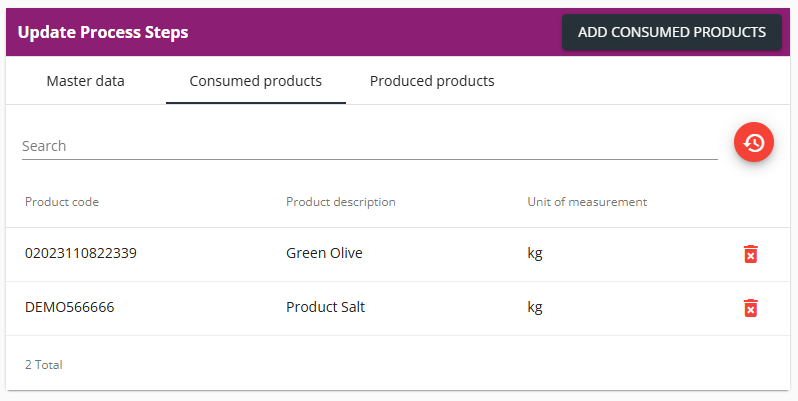
4. (Optional) Find a product by entering the product code or the product description in the search field.
- The list of products is filtered based on the search criteria.
- You can reset the filter by clicking Reset filters.
Example:
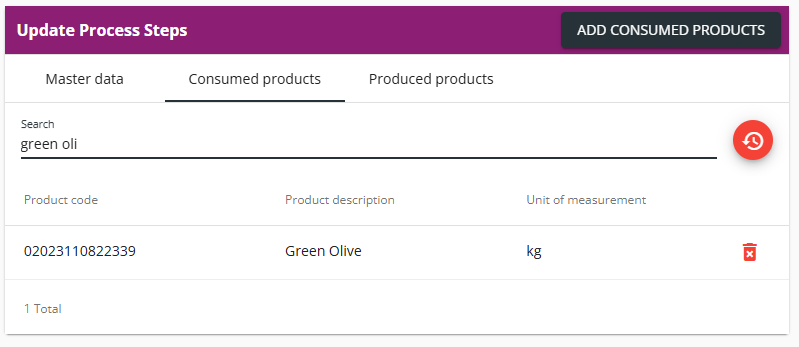
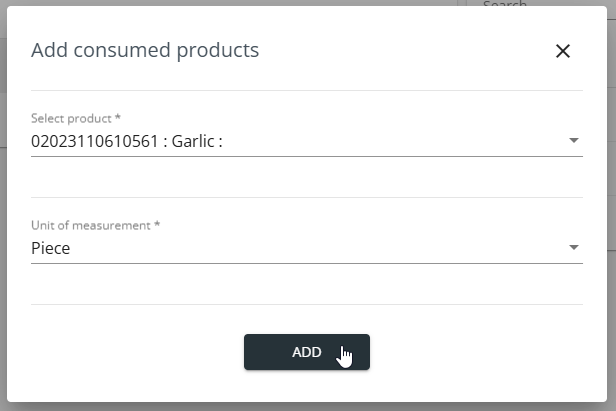
5. (Optional) Add a new consumed product as follows:
- Click Add Consumed Products in the top-right corner of the Update Process Steps panel. The application displays the Add consumed products pop-up.
- Select the product in the Select product field.
- Enter the product code or the product name in the search field to find the product.
- The application offers products from the Serialized Manufacturing and Serialized Logistics applications.
- Select the unit of measurement (UoM) in the Unit of measurement field. The application offers a predefined set of UoMs.
- Click Add.
Example:
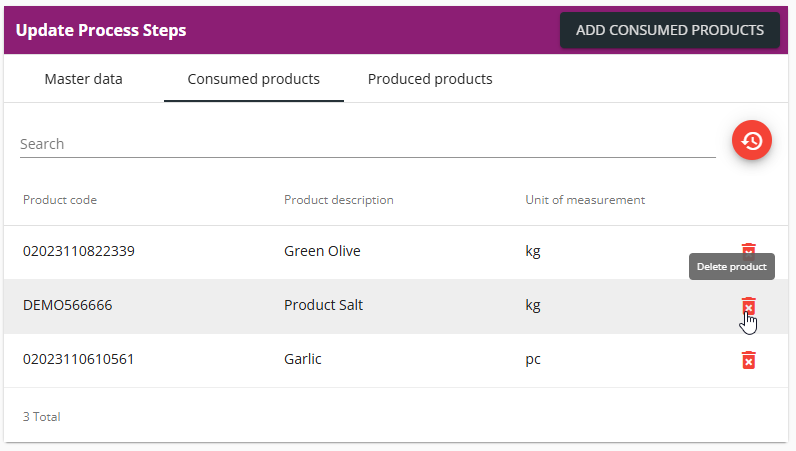
6. (Optional) Delete a product by clicking the delete icon. Confirm the deletion by clicking Yes in the pop-up.
Example:
Back to the list of procedures
Managing the Produced Products of a Process Step with Packaging Type
You can manage the produced products of a process step with step type "Packaging":
- You can add a produced product to the process step.
- You can search for a produced product.
- You can delete a produced product.
Procedure
1. In the Genealogy application, select the Site management --> Process Steps tab. The application displays the list of process steps.
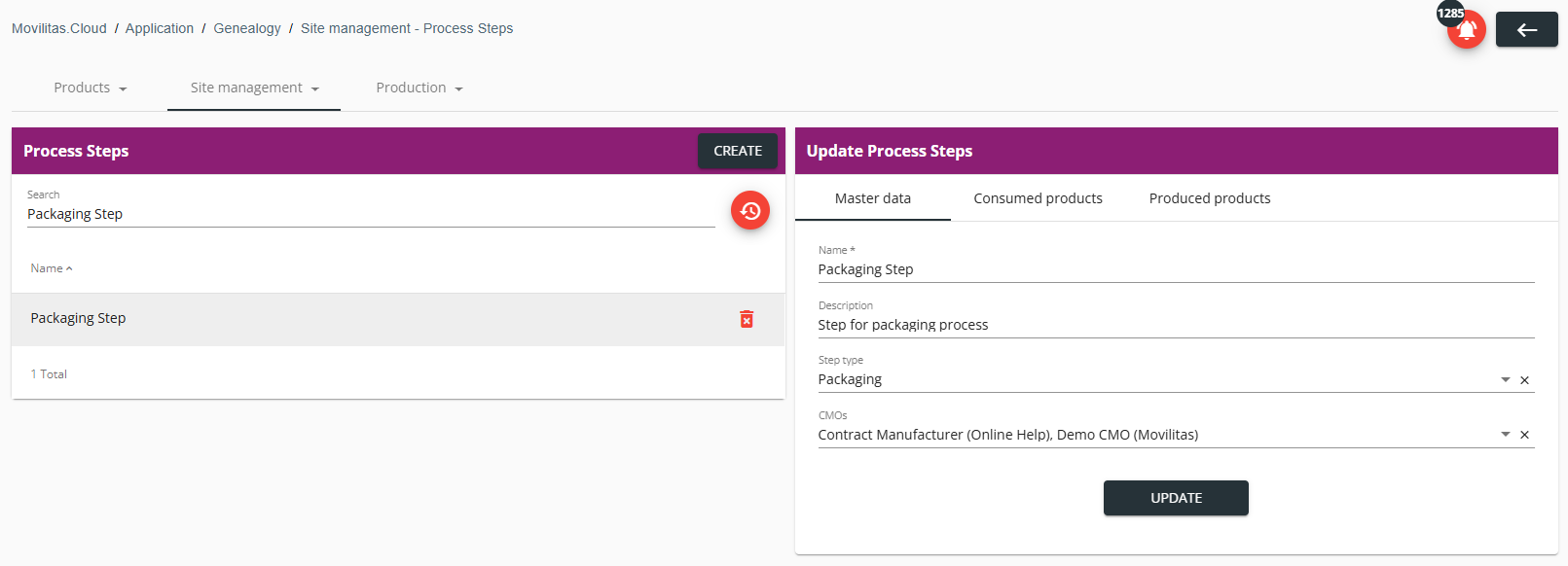
2. Find and select the process step in the list. The application displays the master data of the process step on the Update Process Steps panel.
Example:
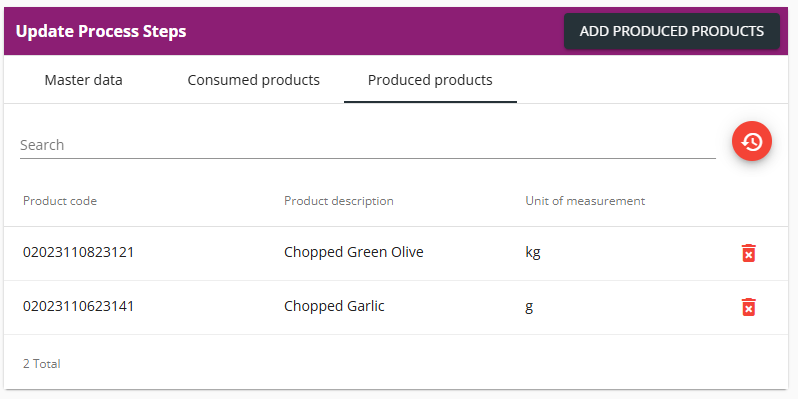
3. Select the Produced products tab on the Update Process Steps panel. The application displays the list of produced products.
Example:
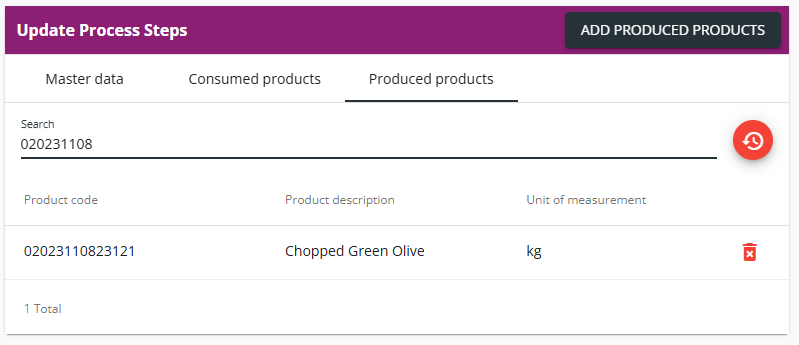
4. (Optional) Find a product by entering the product code or the product description in the search field.
- The list of products is filtered based on the search criteria.
- You can reset the filter by clicking Reset filters.
Example:
5. (Optional) Add a new produced product as follows:
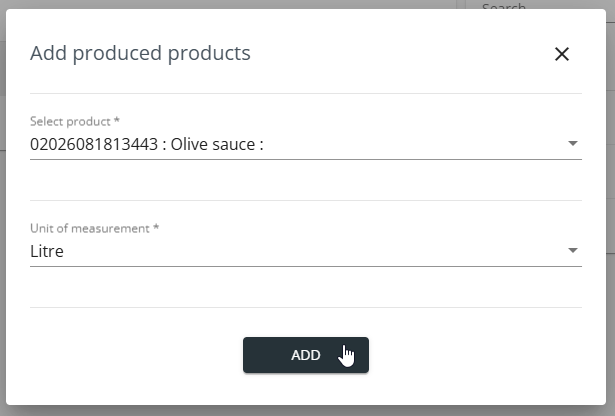
- Click Add Produced Products in the top-right corner of the Update Process Steps panel. The application displays the Add produced products pop-up.
- Select the product in the Select product field.
- Enter the product code or the product name in the search field to find the product.
- The application offers products from the Serialized Manufacturing application.
- Select the unit of measurement (UoM) in the Unit of measurement field. The application offers a predefined set of UoMs.
- Click Add.
Example:
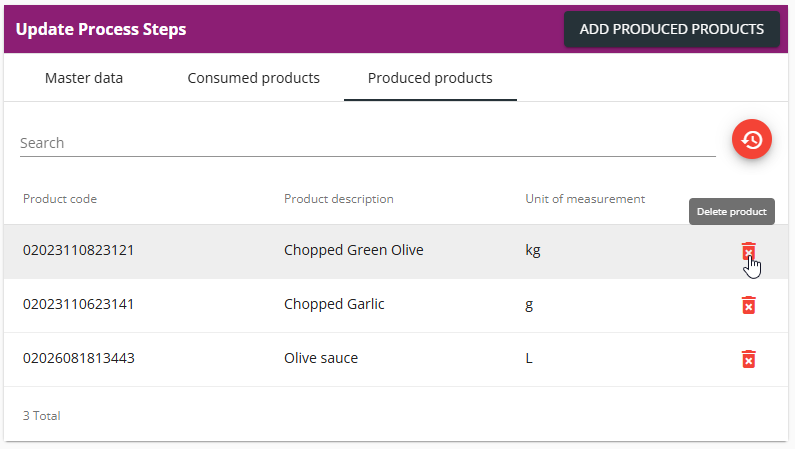
6. (Optional) Delete a product by clicking the delete icon. Confirm the deletion by clicking Yes in the pop-up.
Example:
Back to the list of procedures
Managing the Products of a Process Step with Inbound External Logistics Type
You can manage the products of an inbound process step that involves the supplier(s):
- You can add a product to the process step.
- You can search for a product.
- You can delete a product.
Procedure
1. In the Genealogy application, select the Site management --> Process Steps tab. The application displays the list of process steps.
2. Find and select the process step in the list. The application displays the master data of the process step on the Update Process Steps panel.
Example:
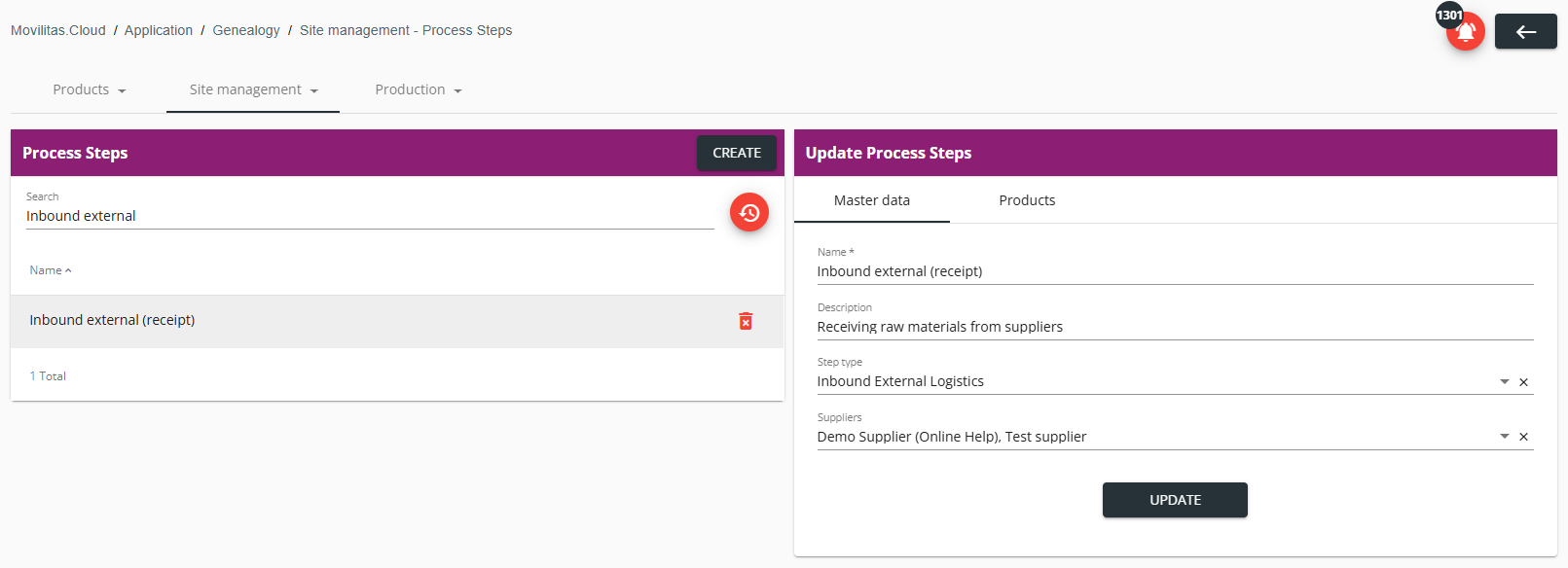
3. Select the Products tab on the Update Process Steps panel. The application displays the list of products.
Example:
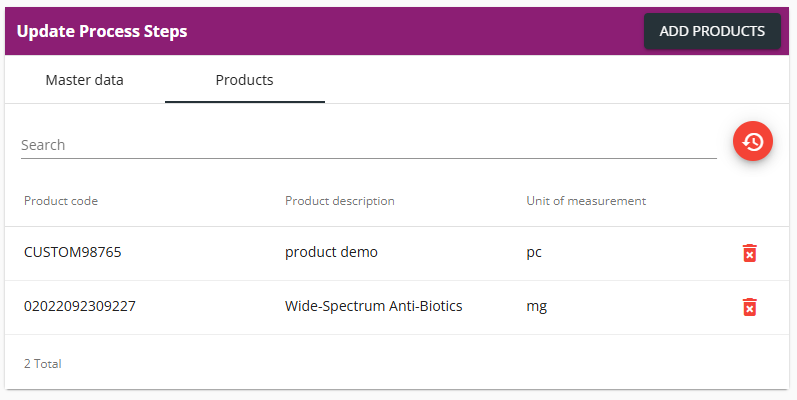
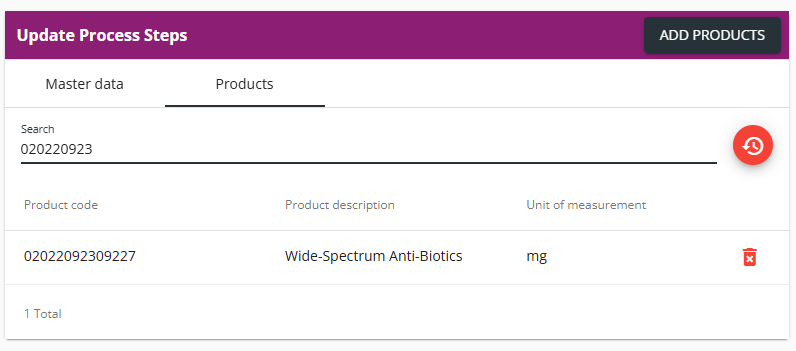
4. (Optional) Find a product by entering the product code or the product description in the search field.
- The list of products is filtered based on the search criteria.
- You can reset the filter by clicking Reset filters.
Example:
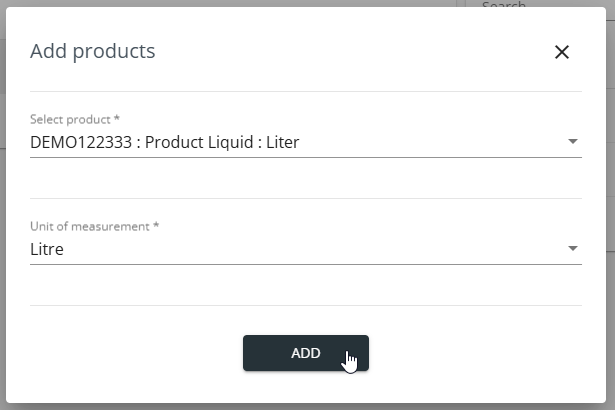
5. (Optional) Add a new product as follows:
- Click Add Products in the top-right corner of the Update Process Steps panel. The application displays the Add products pop-up.
- Select the product in the Select product field.
- Enter the product code or the product name in the search field to find the product.
- The application offers the products of the associated supplier(s) and products without a supplier in the Serialized Logistics application.
- Select the unit of measurement (UoM) in the Unit of measurement field. The application offers a predefined set of UoMs.
- Click Add.
Example:
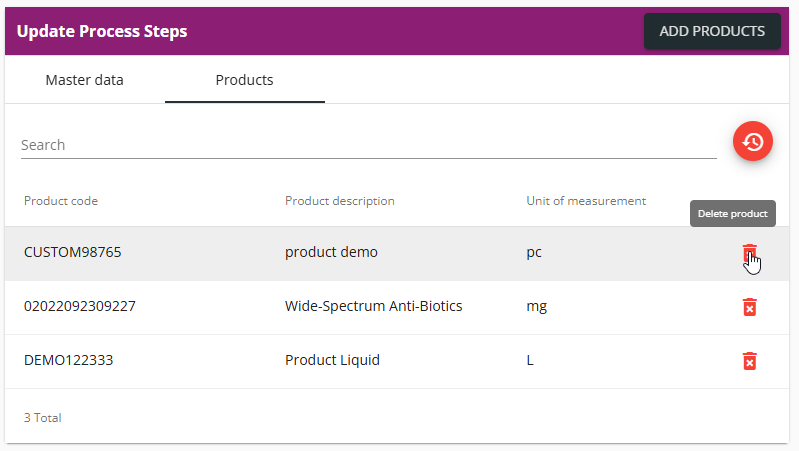
6. (Optional) Delete a product by clicking the delete icon. Confirm the deletion by clicking Yes in the pop-up.
Example:
Back to the list of procedures
Managing the Products of a Process Step with Outbound External Logistics Type
You can manage the products of an outbound process step that involves the client(s):
- You can add a product to the process step.
- You can search for a product.
- You can delete a product.
Procedure
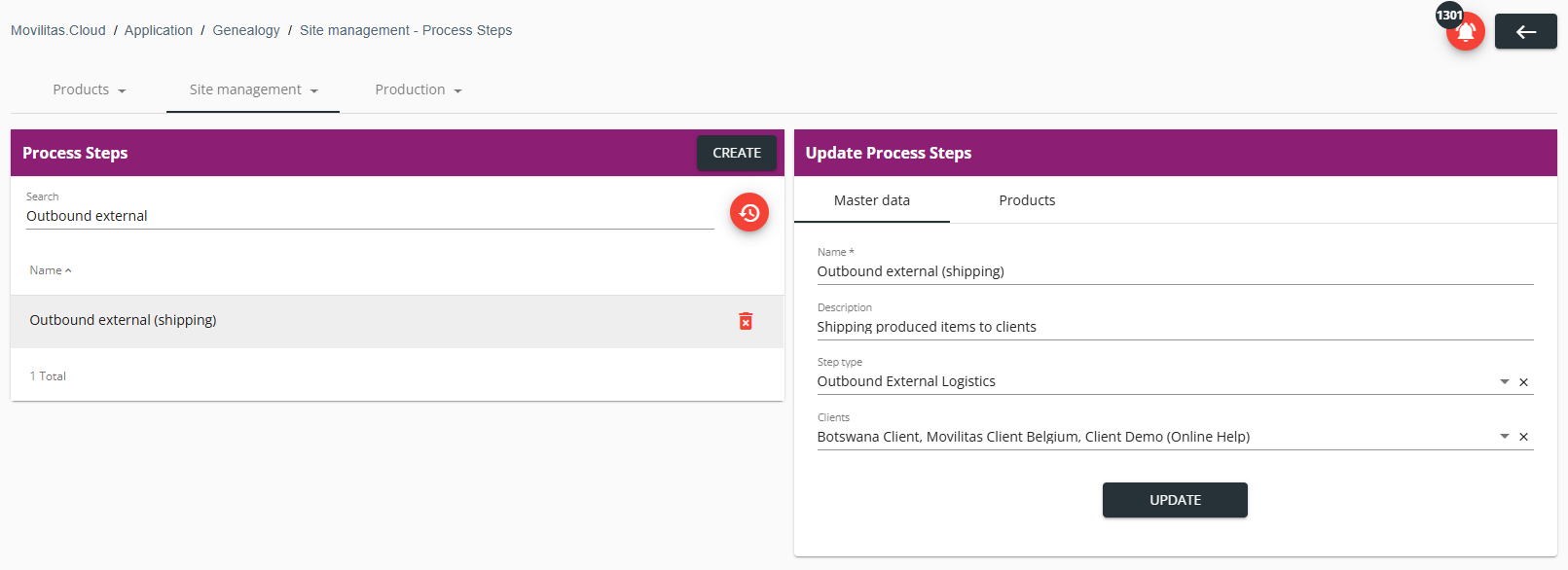
1. In the Genealogy application, select the Site management --> Process Steps tab. The application displays the list of process steps.
2. Find and select the process step in the list. The application displays the master data of the process step on the Update Process Steps panel.
Example:
3. Select the Products tab on the Update Process Steps panel. The application displays the list of products.
Example:
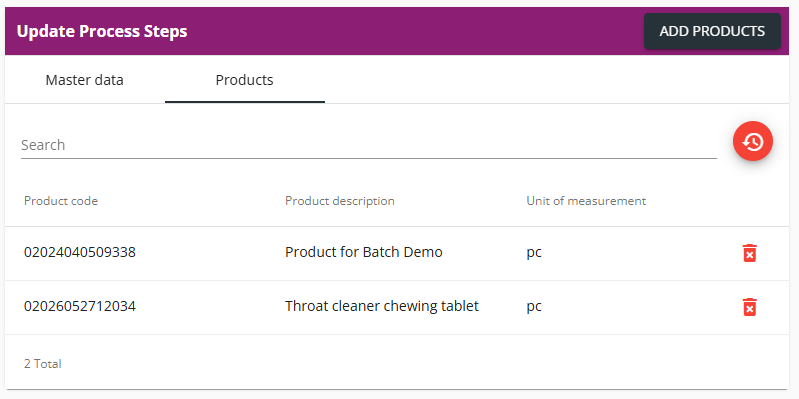
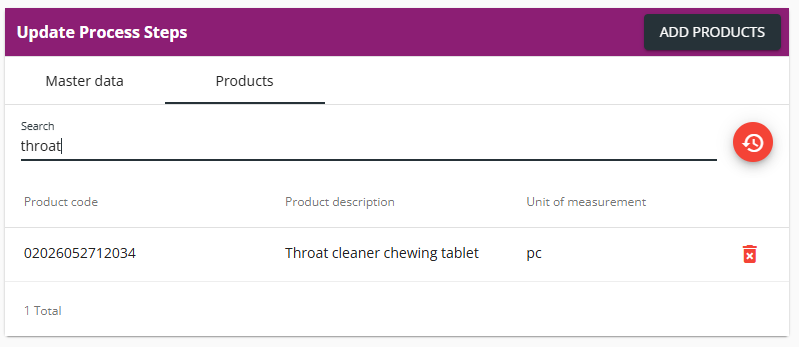
4. (Optional) Find a product by entering the product code or the product description in the search field.
- The list of products is filtered based on the search criteria.
- You can reset the filter by clicking Reset filters.
Example:
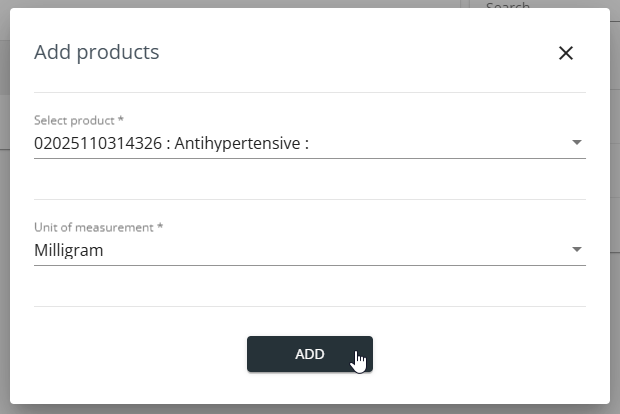
5. (Optional) Add a new product as follows:
- Click Add Products in the top-right corner of the Update Process Steps panel. The application displays the Add products pop-up.
- Select the product in the Select product field.
- Enter the product code or the product name in the search field to find the product.
- The application offers the products from the Serialized Manufacturing application.
- Select the unit of measurement (UoM) in the Unit of measurement field. The application offers a predefined set of UoMs.
- Click Add.
Example:
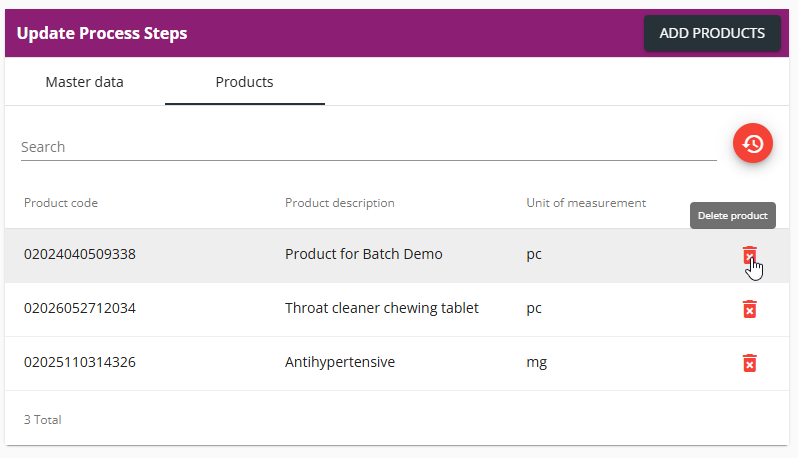
6. (Optional) Delete a product by clicking the delete icon. Confirm the deletion by clicking Yes in the pop-up.
Example:
Back to the list of procedures
Managing the Products of a Process Step with Inbound Internal Logistics Type
You can manage the products of an inbound process step that involves source warehouse(s) and destination warehouse(s):
- You can add a product to the process step.
- You can search for a product.
- You can delete a product.
Procedure
1. In the Genealogy application, select the Site management --> Process Steps tab. The application displays the list of process steps.
2. Find and select the process step in the list. The application displays the master data of the process step on the Update Process Steps panel.
Example:
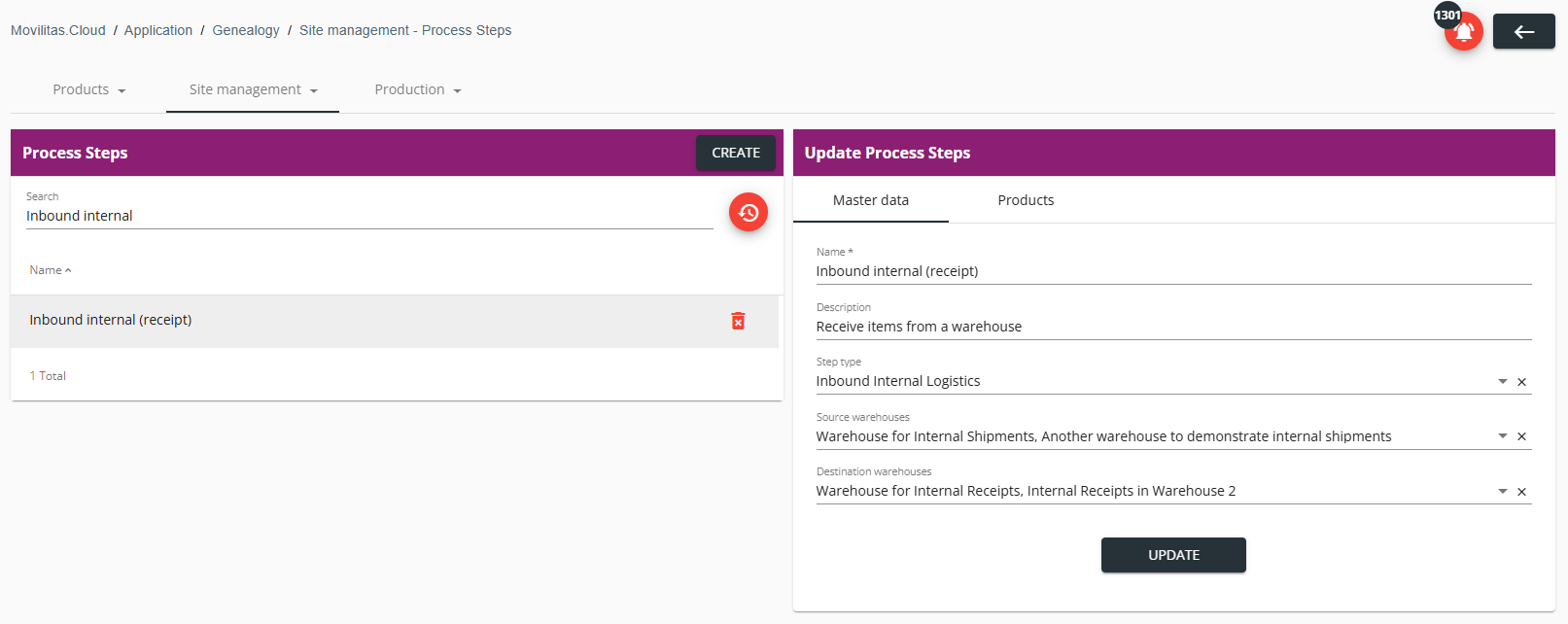
3. Select the Products tab on the Update Process Steps panel. The application displays the list of products.
Example:
4. (Optional) Find a product by entering the product code or the product description in the search field.
- The list of products is filtered based on the search criteria.
- You can reset the filter by clicking Reset filters.
Example:
5. (Optional) Add a new product as follows:
- Click Add Products in the top-right corner of the Update Process Steps panel. The application displays the Add products pop-up.
- Select the product in the Select product field.
- Enter the product code or the product name in the search field to find the product.
- The application offers the products from the Serialized Manufacturing and Serialized Logistics applications.
- Select the unit of measurement (UoM) in the Unit of measurement field. The application offers a predefined set of UoMs.
- Click Add.
Example:
6. (Optional) Delete a product by clicking the delete icon. Confirm the deletion by clicking Yes in the pop-up.
Example:
Back to the list of procedures
Managing the Products of a Process Step with Outbound Internal Logistics Type
You can manage the products of an outbound process step that involves source warehouse(s) and destination warehouse(s):
- You can add a product to the process step.
- You can search for a product.
- You can delete a product.
Procedure
1. In the Genealogy application, select the Site management --> Process Steps tab. The application displays the list of process steps.
2. Find and select the process step in the list. The application displays the master data of the process step on the Update Process Steps panel.
Example:
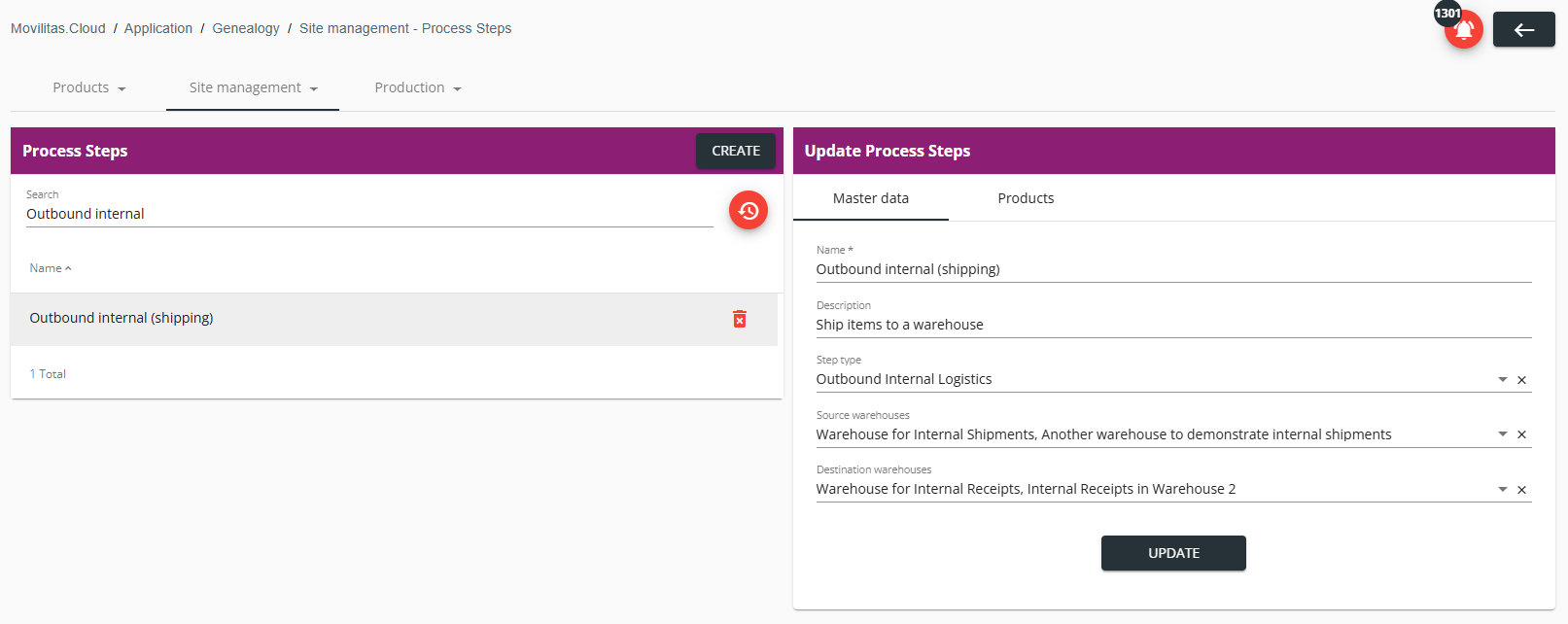
3. Select the Products tab on the Update Process Steps panel. The application displays the list of products.
Example:
4. (Optional) Find a product by entering the product code or the product description in the search field.
- The list of products is filtered based on the search criteria.
- You can reset the filter by clicking Reset filters.
Example:
5. (Optional) Add a new product as follows:
- Click Add Products in the top-right corner of the Update Process Steps panel. The application displays the Add products pop-up.
- Select the product in the Select product field.
- Enter the product code or the product name in the search field to find the product.
- The application offers the products from the Serialized Manufacturing and Serialized Logistics applications.
- Select the unit of measurement (UoM) in the Unit of measurement field. The application offers a predefined set of UoMs.
- Click Add.
Example:
6. (Optional) Delete a product by clicking the delete icon. Confirm the deletion by clicking Yes in the pop-up.
Example:
Back to the list of procedures
Deleting a Process Step
Procedure
1. In the Genealogy application, select Site management --> Process Steps tab. The application displays the list of process steps.
2. Find the process step in the list you want to delete.
Example:
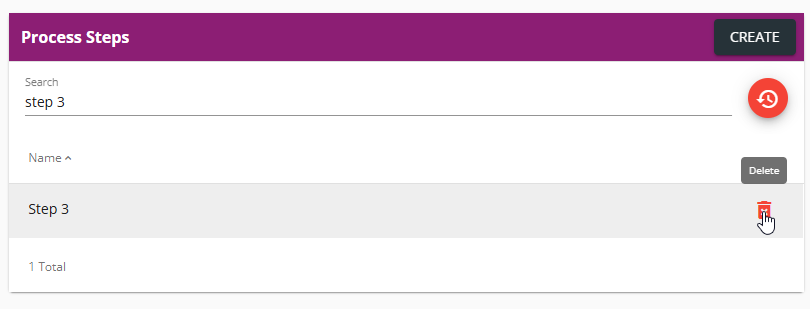
3. Click the delete icon and confirm the deletion by clicking Yes.
Back to the list of procedures
