
Assign mobile users as operators in the Genealogy application to enable them to execute process steps in the mobile application.
Before You Begin
Make sure you have assigned mobile users to the tenant.
Procedure
1. In the Genealogy application, select Site management --> Operators tab.
2. In the Available operators list, find the user by using the search field.
Note: The Available operators list shows the mobile users of the tenant.
Example:
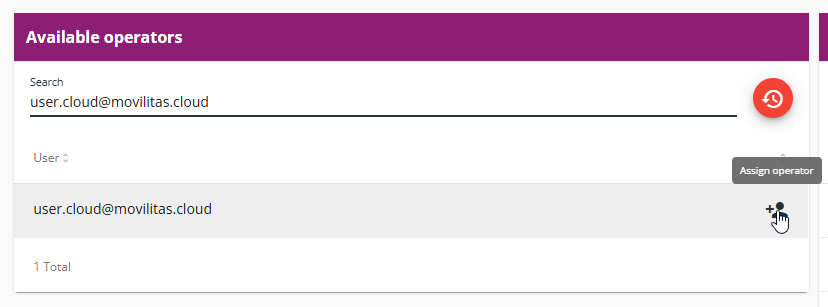
3. Click the Assign operator icon next to the user. The application informs you about the additional costs.
4. Confirm the action in the pop-up window by selecting Confirm. The application displays the assigned user in the Active operators list.
5. In the Active operators list, find the operator by using the search field and then select Edit user privileges icon next to the operator. The operator details are expanded.
Example:
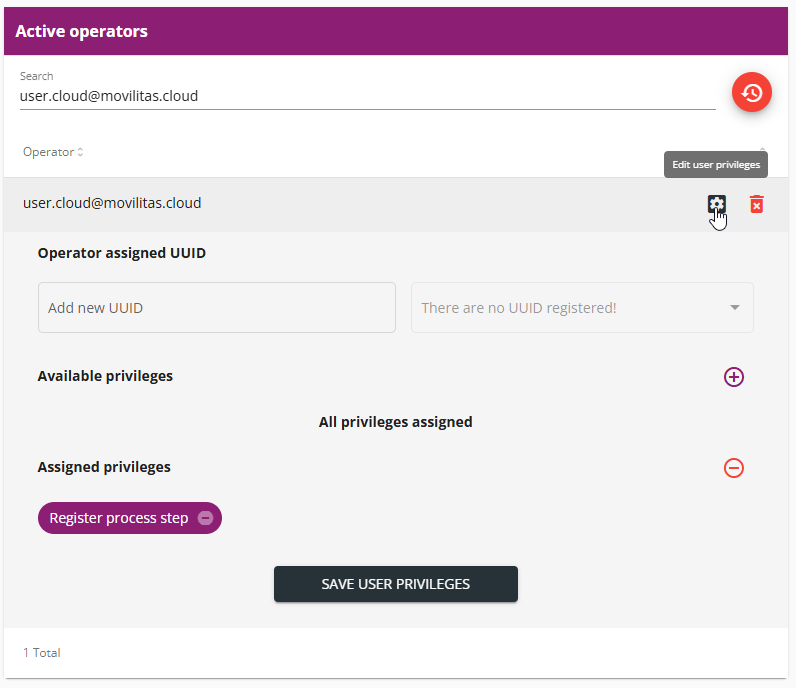
6. (Optional) Add new UUIDs to the operator.
You can assign specific devices to the operator by providing the universally unique identifiers (UUIDs) of these devices in the Add new UUID field.
- If UUIDs are added here, the operator can use only the specified devices.
- If no UUIDs are specified here, the operator can use any device to execute process steps.
You can remove a UUID from the list of assigned UUIDs.
7. Confirm the assigned privilege for the operator. The application assigns the Register process step privilege to the operator, by default.
The privilege is required to execute process steps in the mobile application.
8. Click Save User Privileges.
Operators now can start executing the process steps.
You can remove an assigned operator by clicking the delete icon next to the operator in the Active operators list. In this case, the operator goes back to the Available operators list.
