
In the Clinical Studies application, you - as the manufacturer - can register clinical studies. You can add product-clinical supply chain mappings to a clinical study. The product comes from the Serialized Manufacturing application, while the clinical supply chain is registered as a process in the Genealogy application.
List of Procedures
- Creating a Clinical Study
- Searching for a Clinical Study
- Updating a Clinical Study
- Managing the Product-Clinical Supply Chain Mappings of a Clinical Study
- Deleting a Clinical Study
Creating a Clinical Study
As a manufacturer, you can register clinical studies.
Procedure
1. Open the Clinical Studies application. The application displays the list of clinical studies and the Create study panel.
Note: When viewing the details of a clinical study, you can open the Create study panel by clicking Create.
Example:
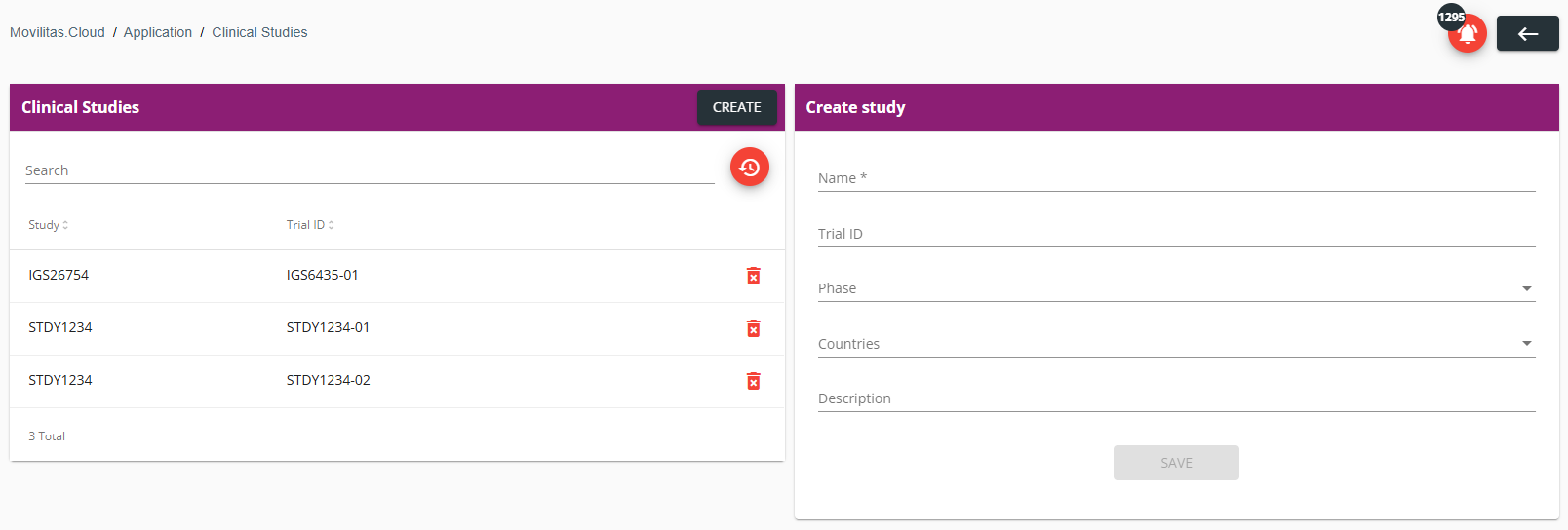
2. Fill in the form as described below. The required fields are marked with an asterisk (*) in the form.
| Field | Description |
|---|---|
| Name | Enter the name of the clinical study. |
| Trial ID | Enter the identifier of the clinical trial for the study. It is possible to create multiple trials for the same study (separate object each). The combination of the study name and trial ID must be unique on the tenant. |
| Phase | Select the phase of the study:
|
| Countries | Select the countries where the trial will be executed. When opening the drop-down, the application offers the countries with their 3-letter ISO code and full name. Multiple countries can be selected. After the drop-down is closed, the countries are listed with their 3-letter ISO code. |
| Description | Provide a short explanation or summary of the study. |
3. Click Save. The study is created and added to the list.
Next Steps
Add product-clinical supply chain mappings to the study. For more information, see Managing the Product-Clinical Supply Chain Mappings of a Clinical Study.
Back to the list of procedures
Searching for a Clinical Study
Procedure
1. Open the Clinical Studies application. The application displays the list of clinical studies.
2. Enter the study name or the trial ID in the search field.
- The list of clinical studies is filtered based on the search criteria.
- You can reset the filter by clicking Reset filters.
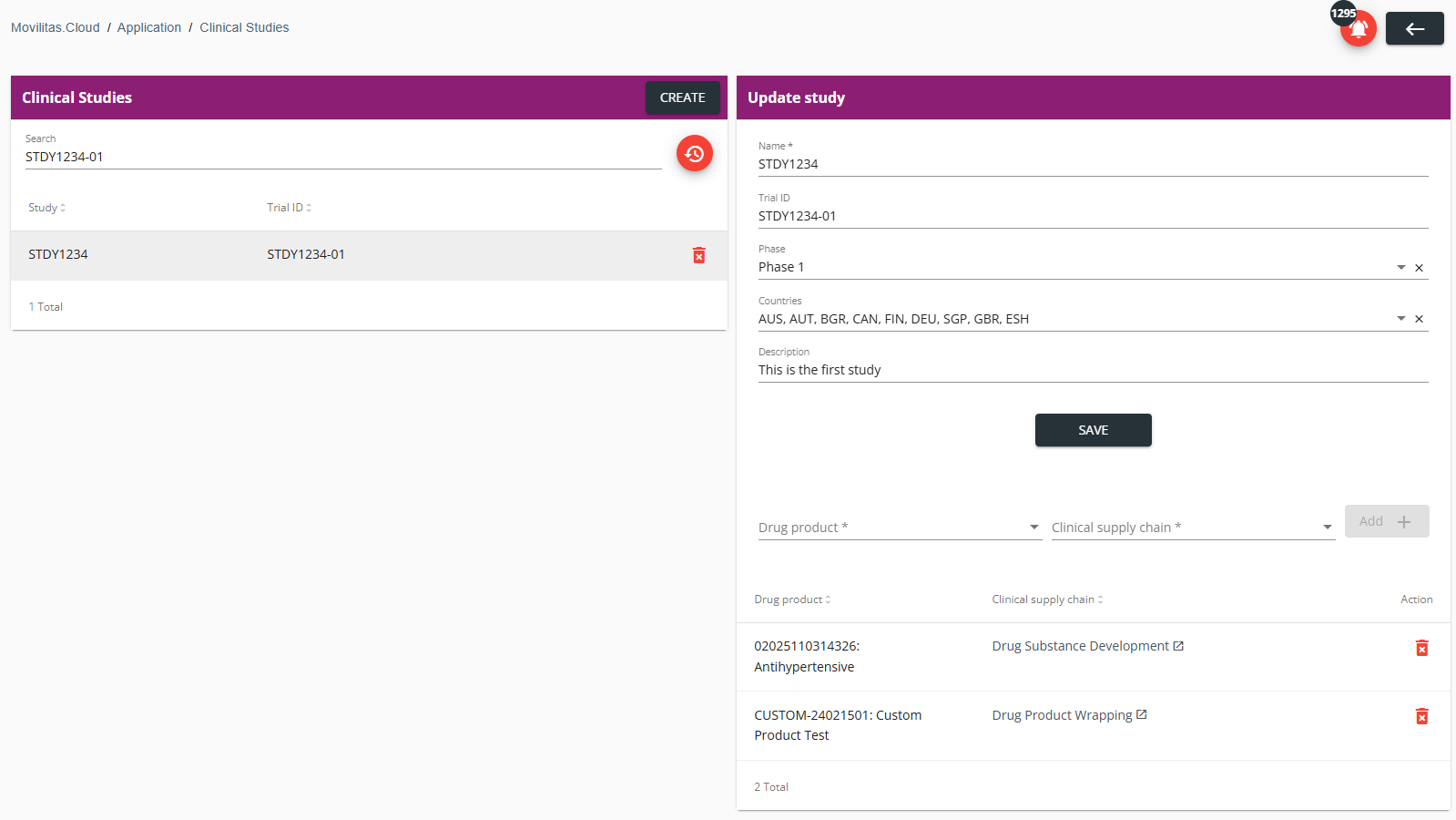
3. Select the study to view its details on the Update study panel.
- Basic form.
- Product-clinical supply chain mappings.
- For more information on the mapping, see Managing the Product-Clinical Supply Chain Mappings of a Clinical Study.
Example:
Back to the list of procedures
Updating a Clinical Study
Procedure
1. Open the Clinical Studies application. The application displays the list of clinical studies.
2. Find and select the clinical study in the list you want to update. The application displays the basic form and the product-clinical supply chain mappings (if any) on the Update study panel.
3. (Optional) Modify the basic data of the clinical study.
| Field | Description |
|---|---|
| Name | Enter the name of the clinical study. |
| Trial ID | Enter the identifier of the clinical trial for the study. It is possible to create multiple trials for the same study (separate object each). The combination of the study name and trial ID must be unique on the tenant. |
| Phase | Select the phase of the study:
|
| Countries | Select the countries where the trial will be executed. When opening the drop-down, the application offers the countries with their 3-letter ISO code and full name. Multiple countries can be selected. After the drop-down is closed, the countries are listed with their 3-letter ISO code. |
| Description | Provide a short explanation or summary of the study. |
4. Click Save.
5. (Optional) Manage the product-clinical supply chain mappings of the study. For more information, see Managing the Product-Clinical Supply Chain Mappings of a Clinical Study.
Back to the list of procedures
Managing the Product-Clinical Supply Chain Mappings of a Clinical Study
You can add product-clinical supply chain mappings to a clinical study. The product comes from the Serialized Manufacturing application, while the clinical supply chain is registered as a process in the Genealogy application.
Before You Begin
Make sure that all required products are registered in the Serialized Manufacturing application.
Make sure that all required clinical supply chains are registered as processes in the Genealogy application.
Procedure
1. Open the Clinical Studies application. The application displays the list of clinical studies.
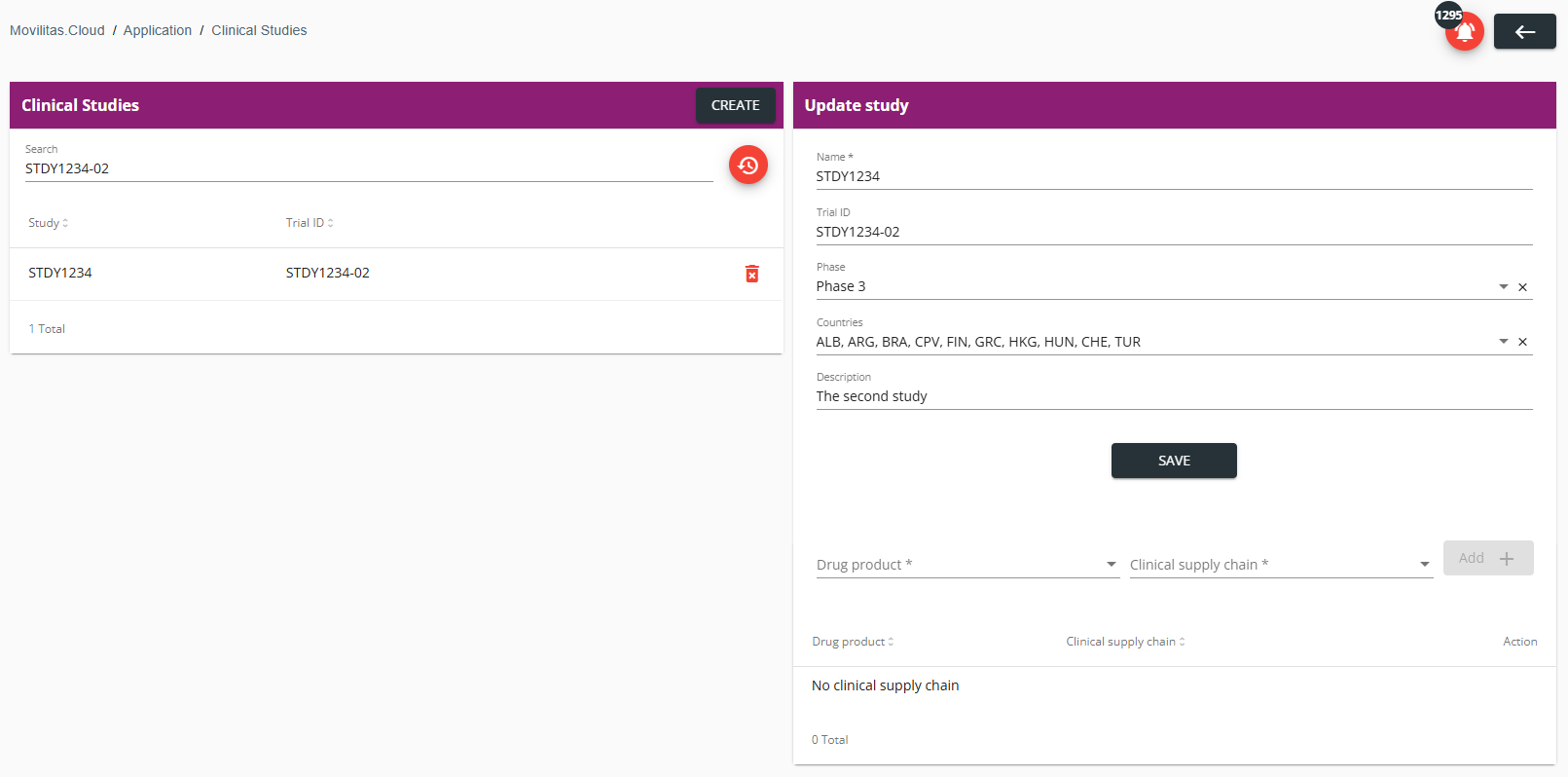
2. Find and select the clinical study in the list you want to update. The application displays the basic form and the product-clinical supply chain mappings (if any) on the Update study panel.
The following example illustrates a clinical study without any mapping:
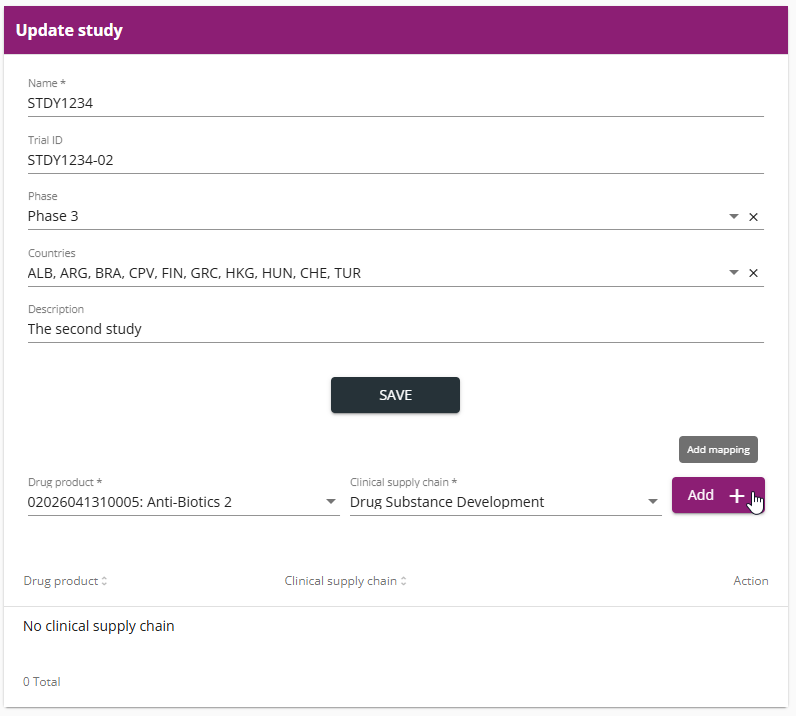
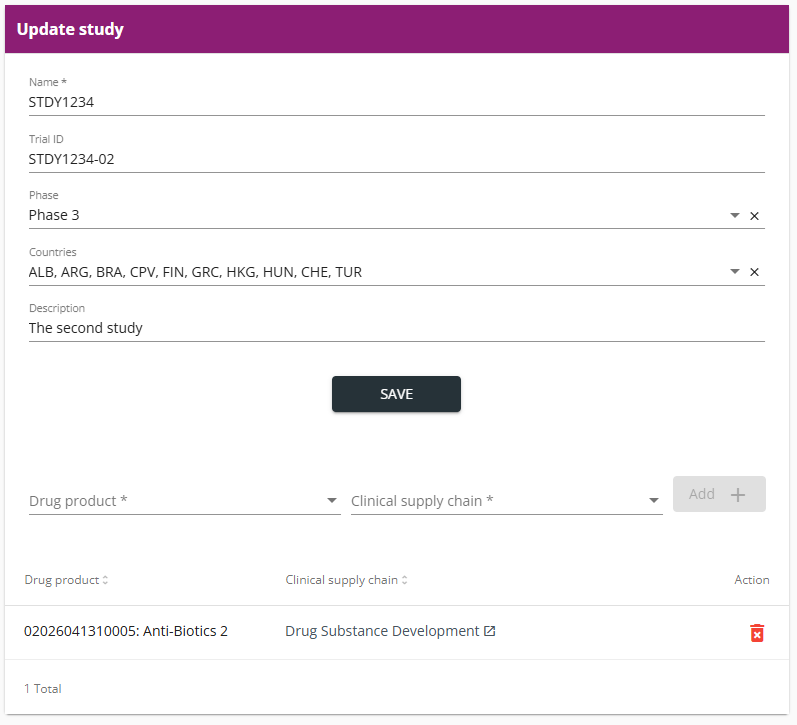
3. Add a product-clinical supply chain mapping as follows:
- Search for and select the product in the Drug product drop-down.
- Search for and select the clinical supply chain in the Clinical supply chain drop-down.
- Click Add +.
Example:
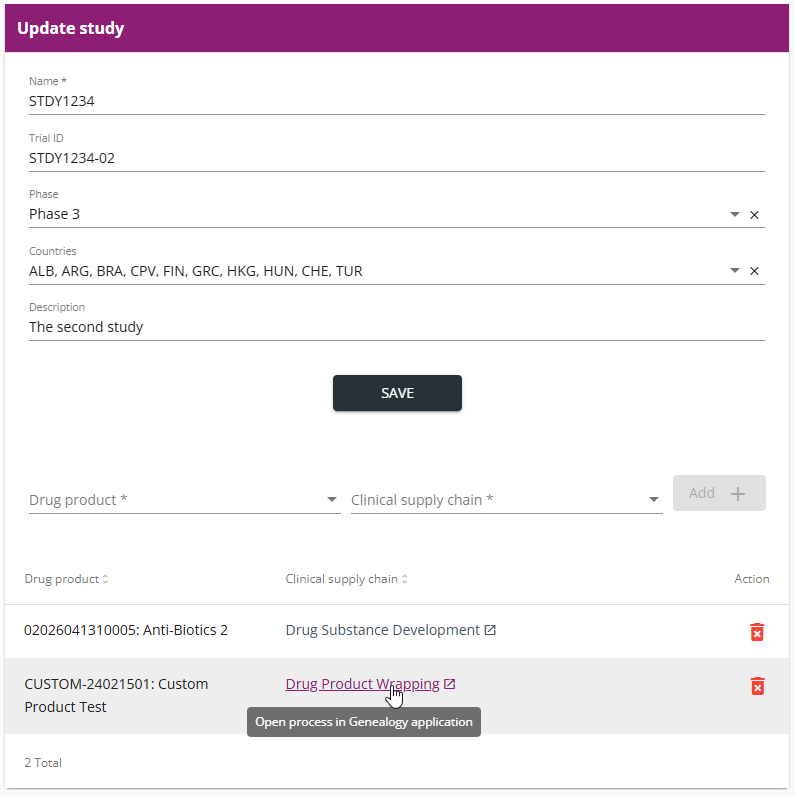
4. To view the process in the Genealogy application that represents a clinical supply chain, click on the clinical supply chain link.
The application opens the process in the Genealogy application in a separate browser tab.
Example:
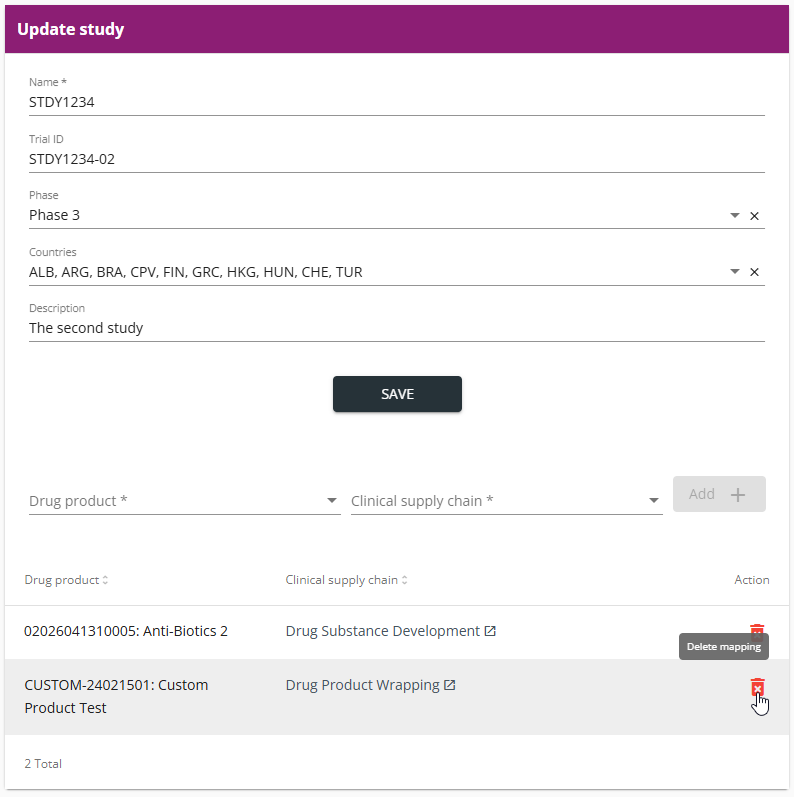
5. Delete a product-clinical supply chain mapping as follows:
- Click the delete icon next to the mapping you want to delete.
- Confirm the deletion by clicking Yes in the pop-up.
Example:
Back to the list of procedures
Deleting a Clinical Study
Procedure
1. Open the Clinical Studies application. The application displays the list of clinical studies.
2. Find the clinical study you want to delete.
Example:
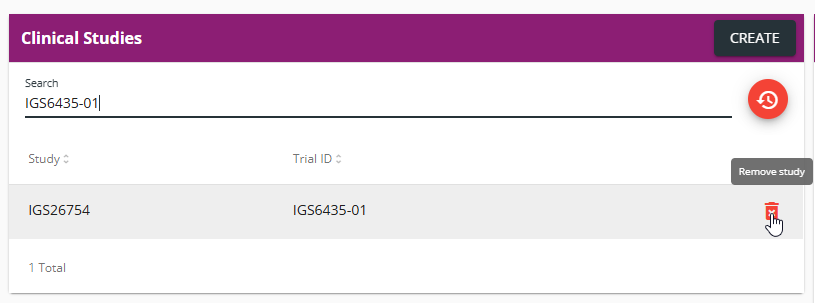
3. Click the delete icon and confirm the deletion by clicking Yes.
Back to the list of procedures
