
When logging in to Movilitas.Cloud through Single Sign-On (SSO) for the first time, you receive an email from Movilitas.Cloud to activate your account. This procedure prevents user impersonation because you need to confirm that you are the one who tries to log in through SSO. Once you activate your account, Movilitas.Cloud does not ask for further confirmation/activation during SSO login.
The first login can be done towards the Movilitas.Cloud Admin UI, Movilitas Mobile Web, or Movilitas Mobile Native (Installed) Application (One of these).
Before You Begin
Make sure that your user is registered in the Identity Provider used for SSO and in Movilitas.Cloud.
Single Sign-On must be set up on the tenant in Movilitas.Cloud that you want to access.
Procedure
1. Log in to Movilitas.Cloud through SSO on one of the following routes:
- Open the URL that allows you to log in to the Admin UI through SSO.
- Open the URL that allows you to log in to Movilitas Mobile Web through SSO.
- Open the mobile application and select Log In Using SSO.
If you are not logged in to the Identity Provider, Movilitas.Cloud redirects you to the Identity Provider login page to sign in. Enter your email and password on the Identity Provider login page, and sign in.
If you are logged in to the Identity Provider, Movilitas.Cloud returns the following message: Your account must be activated before you can log in with SSO. We have sent an activation email to make sure it’s really you trying to log in.
2. Check your mailbox for the email. If you cannot find the email, check your spam folder.
Example:
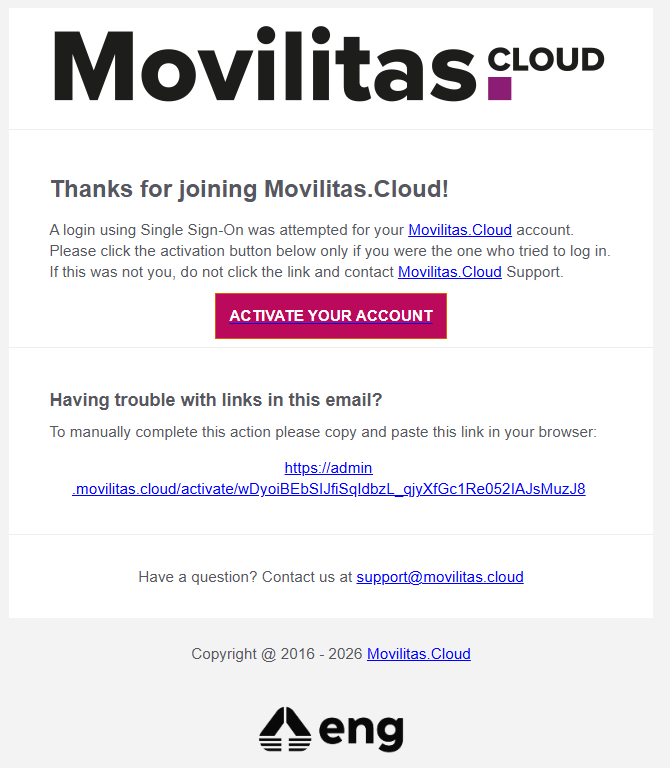
3. Click Activate Your Account or copy and paste the link in your browser.
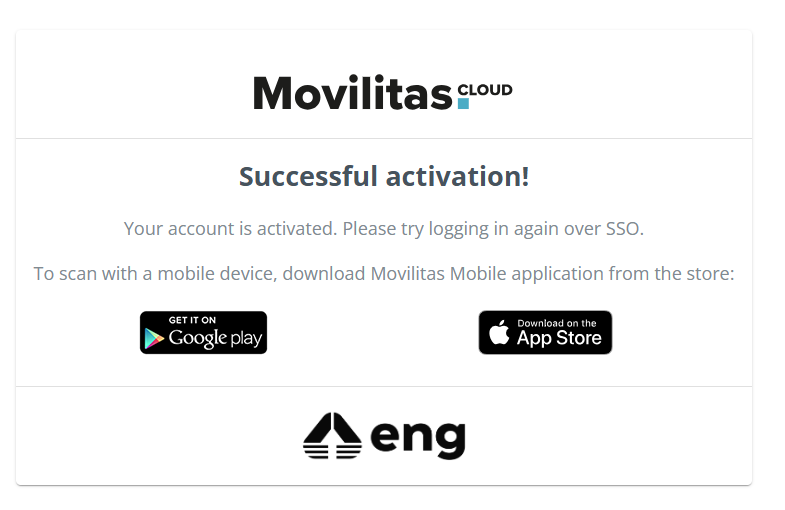
Movilitas.Cloud displays a confirmation page about the successful activation and asks you to log in again through SSO.
Example:
If you are facing an issue, see Errors during SSO Login.
Next Steps
Log in to Movilitas.Cloud through SSO again:
