
Before logging in to the installed mobile application through SSO, you need to perform a one-time SSO setup by storing the SSO identifier on the device.
However, you can change the stored SSO identifier or even clear the SSO identifier and start the setup again.
SSO is supported on both mobile OS platforms, Android and iOS.
List of Procedures
Adding the SSO Identifier to the Application
Before You Begin
Make sure you have the SSO identifier. The SSO identifier can be retrieved from the tenant settings in Movilitas.Cloud Admin UI.
To use Movilitas Mobile on a mobile device, make sure that you have installed Movilitas Mobile on your device. If you try to use the application in a web browser while your device is optimized for installation, the application informs you about that. For Android devices, you can download the APK file by selecting the Download button in the message. For more information, see Downloading and Installing Movilitas Mobile.
Procedure
1. Open the mobile application.
The application displays the login page with the login fields and several buttons, including the Set Up Single Sign-On (SSO) button.
Example (Android):
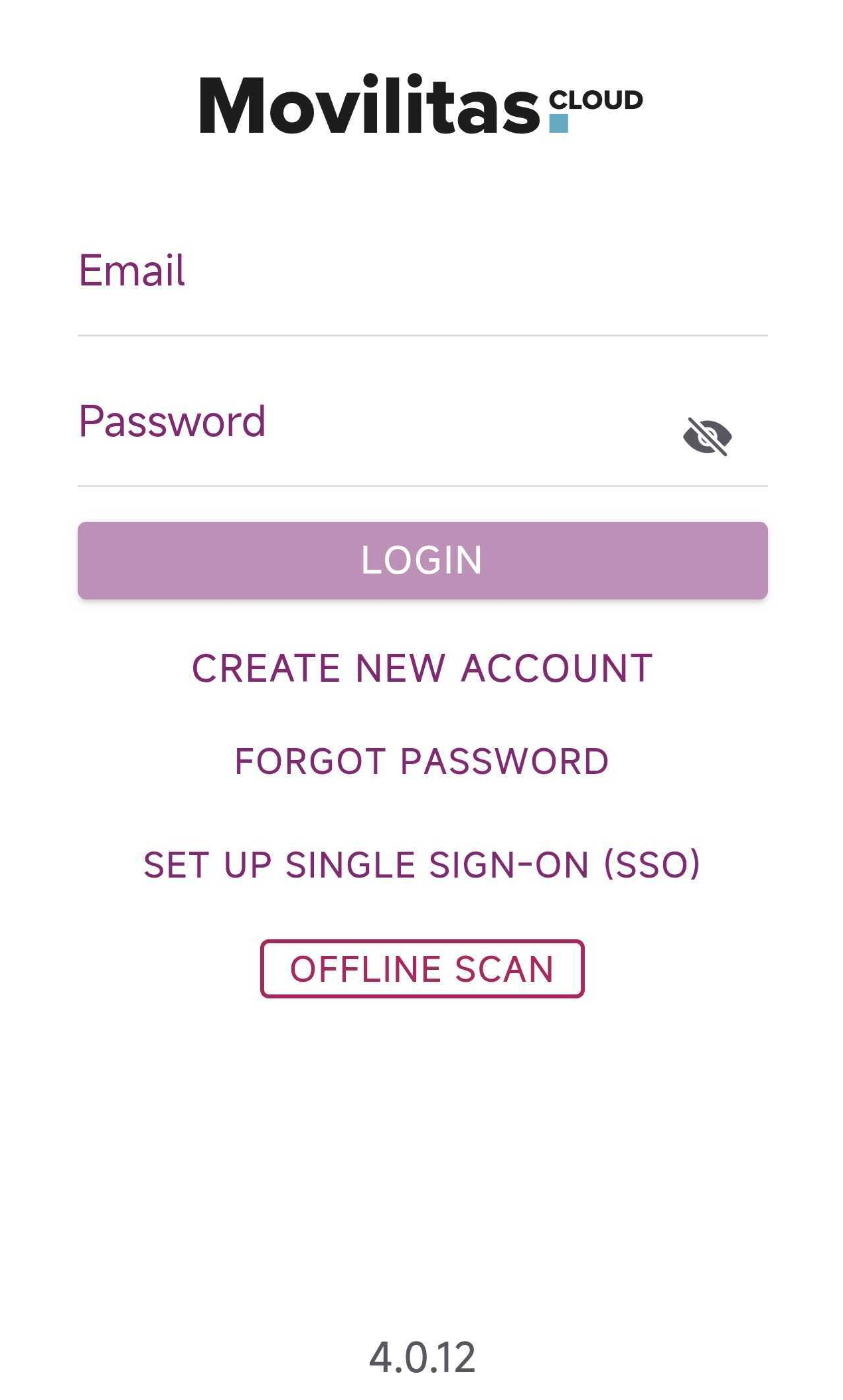
2. Select Set Up Single Sign-On (SSO).
The application displays the SSO Identifier field.
Example (Android):
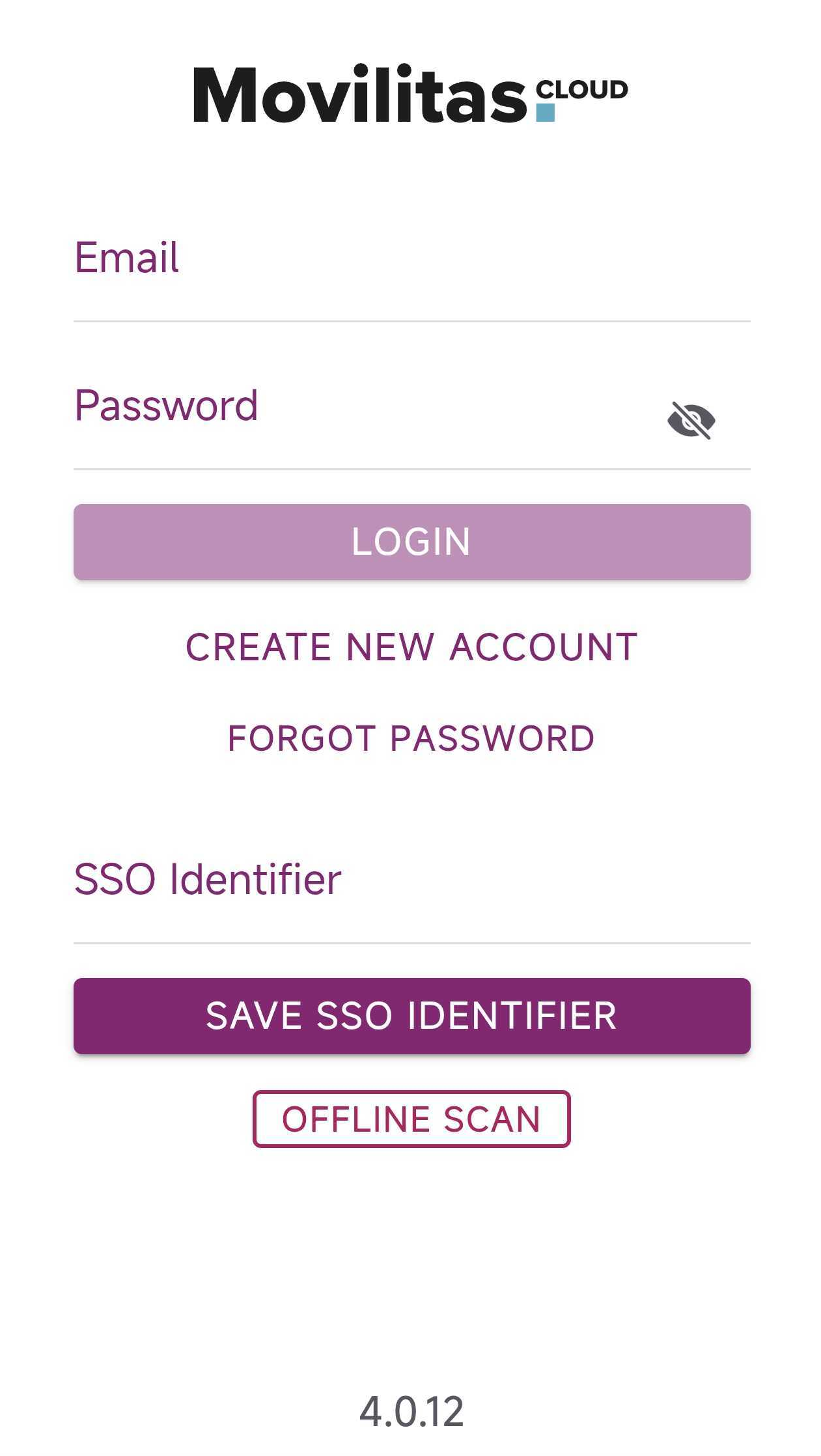
3. Enter the SSO identifier in the SSO Identifier field.
Example (Android):
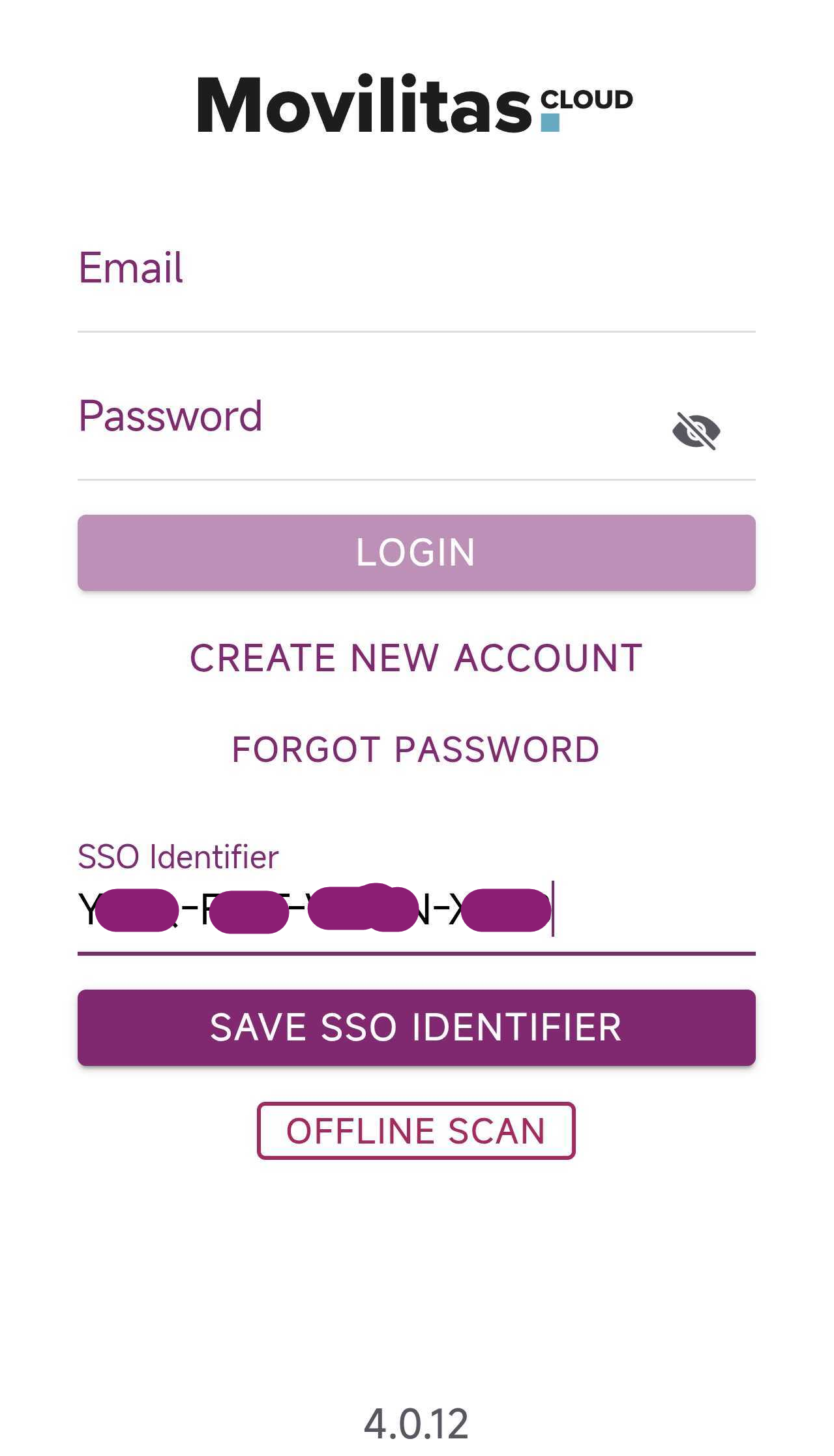
For usability purposes, the application automatically performs the following:
- Corrects any lowercase letters to uppercase.
- Adds the required dashes if you do not enter them. However, it also works if you do enter the dashes.
4. Select Save SSO Identifier.
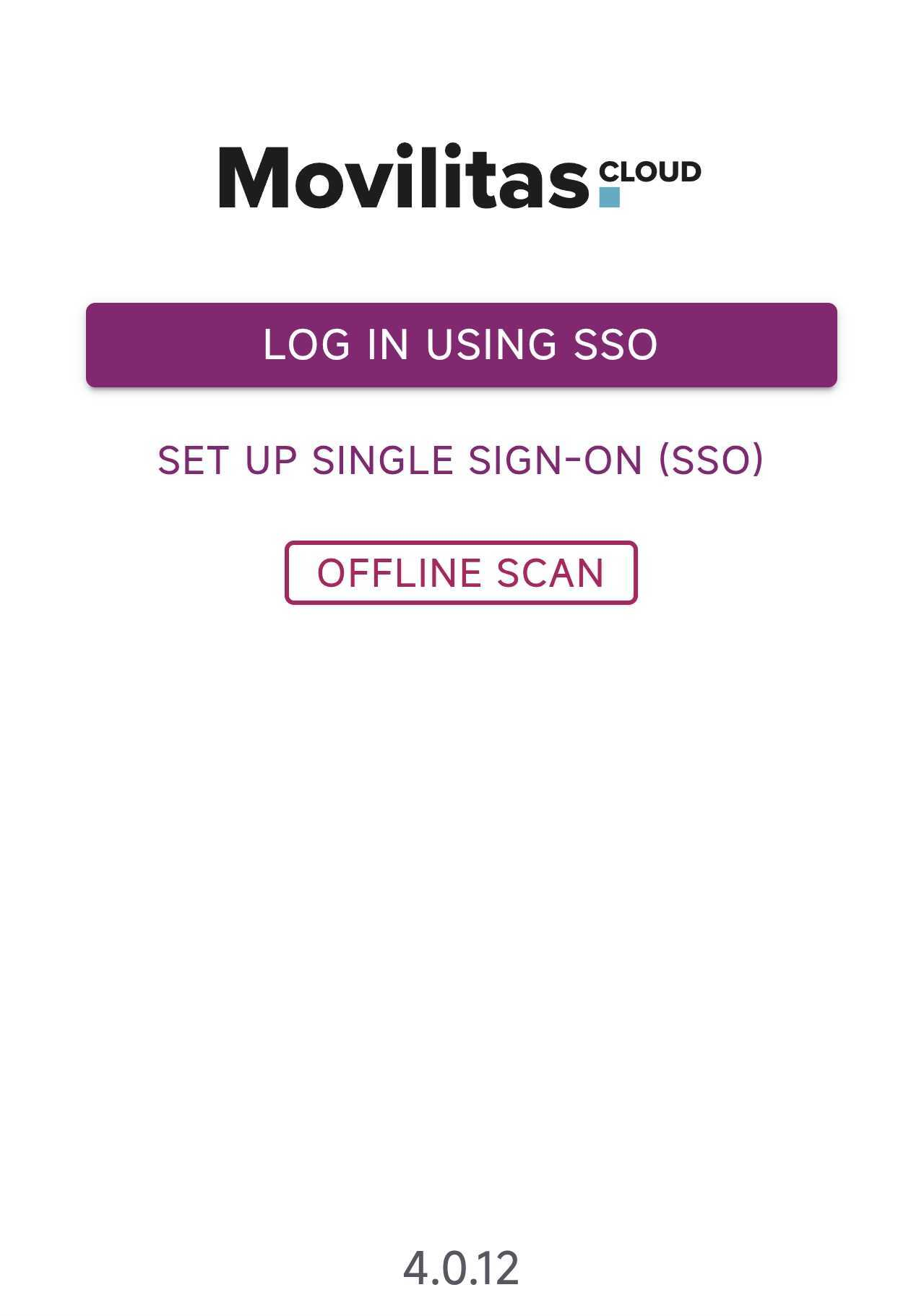
The SSO identifier is stored on the device. The application refreshes the screen and displays the Log in Using SSO button.
Example (Android):
Next Steps
Log in to the application using SSO. For more information, see Logging in to Movilitas Mobile through SSO.
Back to the list of procedures
Changing the SSO Identifier
Before You Begin
Make sure you have the SSO identifier. The SSO identifier can be retrieved from the tenant settings in Movilitas.Cloud Admin UI.
Procedure
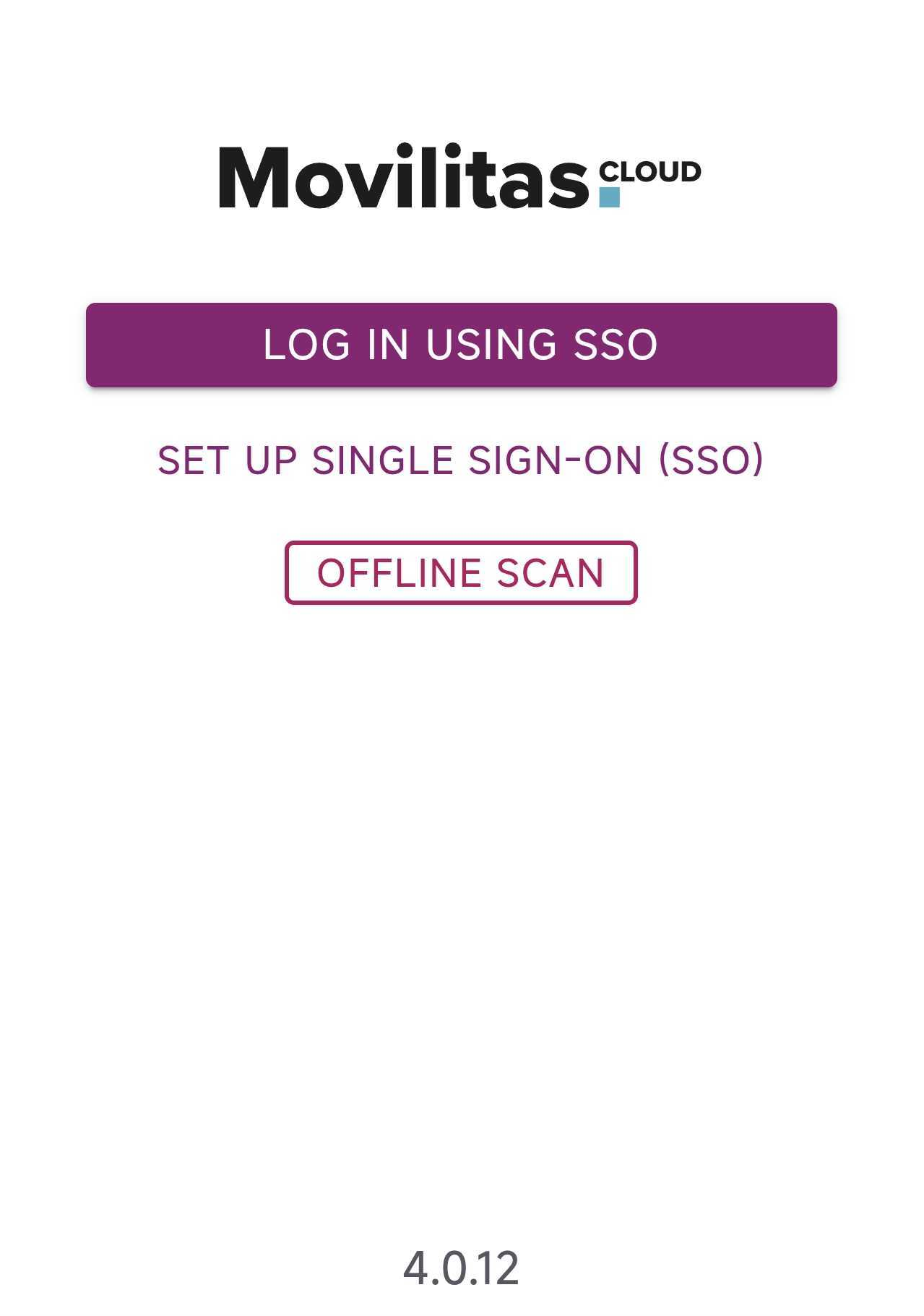
1. Open the mobile application.
The application displays the login page with the Log In Using SSO button and the Set Up Single Sign-On (SSO) button.
Example (Android):
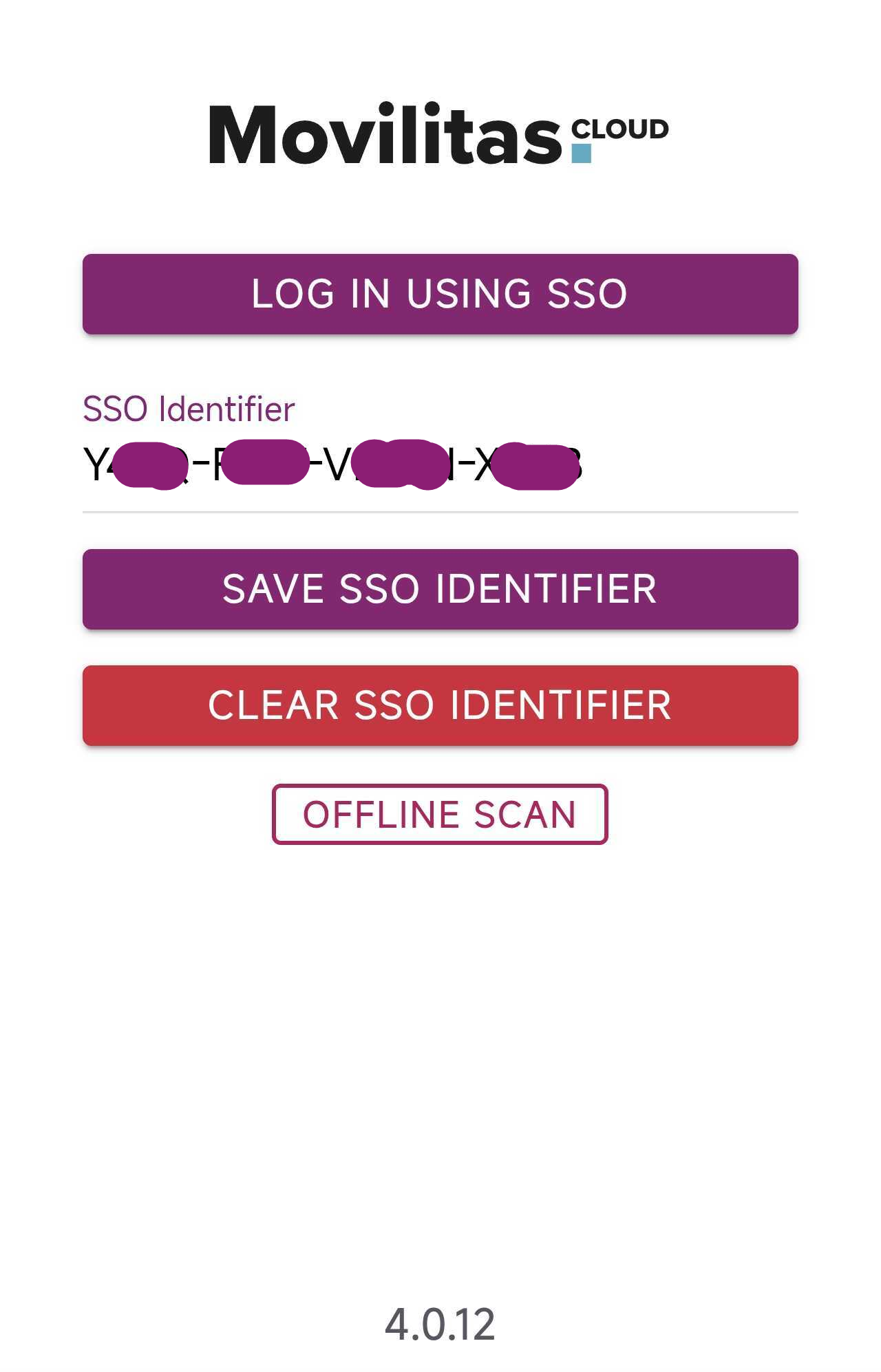
2. Select Set Up Single Sign-On (SSO).
The application displays the currently saved and used SSO identifier.
Example (Android):
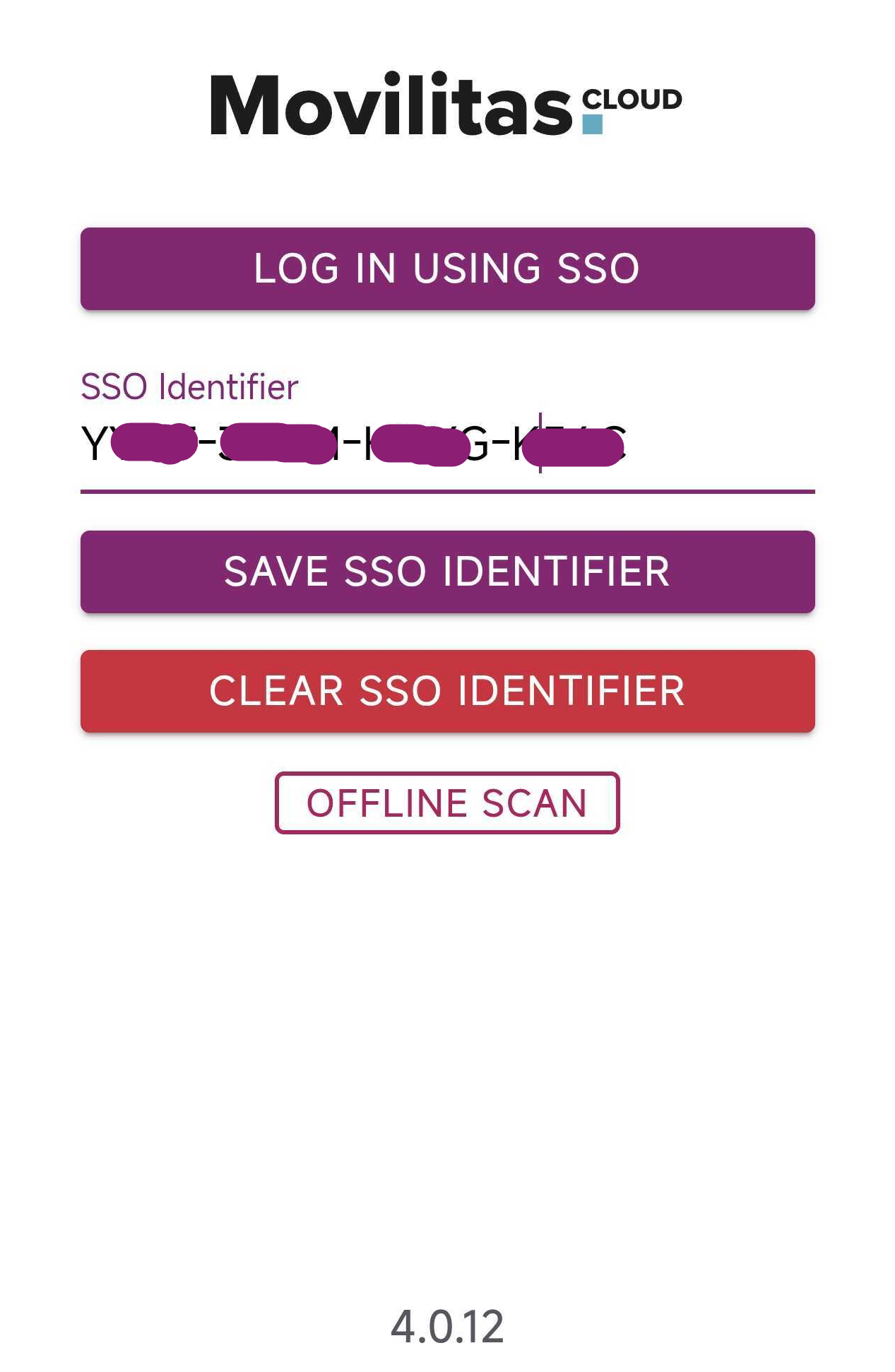
3. Put the cursor in the SSO Identifier field, remove the current SSO identifier, and enter the new SSO identifier.
For usability purposes, the application automatically performs the following:
- Corrects any lowercase letters to uppercase.
- Adds the required dashes if you do not enter them. However, it also works if you do enter the dashes.
Example (Android):
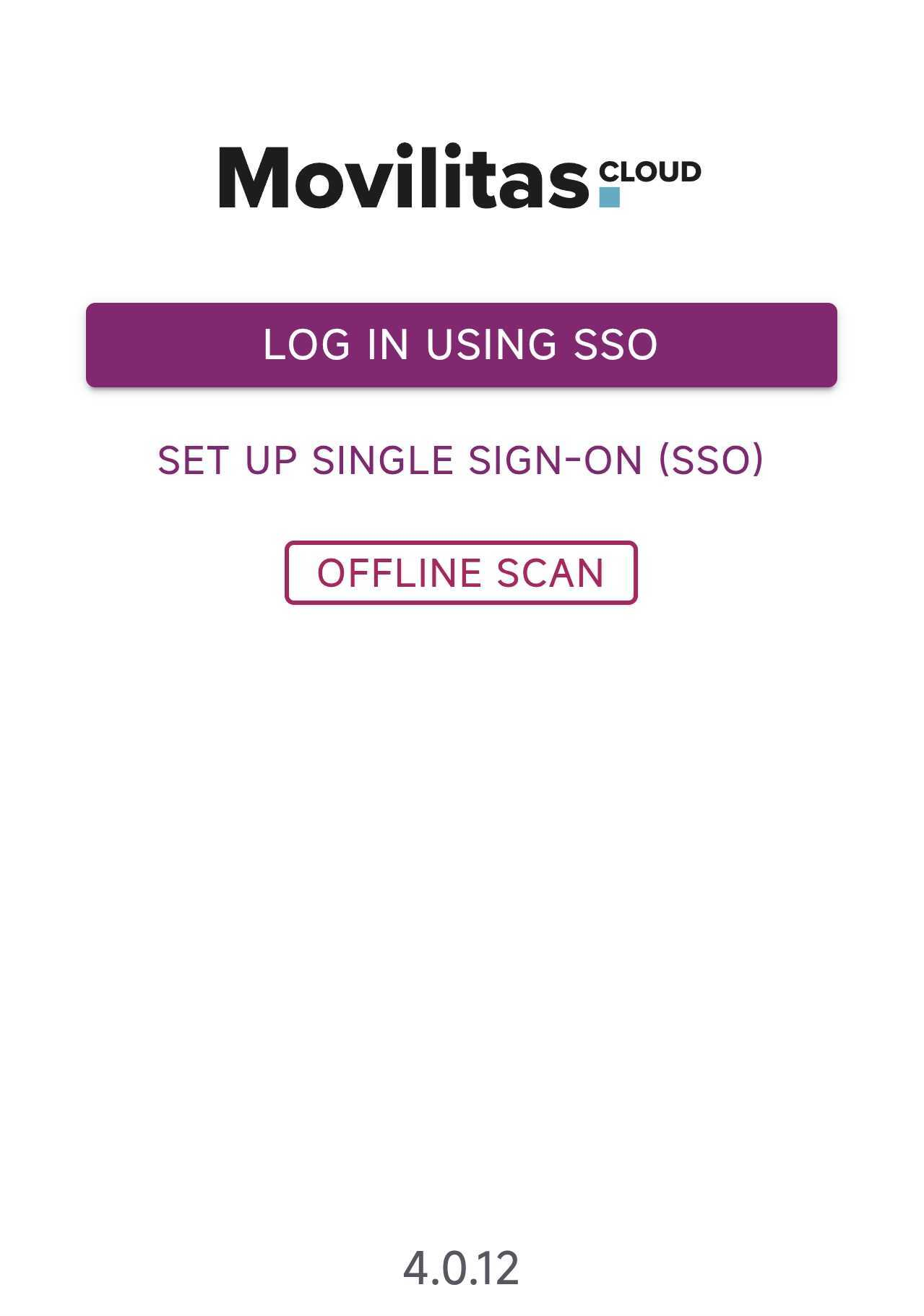
4. Select Save SSO Identifier.
The SSO identifier is stored on the device. The application refreshes the screen and displays the Log in Using SSO button.
Example (Android):
Next Steps
Log in to the application using SSO. For more information, see Logging in to Movilitas Mobile through SSO.
Back to the list of procedures
Clearing the SSO Identifier
Procedure
1. Open the mobile application.
The application displays the login page with the Log In Using SSO button and the Set Up Single Sign-On (SSO) button.
Example (Android):
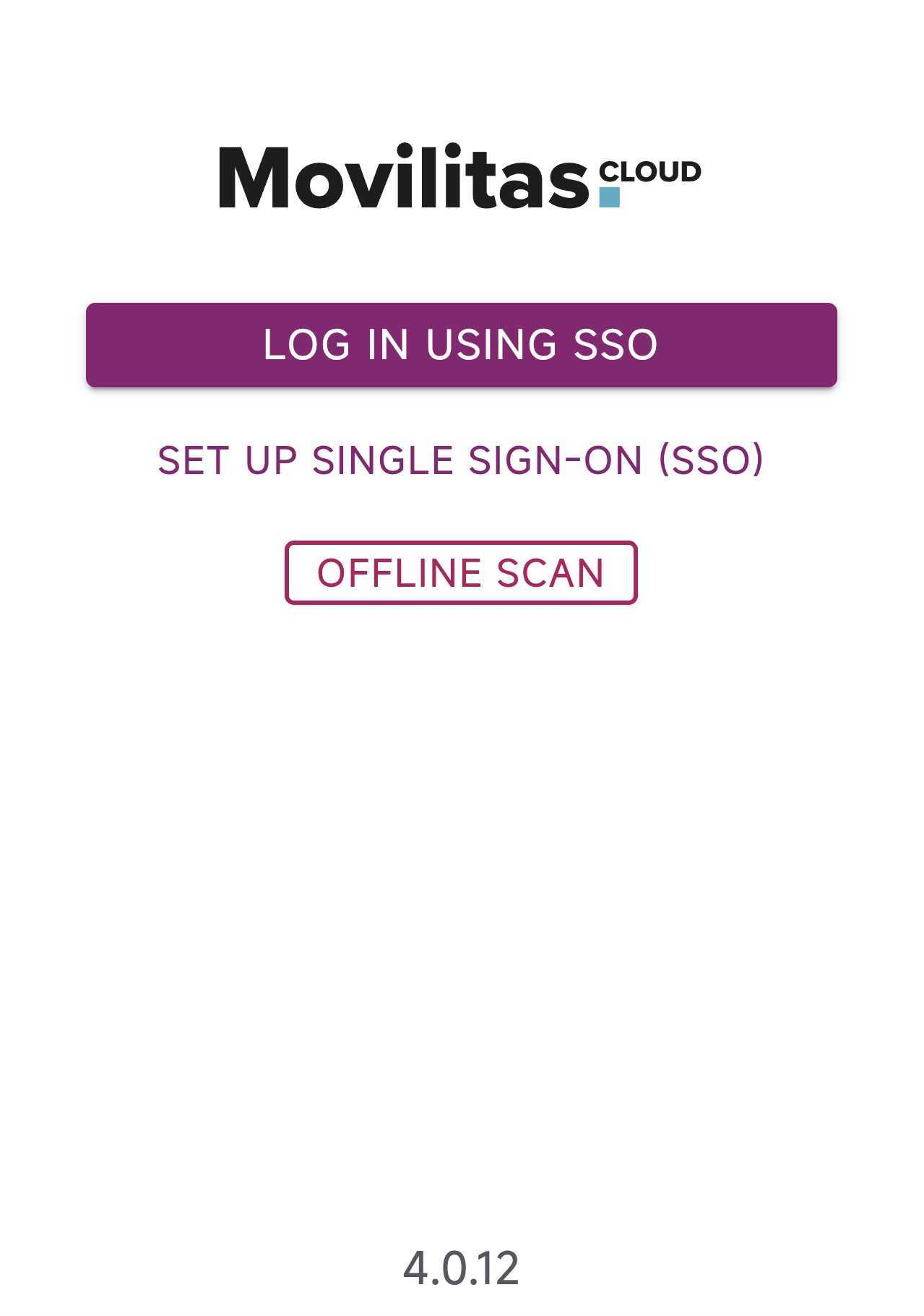
2. Select Set Up Single Sign-On (SSO).
The application displays the currently saved and used SSO identifier.
Example:
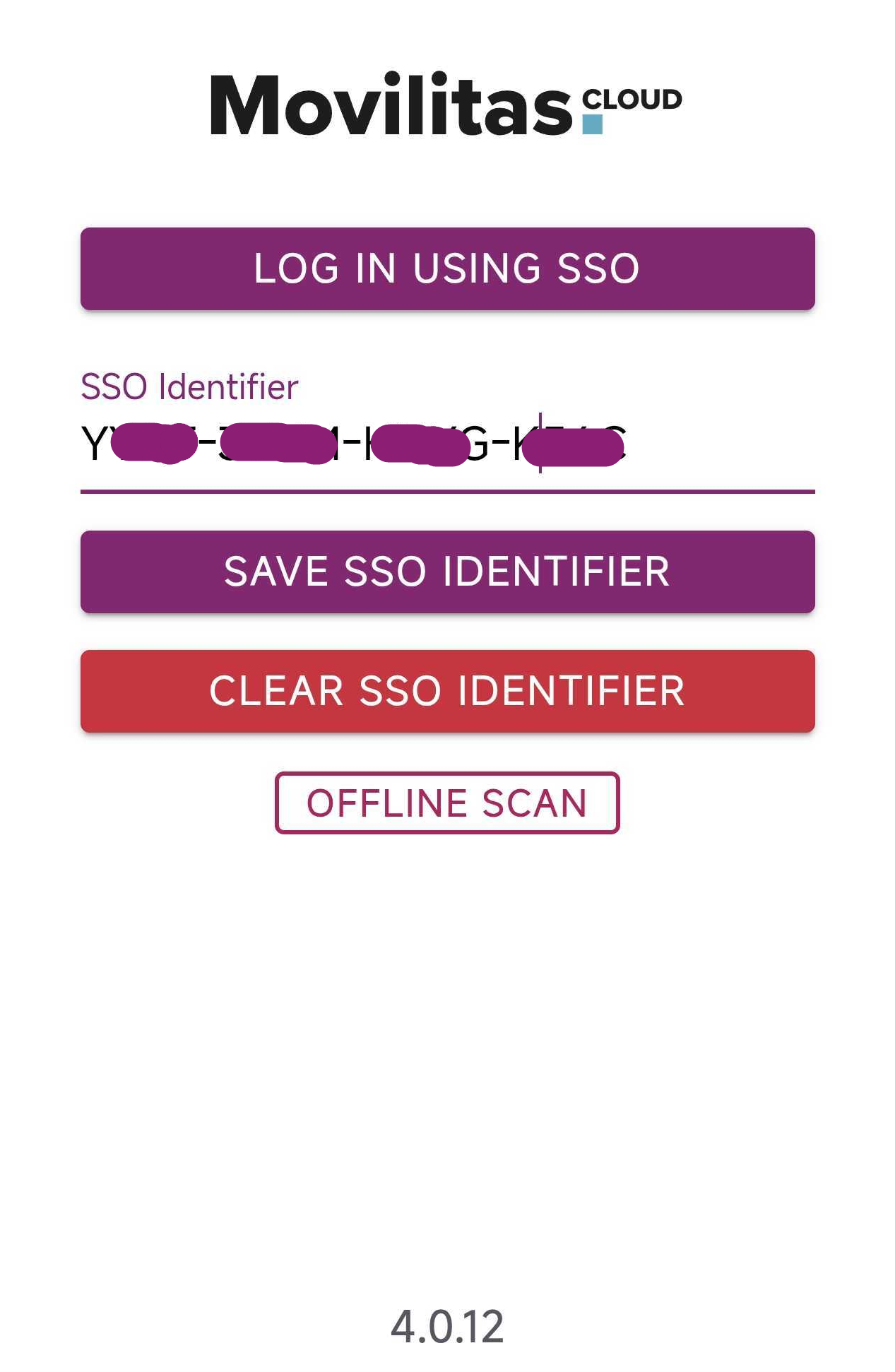
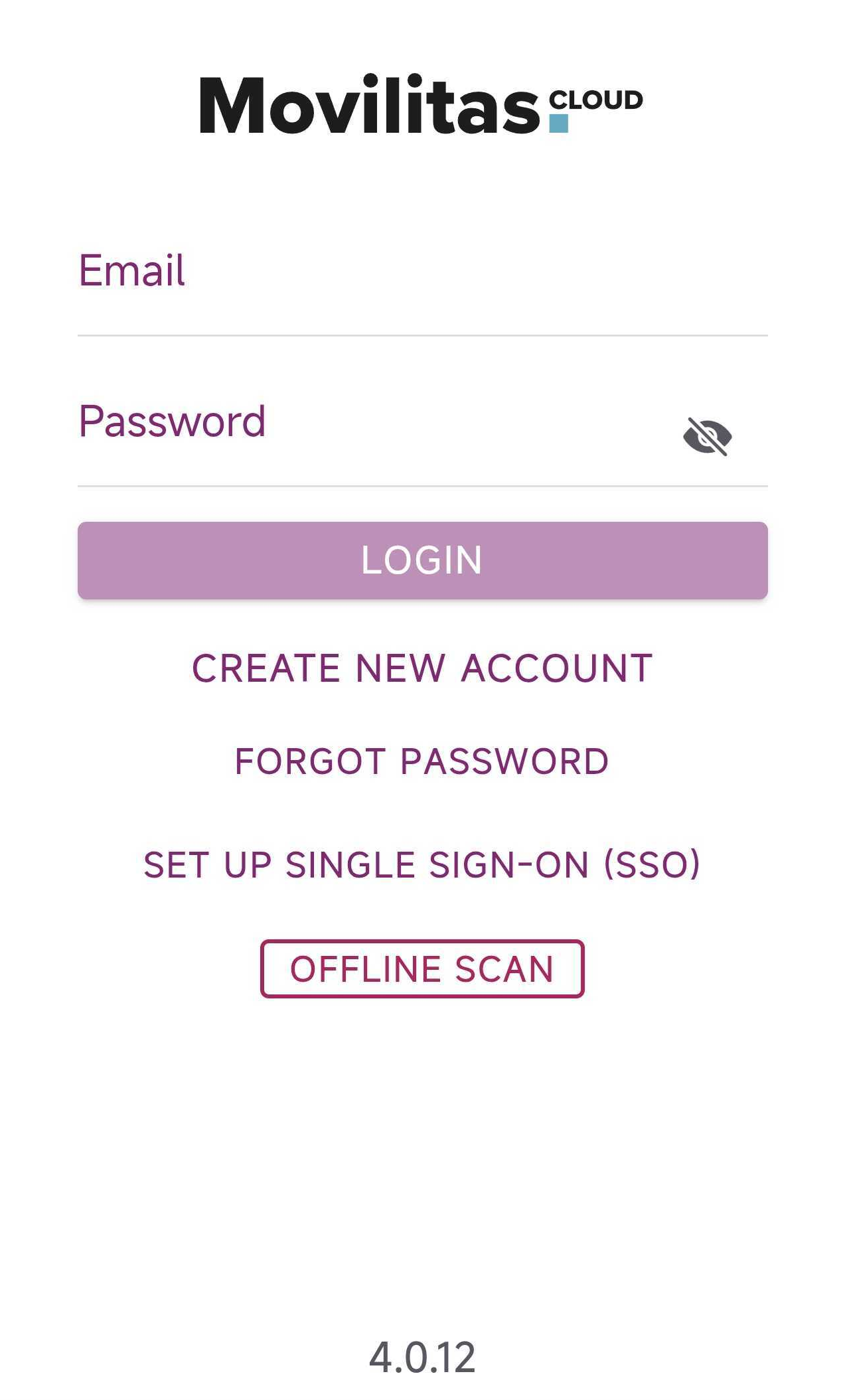
3. Select Clear SSO Identifier.
The application removes the SSO identifier from the device. The application refreshes the screen and displays the default login page. You can start the SSO setup process again.
Example (Android):
Back to the list of procedures
