
This article describes how to log in to the Movilitas.Cloud Admin UI through Single Sign-On (SSO).
Log in to Movilitas.Cloud to perform administration activities:
- Tenant management
- User management
- Application management
- Managing communication with external systems
- Repository management
- Log management
- User settings
- Notification handling
Note: We recommend you use the latest version of Google Chrome or Mozilla Firefox. Internet Explorer 11 is the minimum version supported.
List of Procedures
Standard SSO Login
The procedure below describes the standard SSO login procedure.
Before You Begin
Make sure that your user is registered in the Identity Provider used for SSO and in Movilitas.Cloud.
Single Sign-On must be set up on the tenant in Movilitas.Cloud that you want to access.
Procedure
1. Open the URL that allows you to log in to the Admin UI through SSO.
If you are logged in to the Identity Provider, you are immediately logged in to Movilitas.Cloud. You land on the Movilitas.Cloud Console page, where you can select the tenant.
If you are not logged in to the Identity Provider, Movilitas.Cloud redirects you to the Identity Provider login page.
If the SSO identifier is invalid or the SSO is turned off on the tenant, Movilitas.Cloud returns the following error message: Please enable SSO or update SSO settings on tenant to continue with authentication.
2. If you are not logged in to the Identity Provider, enter your email and password on the Identity Provider login page, and sign in.
If the given credentials are correct and your user exists in Movilitas.Cloud, you are immediately logged in to Movilitas.Cloud. You land on the Movilitas.Cloud Console page, where you can select the tenant.
However, certain situations can lead to an error:
- If too much time passes before the successful authentication, the request fails and Movilitas.Cloud returns an error message: Invalid or expired request.
- If your user is not active in Movilitas.Cloud, Movilitas.Cloud returns an error message: Authentication failed. Your account is not active.
- If the client secret given in the SSO settings is not correct, Movilitas.Cloud returns the following error message: Problem getting token from Identity Provider. Please check SSO settings under tenant settings.
- If the given credentials are correct, but your user does not exist in Movilitas.Cloud, Movilitas.Cloud returns an error message: User doesn’t exist.
- An administrator of the target tenant in Movilitas.Cloud shall add your user (email address) to the tenant in Movilitas.Cloud.
Back to the list of procedures
SSO Re-Login After Logout
The procedure below describes the scenario when you logged out of Movilitas.Cloud and you want to log in again on the SSO login page.
Procedure
1. Click Login on the SSO login page.
Example:
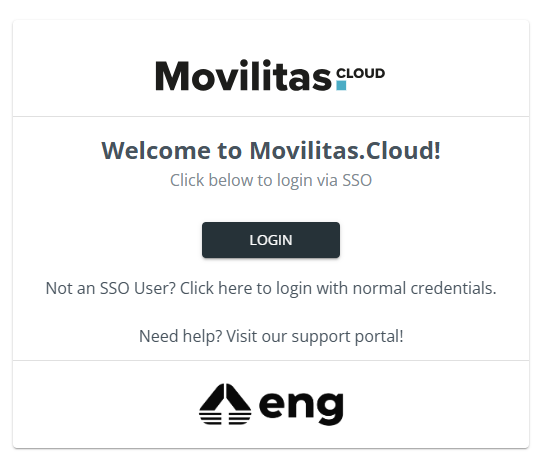
You are logged in through SSO again unless you are logged out of the Identity Provider. If you cannot log in through SSO, you are redirected to the Identity Provider login page.
Once logged in, you are redirected to the previously visited Movilitas.Cloud page (Movilitas.Cloud remembers the last visited page), unless your user belongs to multiple tenants. In the latter case, the application cannot determine which tenant you want to connect, so you can go to the Tenant Dashboard.
Alternative links on the SSO login page:
- Not an SSO User? Click here to login with normal credentials. - Not applicable to an SSO user. Moreover, an SSO user cannot log in through the standard way.
- Need help? Visit our support portal! - Link to the Online Help portal.
Back to the list of procedures
