
A Wipotec-OCS V2 channel enables manufacturers to establish a connection to a Wipotec-OCS machine (packaging line) on the shopfloor from the Serialized Manufacturing application. Movilitas.Cloud makes it possible to fetch the articles of a Wipotec-OCS machine and assign a product code and its aggregation level to an article.
After configuring the Wipotec-OCS V2 channel and associating it with a packaging line in the Serialized Manufacturing application, you can:
- Create packaging orders and assign them to the packaging line.
- Release packaging orders to the packaging line.
- Receive the status of the product, for example, the pack is commissioned or decommissioned.
List of Procedures
- Configuring a Wipotec-OCS V2 Channel
- Assigning Product Codes to an Article and Specifying the Aggregation Levels in Article Mapping
For more information on the general channel actions, see Managing Channels for a Tenant (Overview).
Configuring a Wipotec-OCS V2 Channel
Procedure
1. Go to Movilitas.Cloud Console --> My tenants.
2. Select the tenant or click Open tenant next to it.
3. On the Tenant Dashboard, select the Channels tab. The application displays the list of channels assigned to the tenant.

4. Depending on your setup, create a new Wipotec-OCS V2 channel or modify an existing one. Follow one of the procedures described in the table below.
| # | Create a Channel | Modify an Existing Channel |
|---|---|---|
4.1 | Click the + icon (Create channel). The application displays the Create channel dialog. | To search for a Wipotec-OCS channel, use the search criteria field and the filters:
|
4.2 | Select Shopfloor channel as the type and click Create. The application displays the Create Channel page with an empty form to give the basic parameters of the channel. | To view the channel information, click on the channel name or the edit icon (Edit channel) next to the channel. The application displays the Edit Channelpage with:
|
4.3 | Enter a name for the channel and select Wipotec-OCS-v2 as the source. | N/A |
4.4 | Click Create Channel. The application informs you about the additional costs. After confirming the creation, the application displays the Edit Channel page with a form where you can provide the connection details for the channel. | N/A |
Example when creating a Wipotec-OCS V2 channel:
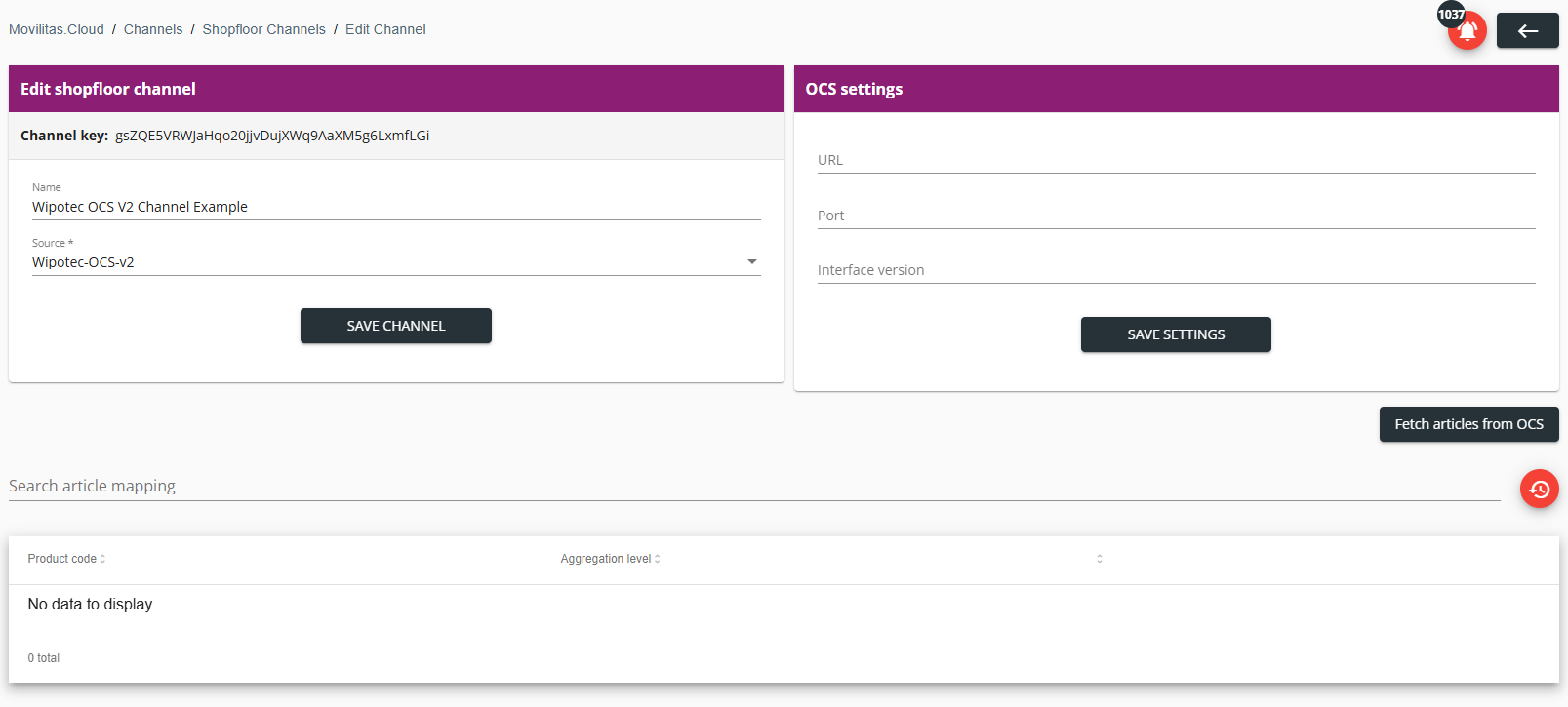
5. Provide the Wipotec-OCS V2 channel settings as explained in the table below:
| Parameter | Description |
|---|---|
| URL | The URL of the VPN service in Movilitas.Cloud through which the packaging line is accessed. Note: IP address is allowed. |
| Port | The port of the Wipotec-OCS packaging line (VPN service). |
| Interface version | The version of the software on the Wipotec-OCS machine. |
6. Click Save Settings.
7. (Optional) If needed, change the name of the channel and click Save Channel.
Next Steps
- Configure the Serialized Manufacturing application (After channel creation only).
- Fetch the articles from the Wipotec-OCS packaging line, assign product codes to the articles, and specify the aggregation levels in article mapping.
Back to the list of procedures
Assigning Product Codes to an Article and Specifying the Aggregation Levels in Article Mapping
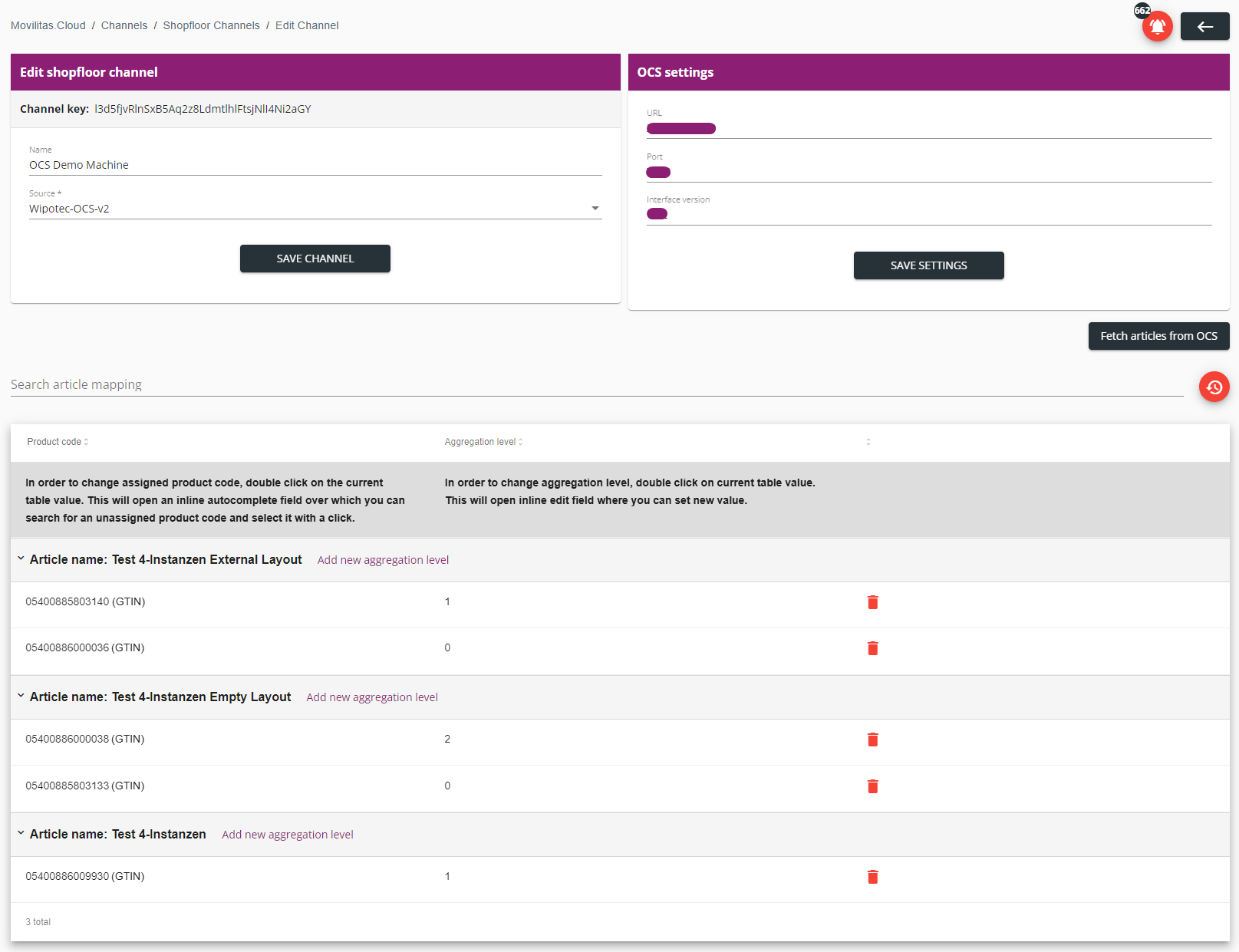
Once you configured the Wipotec-OCS V2 channel, you can fetch the articles from the machine. The fetched articles are displayed in the Article mapping part at the bottom of the Wipotec-OCS V2 channel page.
After fetching the articles, you can assign product codes to an article and specify the aggregation levels for the product codes you want to include in the packaging orders sent to the Wipotec-OCS packaging lines. A packaging order can contain products with up to 4 levels of aggregation. Serialization applies on each specified aggregation level.
Before You Begin
Make sure that you registered the products in the Serialized Manufacturing application.
Procedure
1. Go to Movilitas.Cloud Console --> My tenants.
2. Select the tenant or click Open tenant next to it.
3. On the Tenant Dashboard, select the Channels tab. The application displays the list of channels assigned to the tenant.
4. To search for a Wipotec-OCS V2 channel, use the search criteria field and the filters:
- Enter the channel name in the search criteria field.
- Select the status.
- Select Wipotec-OCS-v2 as the source.
- Select Shopfloor channel as the type.
5. To view the channel information, click on the channel name or the edit icon (Edit channel) next to the channel.
The application displays the Edit Channel page with:
- The current channel settings.
- The fetched articles and mapping (if any).
6. To refresh the list of articles on the channel, click Fetch articles from OCS.
Example:
7. Search for an article by entering the article name in the search field. The list of the articles is filtered based on the search criteria.
8. Expand the article.
9. Specify the product codes and the aggregation level for each product code.
| Parameter | Action |
|---|---|
| Product code | 1. Double-click the No Product Code assigned option or the existing product code. Start typing the product code.
2. Select the product code. |
| Aggregation level | 1. Double-click the field to add the aggregation level. By default, 0 is assigned to the product code. The aggregation levels vary from 0 to 4. 2. Click Add new aggregation level to add a new aggregation level.
|
Back to the list of procedures
