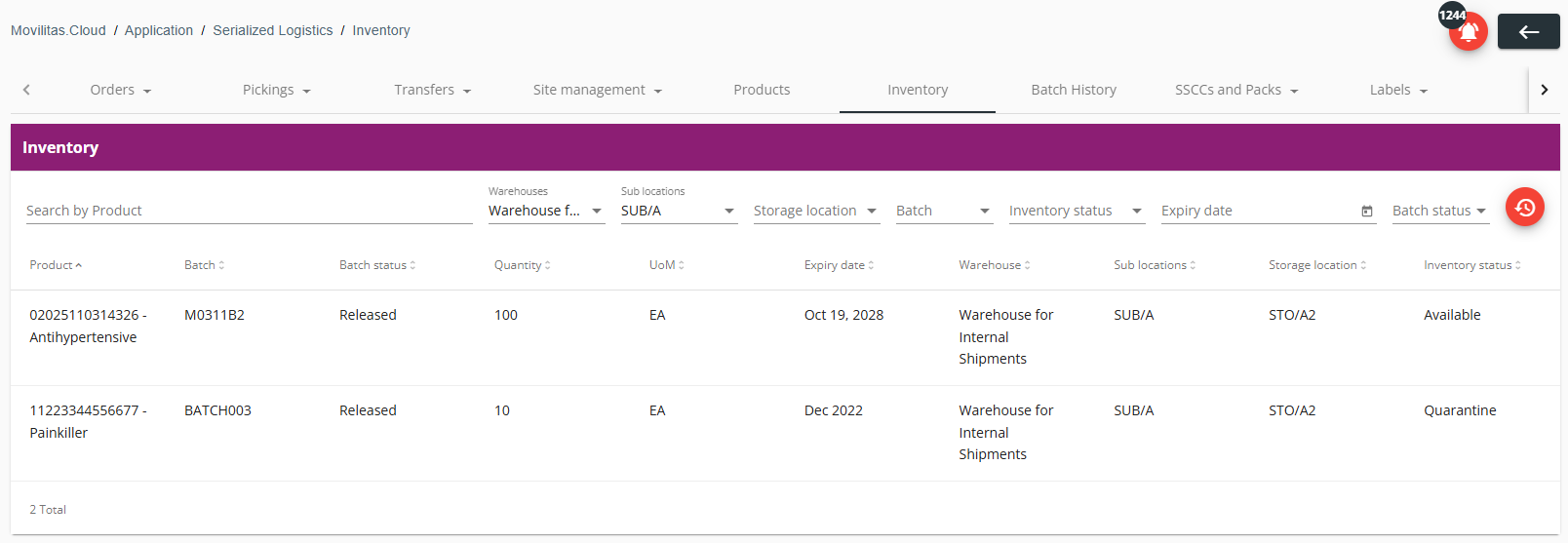
View the inventory of all warehouses on the tenant in the Serialized Logistics application.
Procedure
1. In the Serialized Logistics application, select the Inventory tab. The application displays the inventory in your warehouses with the following information:
- Product
- Batch
- Batch status
- Quantity
- UoM
- Expiry date
- Warehouse
- Sub location
- Storage location
- Inventory status
Example:
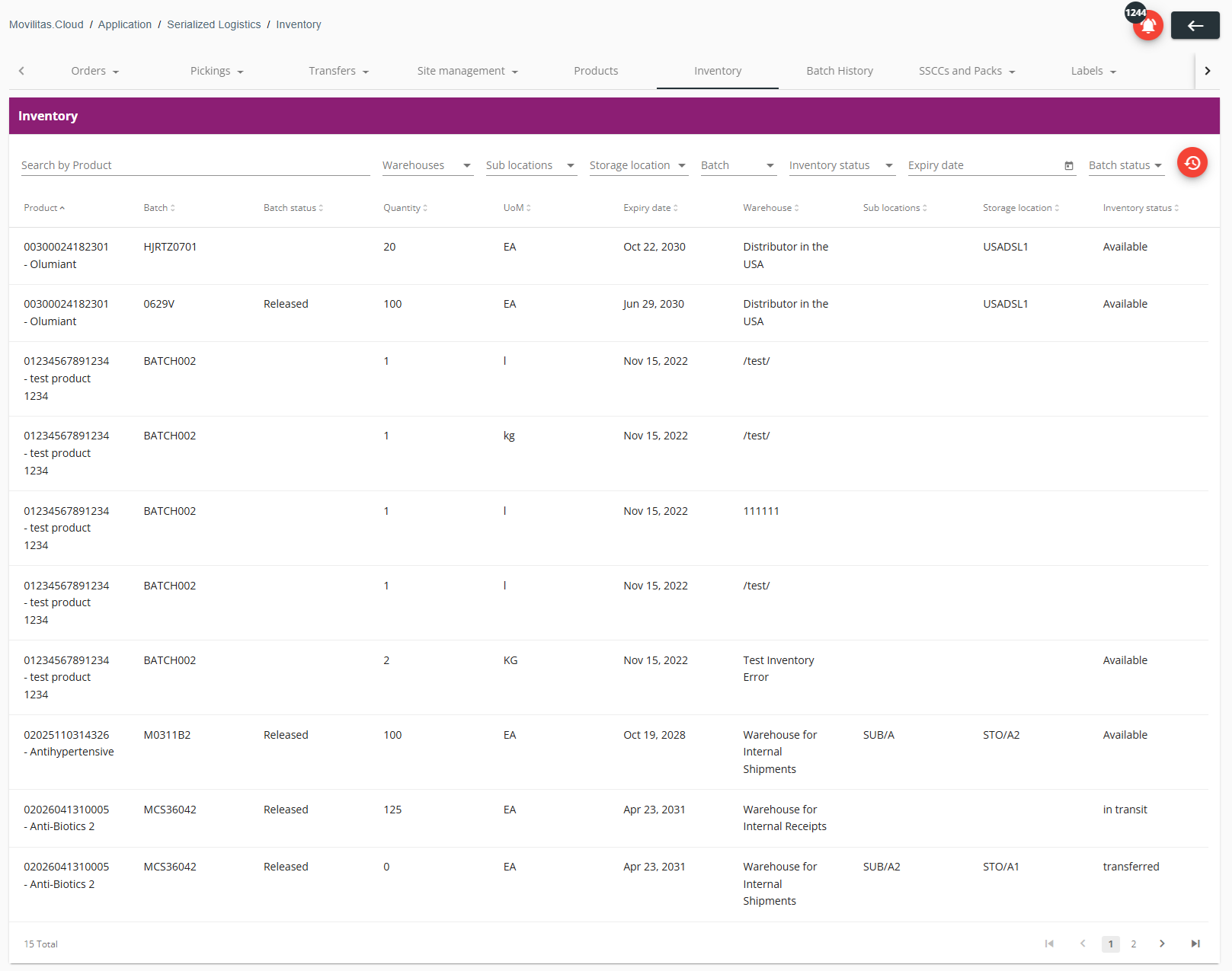
2. Search for an inventory item by using the search field and the filters:
- Enter the product code or product name in the search field.
- Filter the inventory items by the location-specific filters:
- Warehouse
- Sub locations
- Storage locations
- Inventory status
- Filter the inventory items by the product-specific filters:
- Batch
- Expiry date - A date range for the batch expiration date by using the datepicker.
- Batch status
The list of inventory items is filtered based on the search criteria. You can reset the filters by clicking on the Reset filters icon.
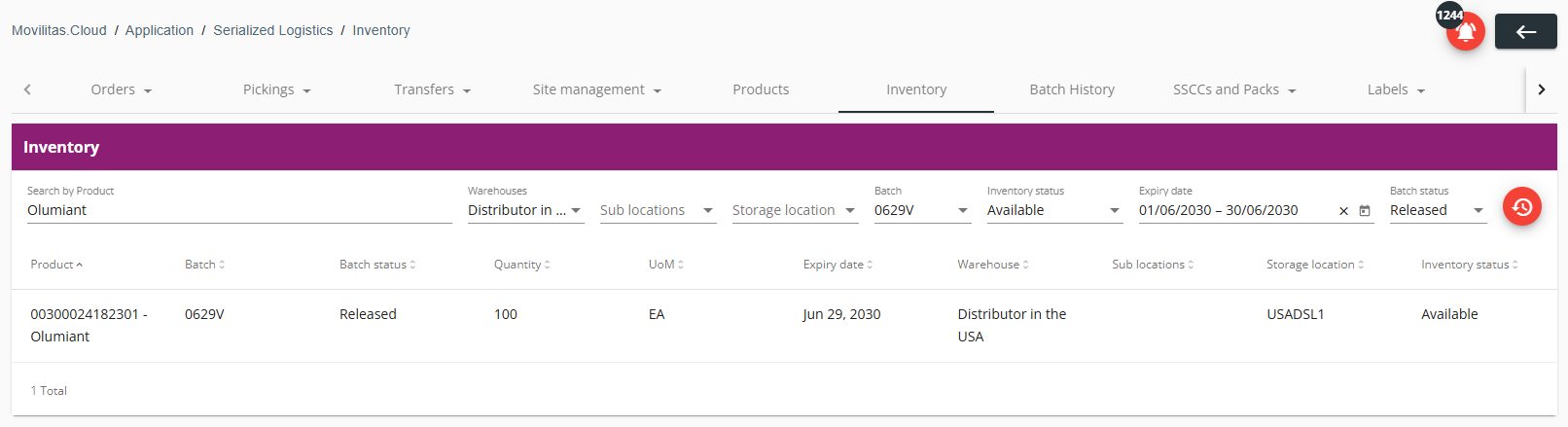
In the following example, we are filtering the inventory by using the following search criteria:
- Product name is "Olumiant".
- Warehouse is "Distributor in the USA".
- Batch is "0629V".
- Inventory status is "Available".
- Batch expiry date range is Jun 1, 2030 - Jun 30, 2030.
- Batch status is "Released".
In the following example, we are filtering the inventory by using the following search criteria:
- Warehouse is "Warehouse for Internal Shipments".
- Sub location is "SUB/A".