
After selecting the Production --> Production orders tab in the Serialized Manufacturing application, you can manage production orders. You can perform the following:
| Area | Description |
|---|---|
| List of production orders | You can search for a production order. You can delete a production order. |
| Master data | You can specify the order details. |
List of Procedures
- Creating a Production Order
- Searching for a Production Order and Viewing Its Master Data
- Updating a Production Order
- Deleting a Production Order
Creating a Production Order
Procedure
1. In the Serialized Manufacturing application, select Production --> Production orders tab. The application displays the list of production orders and the Create production order form.
Note: When viewing the details of a production order, you can open the Create production order form by clicking Create.
Example:
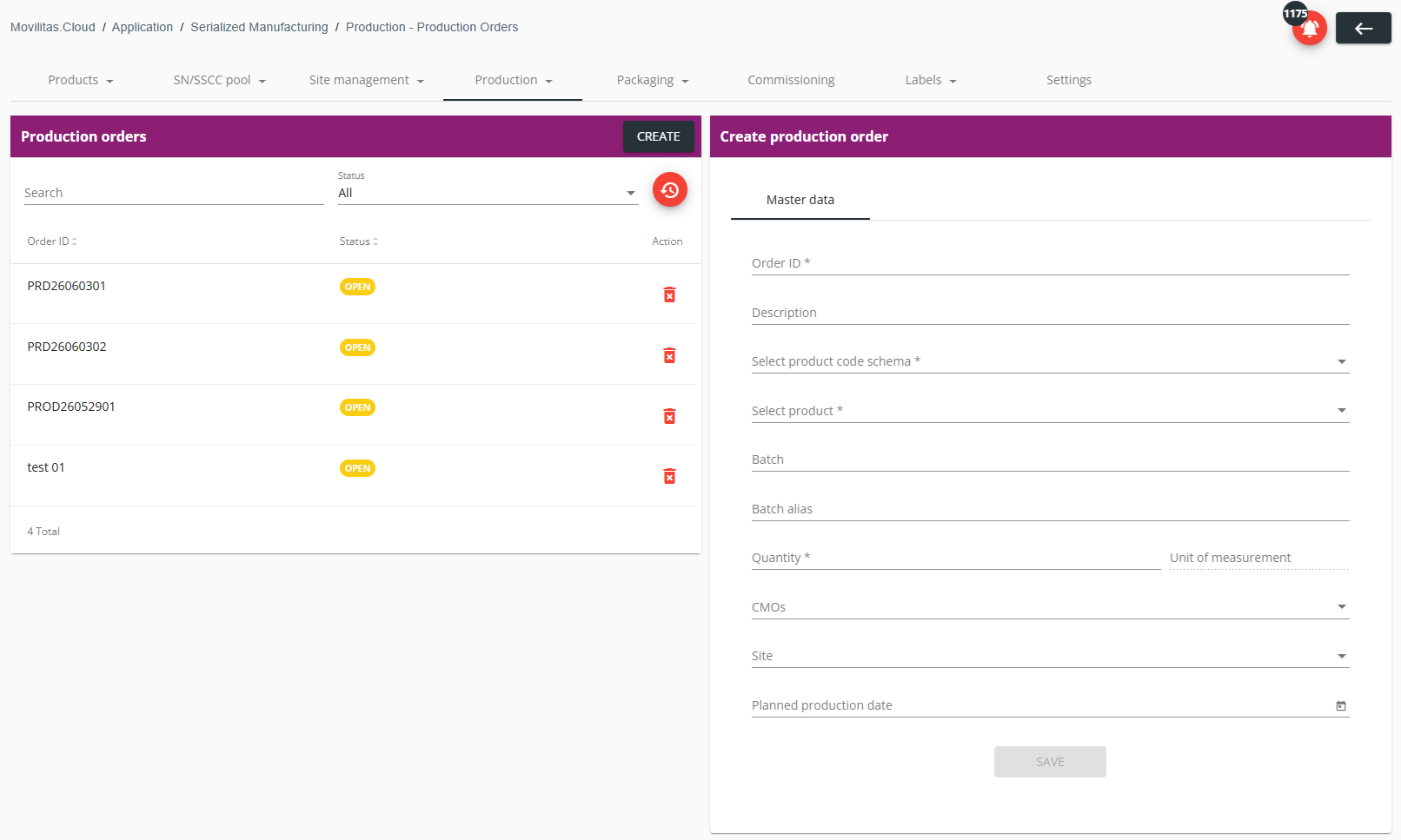
2. Fill in the form as described below. The required fields are marked with an asterisk (*) in the form.
| Field | Action |
|---|---|
| Order ID | Enter the unique order ID. |
| Description | Enter the order description. |
| Select product code schema | Select the product code schema. The application supports the following schemas:
|
| Select product | Select a product code. The application displays a searchable drop-down. You can search for any product registered in the application as per the selected product code schema by entering the product code or product name in the search field. |
| Batch | Enter the batch. |
| Batch alias | Enter the batch alias. The alias can be an internal identifier of the batch used by your company. |
| Quantity | Enter the amount you want to produce for the product in this order. |
| Unit of measurement | If the bill of material (BoM) is specified for the product under the Products --> Products --> BoM tab, the application automatically populates the field, and no user action is required. If the field is not automatically populated, specify the BoM for the product under the Products --> Products --> BoM tab, and then update the production order by reselecting the product code. |
| CMOs | If a CMO executes the production order, select the CMO. The application offers the CMOs registered under the Site management --> CMOs tab. If a CMO is selected, it is not possible to select a site, and the selected site (if any) is cleared. |
| Site | If a manufacturing site of your company (tenant) executes the production order, select the site. The application offers the sites registered under the Site management --> Sites tab. If a site is selected, it is not possible to select a CMO, and the selected CMO (if any) is cleared. |
| Planned production date | Select the planned production date by using the datepicker. |
3. Click Save.
Next Steps
Link batches to the components (ingredients) and specify the quantity per batch. For more information, see Updating a Production Order.
Back to the list of procedures
Searching for a Production Order and Viewing Its Master Data
Procedure
1. In the Serialized Manufacturing application, select Production --> Production orders tab. The application displays the list of production orders with their status.
2. Enter the production order ID in the search field and/or select the order status under Status.
- The list of the production orders is filtered based on the search criteria.
- You can reset the filter by clicking the Reset filters icon.
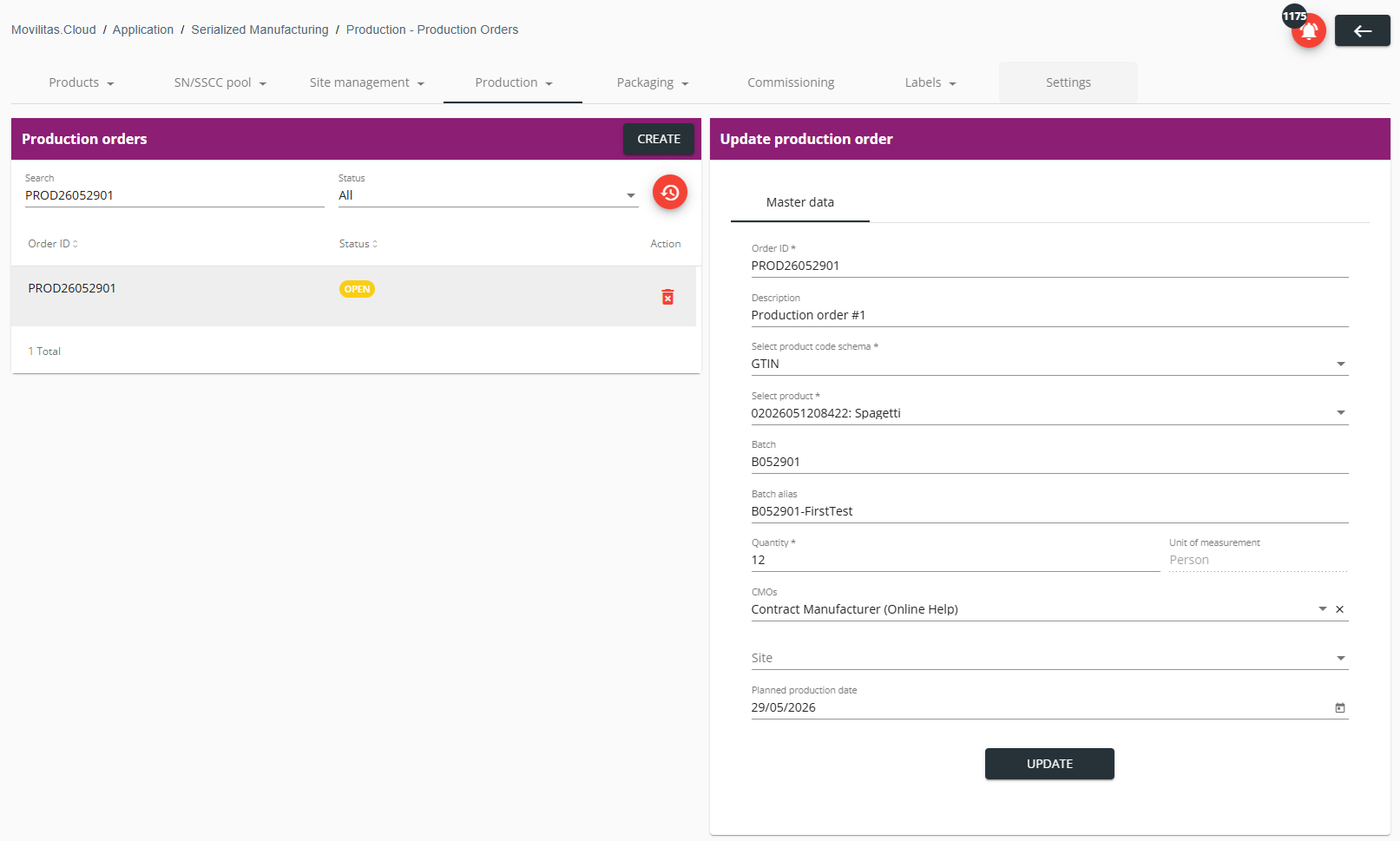
3. Select the production order to view its master data.
In the example below, we selected Open status only and we are searching for "PROD26052901".
Back to the list of procedures
Updating a Production Order
You can update orders in Open status only.
Procedure
1. In the Serialized Manufacturing application, select Production → Production orders tab. The application displays the list of production orders with their status.
2. Find and select the production order you want to modify.
3. In the Update production order form, modify the fields as needed.
| Field | Action |
|---|---|
| Order ID | Enter the unique order ID. |
| Description | Enter the order description. |
| Select product code schema | Select the product code schema. The application supports the following schemas:
|
| Select product | Select a product code. The application displays a searchable drop-down. You can search for any product registered in the application as per the selected product code schema by entering the product code or product name in the search field. |
| Batch | Enter the batch. |
| Batch alias | Enter the batch alias. The alias can be an internal identifier of the batch used by your company. |
| Quantity | Enter the amount you want to produce for the product in this order. |
| Unit of measurement | If the bill of material (BoM) is specified for the product under the Products --> Products --> BoM tab, the application automatically populates the field, and no user action is required. If the field is not automatically populated, specify the BoM for the product under the Products --> Products --> BoM tab, and then update the production order by reselecting the product code. |
| CMOs | If a CMO executes the production order, select the CMO. The application offers the CMOs registered under the Site management --> CMOs tab. If a CMO is selected, it is not possible to select a site, and the selected site (if any) is cleared. |
| Site | If a manufacturing site of your company (tenant) executes the production order, select the site. The application offers the sites registered under the Site management --> Sites tab. If a site is selected, it is not possible to select a CMO, and the selected CMO (if any) is cleared. |
| Planned production date | Select the planned production date by using the datepicker. |
4. Click Update.
Back to the list of procedures
Deleting a Production Order
Procedure
1. In the Serialized Manufacturing application, select Production --> Production orders tab. The application displays the list of production orders with their status.
2. Find the production order in the list you want to delete.
Example:
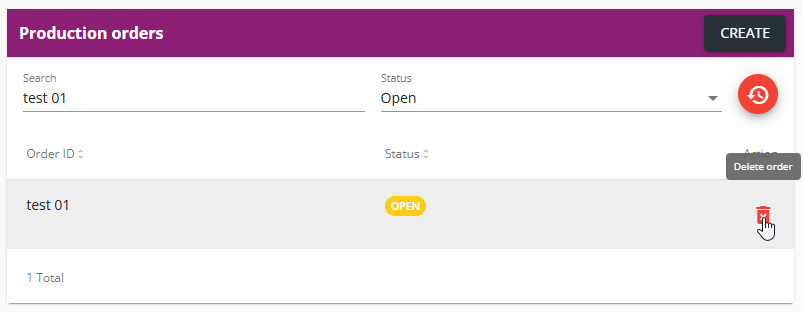
3. Click the delete icon and confirm the deletion by clicking Yes.
