
In the Genealogy application, you - as the manufacturer - can register manufacturing processes:
- You can add clinical study-product mappings to a process. In this context, the process is a clinical supply chain.
- You can add process steps to your process to build up a workflow.
To create a process, the process steps must be registered in the Genealogy application in advance. You can use the same process step in multiple processes.
To add a clinical study-product mapping, the Serialized Manufacturing and Clinical Studies applications must be activated and configured.
List of Procedures
- Creating a Process
- Managing Clinical Study-Product Mappings
- Searching for and Viewing a Process
- Updating the Master Data of a Process
- Managing the Process Sequence
- Deleting a Process
Creating a Process
As a manufacturer, you need to register all the manufacturing processes.
Before You Begin
Make sure that the process steps are registered in the Genealogy application under the Site management --> Process Steps tab.
Procedure
1. In the Genealogy application, select the Site management --> Processes tab. The application displays the list of processes and the Create process panel. The Master data tab is automatically selected on the panel.
Note: When viewing the details of a process, you can open the Create process panel by clicking Create.
Example:
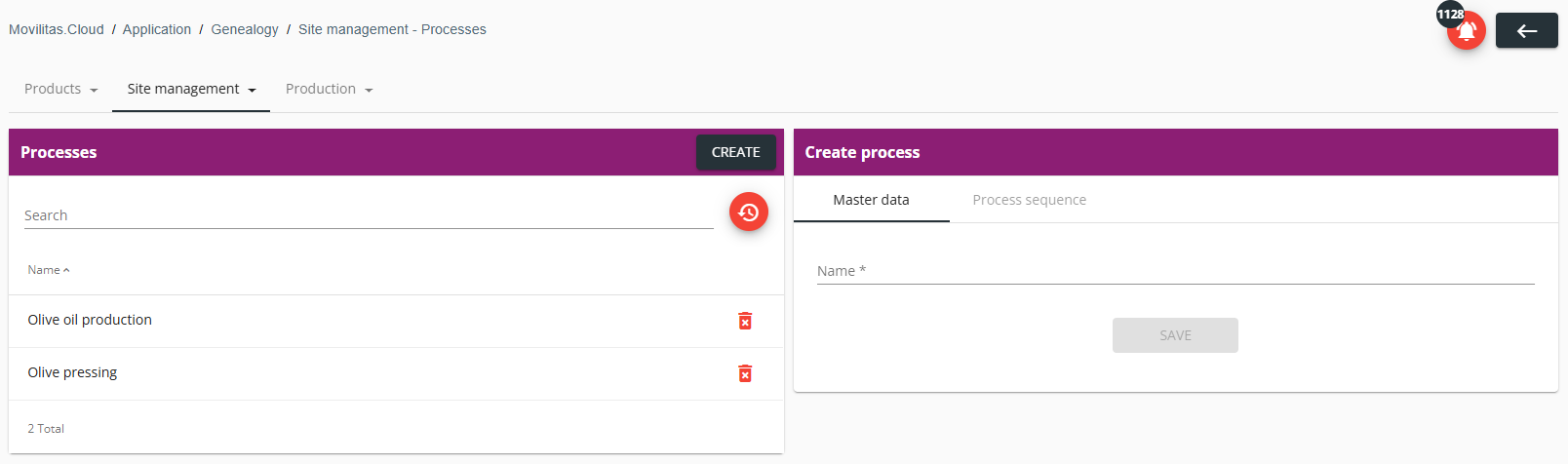
2. Fill in the form as described below. The required fields are marked with an asterisk (*) in the form.
| Field | Description |
|---|---|
| Name | Enter the name of the process. |
3. Click Save. The process is created and added to the list.
Back to the list of procedures
Managing Clinical Study-Product Mappings
As a manufacturer, you can add clinical study-product mappings to a process and remove clinical study-product mappings from a process. The clinical study comes from the Clinical Studies application. The product comes from the Serialized Manufacturing application. The process is a clinical supply chain.
Before You Begin
Make sure that the Serialized Manufacturing and Clinical Studies applications are activated and configured.
Procedure
1. In the Genealogy application, select the Site management --> Processes tab. The application displays the list of processes.
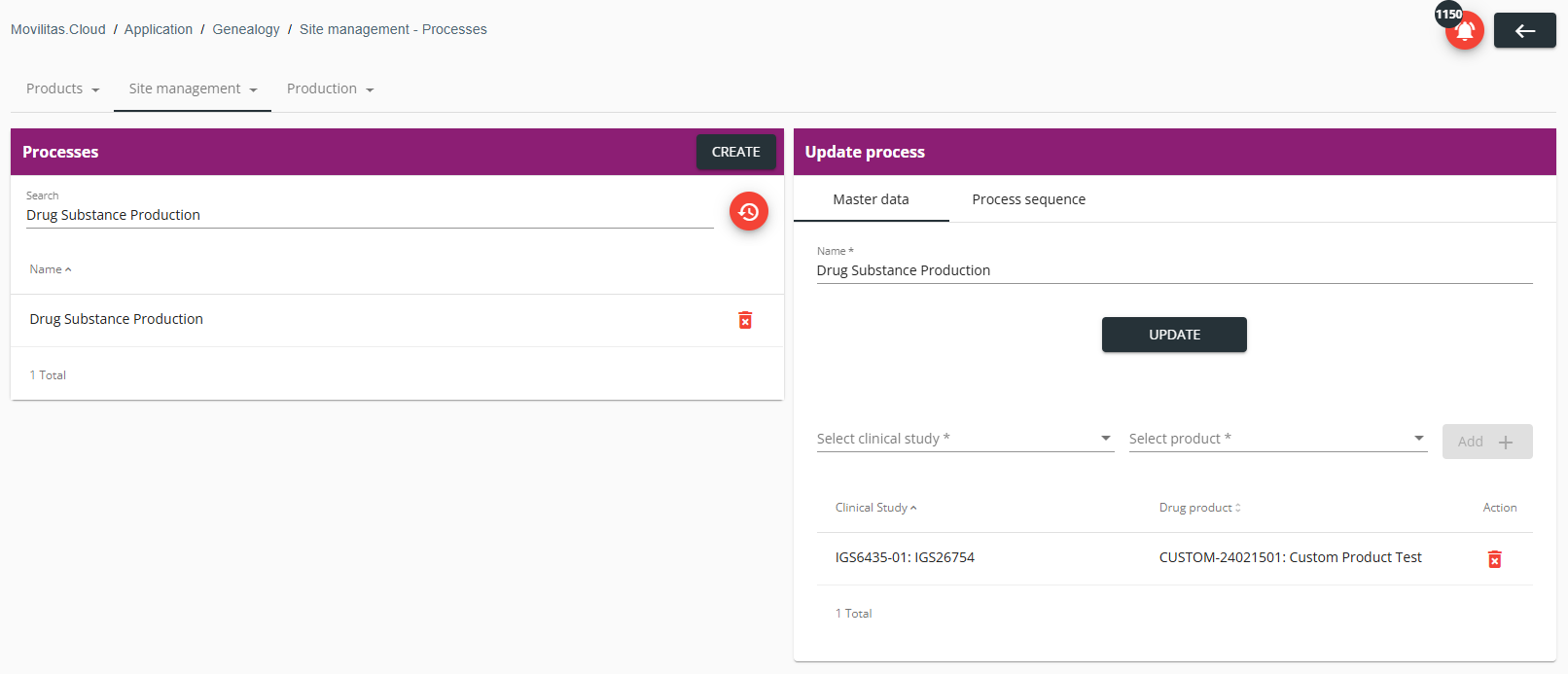
2. Find and select the process in the list. The application displays the master data of the process and a mapping section on the Update process panel.
The following example illustrates a process with one clinical study-product mapping:
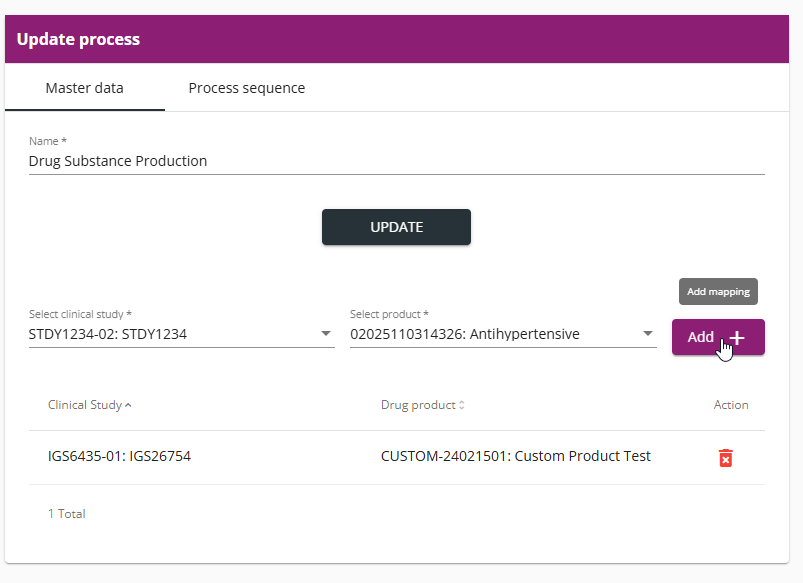
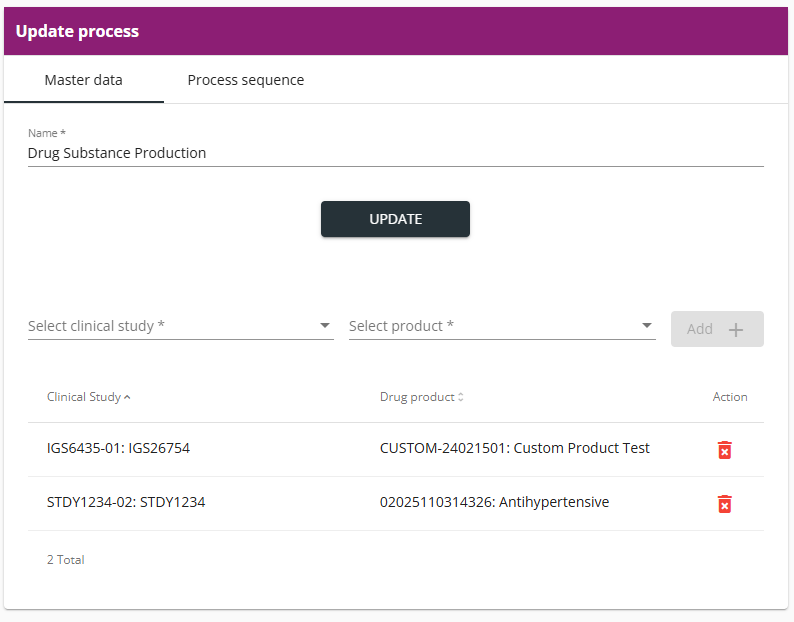
3. To add a clinical study-product mapping to the process, do as follows:
- Select a clinical study in the Select clinical study drop-down.
- Find and select a product in the Select product drop-down.
- Click Add +.
Example:
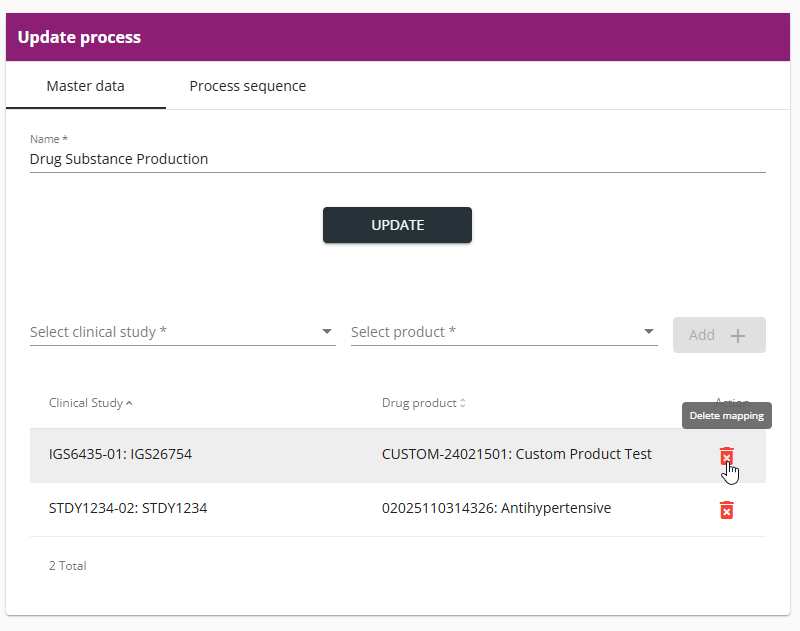
4. To remove a clinical study-product mapping from the process, do as follows:
- Find the mapping in the list.
- Click the delete icon and confirm the deletion by clicking Yes.
Example:
Back to the list of procedures
Searching for and Viewing a Process
Procedure
1. In the Genealogy application, select the Site management --> Processes tab. The application displays the list of processes.
2. Enter the name of the process in the search field.
- The list of processes is filtered based on the search criteria.
- You can reset the filter by clicking Reset filters.
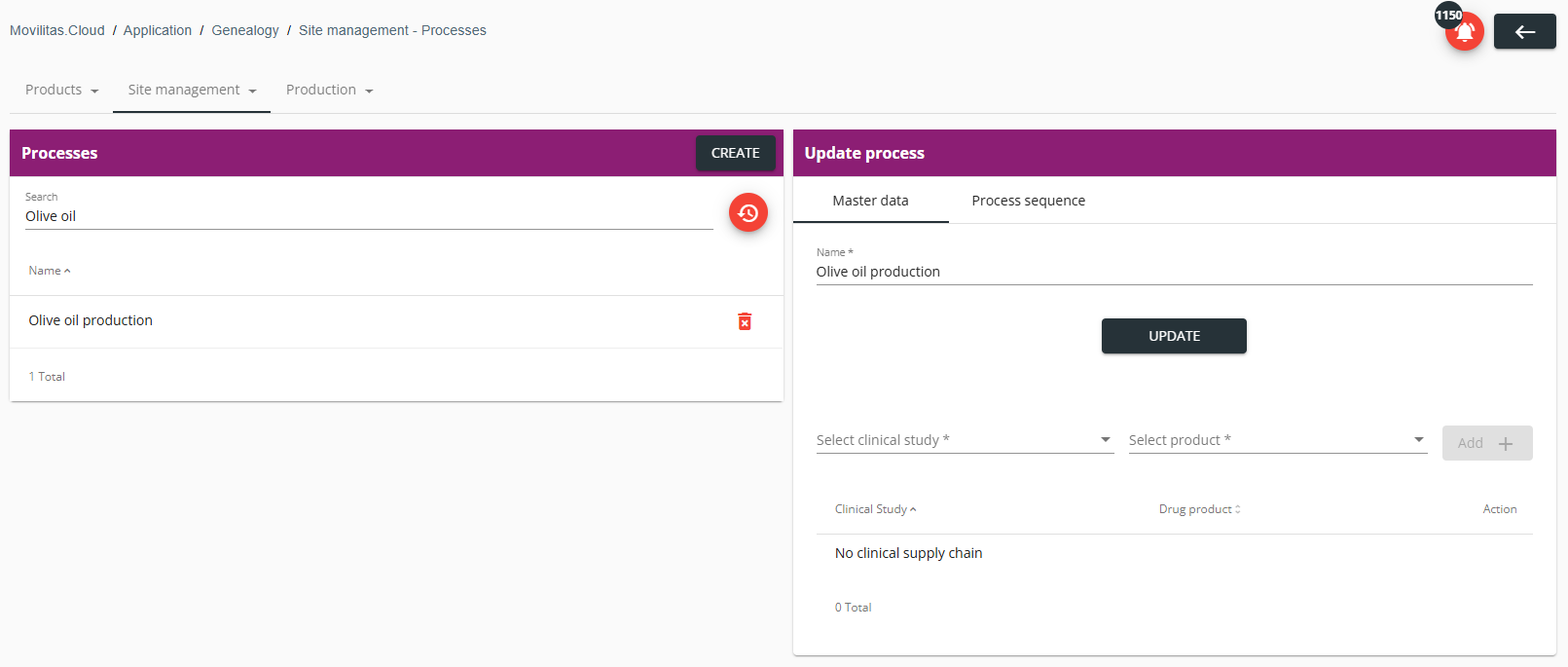
3. Select the process to view its details on the Update process panel.
- Master data.
- Clinical study-product mappings (if any) - For more information, see Managing Clinical Study-Product Mappings.
- Process sequence - For more information, see Managing the Process Sequence.
Example:
Back to the list of procedures
Updating the Master Data of a Process
Procedure
1. In the Genealogy application, select the Site management --> Processes tab. The application displays the list of processes.
2. Find and select the process in the list you want to update. The application displays the master data of the process on the Update process panel.
3. Stay on the Master data tab and modify the master data.
| Field | Description |
|---|---|
| Name | Enter the name of the process. |
4. Click Update.
Back to the list of procedures
Managing the Process Sequence
You can manage the sequence of a selected process:
- You can add a process step to the selected process.
- You can edit a process step of the selected process.
- You can delete a process step from the selected process.
Procedure
1. In the Genealogy application, select the Site management --> Processes tab. The application displays the list of processes.
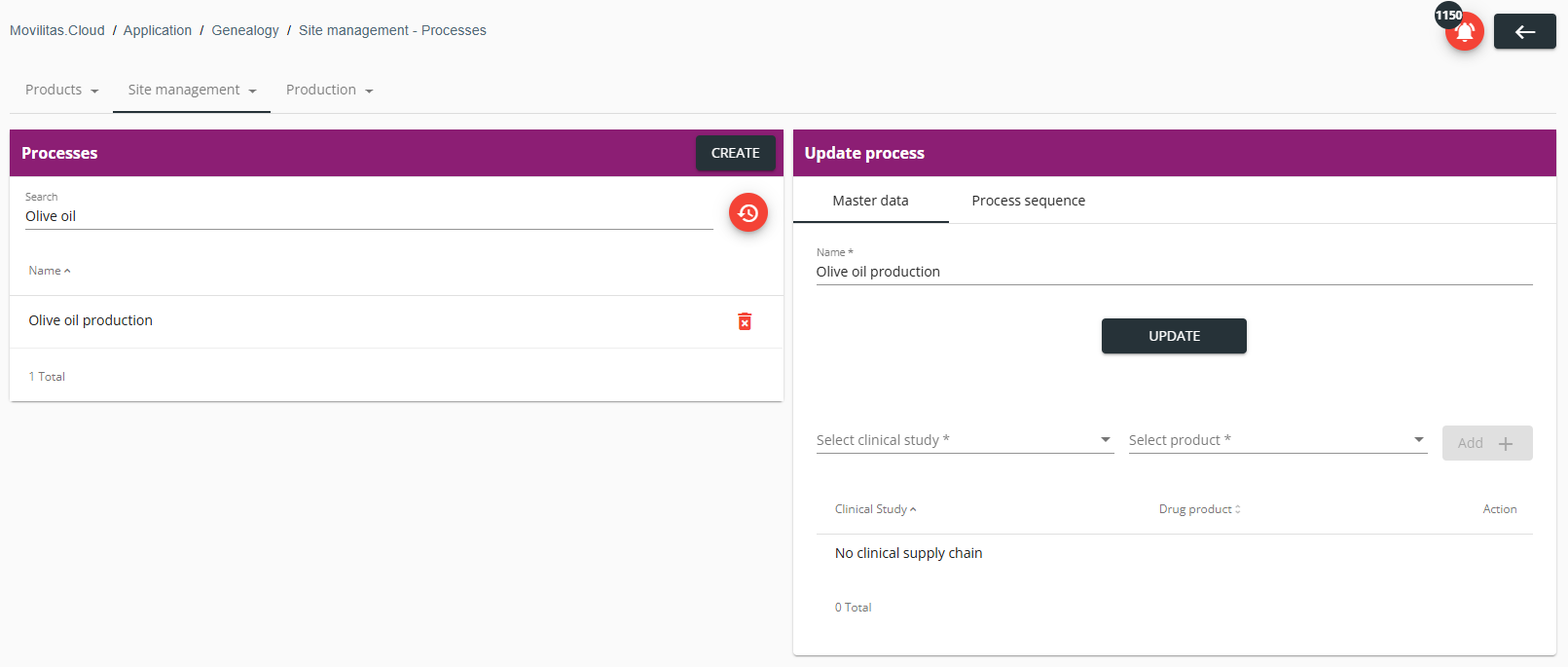
2. Find and select the process in the list. The application displays the master data of the process on the Update process panel.
Example:
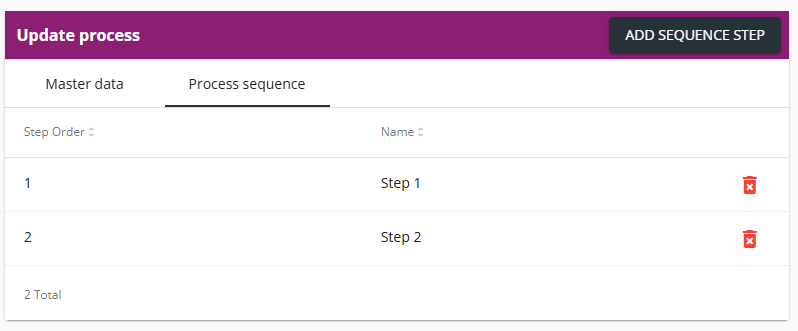
3. Select the Process sequence tab on the Update process panel. The application displays the sequence of process steps for the selected process.
Example:
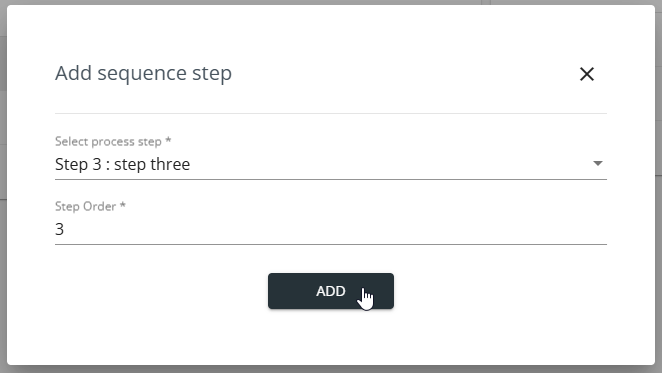
4. (Optional) Add a new process step to the sequence as follows:
- Click Add Sequence Step in the top-right corner of the Update process panel. The application displays the Add sequence step pop-up.
- Select the process step in the Select process step field.
- Enter the name or the description of the process step in the search field to find the process step.
- The application offers the process steps that are registered in the Genealogy application.
- Enter the step order in the sequence in the Step Order field.
- Click Add.
Example:

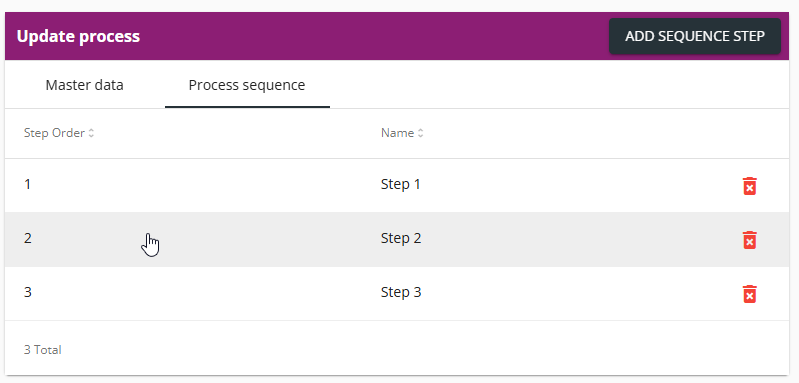
5. (Optional) Edit a process step as follows:
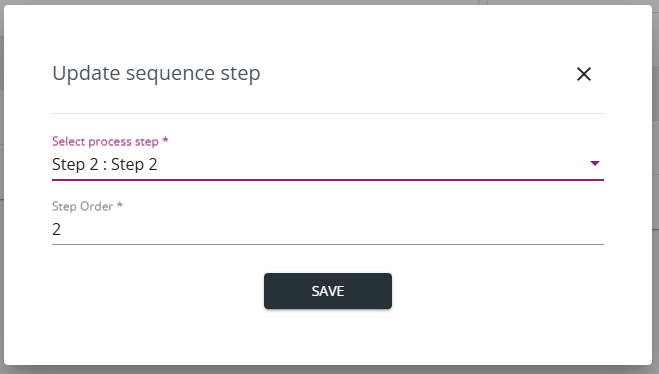
- Click on the applicable step in the row. The application displays the Update sequence step pop-up.
- (Optional) Select another process step in the Select process step field.
- (Optional) Select another step order in the sequence in the Step Order field.
- Click Save.
In the following example, we are selecting "Step 2" from the list to edit it:
6. (Optional) Delete a process step from the sequence by clicking the delete icon.
Example:
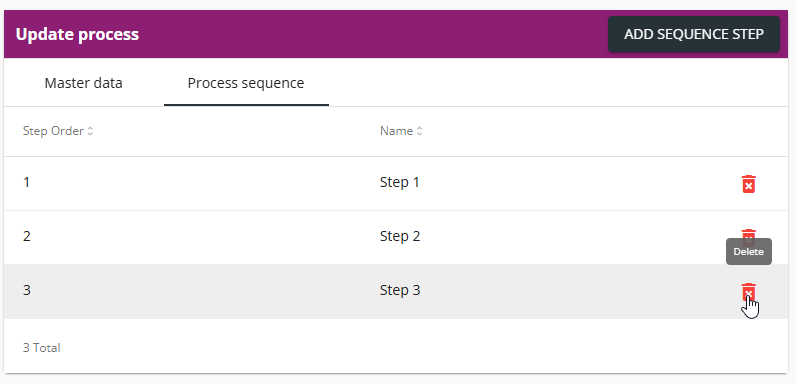
Confirm the deletion by clicking Yes in the pop-up.
Back to the list of procedures
Deleting a Process
Procedure
1. In the Genealogy application, select Site management --> Processes tab. The application displays the list of processes.
2. Find the process in the list you want to delete.
Example:
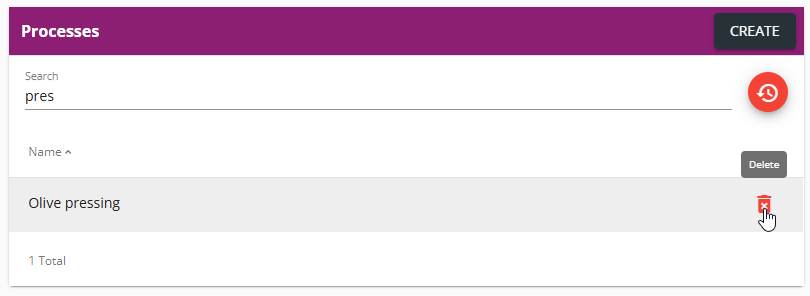
3. Click the delete icon and confirm the deletion by clicking Yes.
Back to the list of procedures
